How to Set Up a Plex Media Server on a NAS (Step-by-Step)
A NAS is already the box in your house that holds your movies, shows and music, so it makes sense to let it serve them to every TV, phone and tablet too. Setting up a Plex Media Server on a NAS turns a pile of files into a polished streaming library with posters, descriptions, watch history and remote access, all running on hardware you own.
The process is not hard, but a few early decisions make the difference between a library that just works and one that stutters, mislabels everything or eats the NAS’s CPU. This guide walks through the full setup: picking compatible hardware, organizing folders, installing the server, adding libraries, tuning playback and keeping the whole thing safe.
What You Need Before You Start
You don’t need a high-end machine to run a Plex Media Server, but you do need to match the hardware to how you’ll watch. The biggest factor is transcoding. When a TV or phone can’t play a file in its original format, the server converts it on the fly, and that conversion is the most demanding thing Plex does. Direct play, where the client plays the file as-is, barely touches the CPU. The Plex transcoding documentation explains when each mode kicks in.
Here’s a practical checklist:
- A NAS with an Intel or AMD x86 processor if you expect any transcoding. Many entry-level ARM-based units can serve files fine with direct play but struggle with conversions.
- At least 4 GB of RAM for a comfortable experience, more if the NAS also runs containers or virtual machines.
- Wired gigabit Ethernet from the NAS to your router or switch. Wi-Fi on the server side is a common cause of buffering.
- Enough drive space for your library plus room to grow. A 1080p movie is often 5 to 15 GB, and 4K remuxes can pass 50 GB.
- A Plex account, which is free. You’ll need it to claim the server and use remote access.
If you haven’t bought a NAS yet, our comparison of Synology versus QNAP covers the platform differences, and NAS versus a home server or mini PC is worth reading if heavy transcoding is your main goal.
Picking a NAS That Handles Plex Well
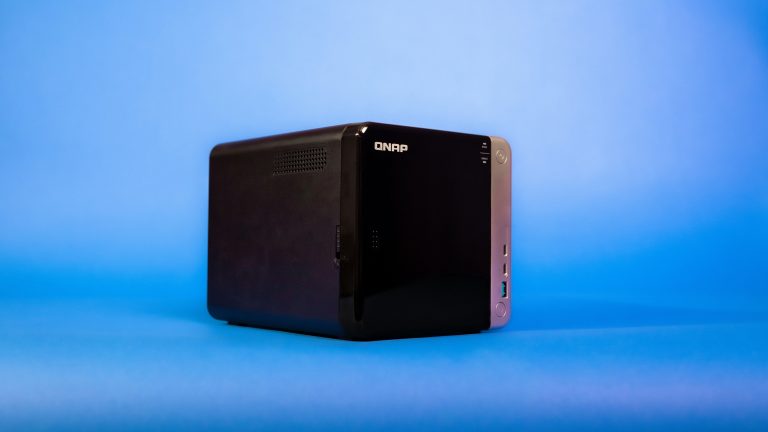
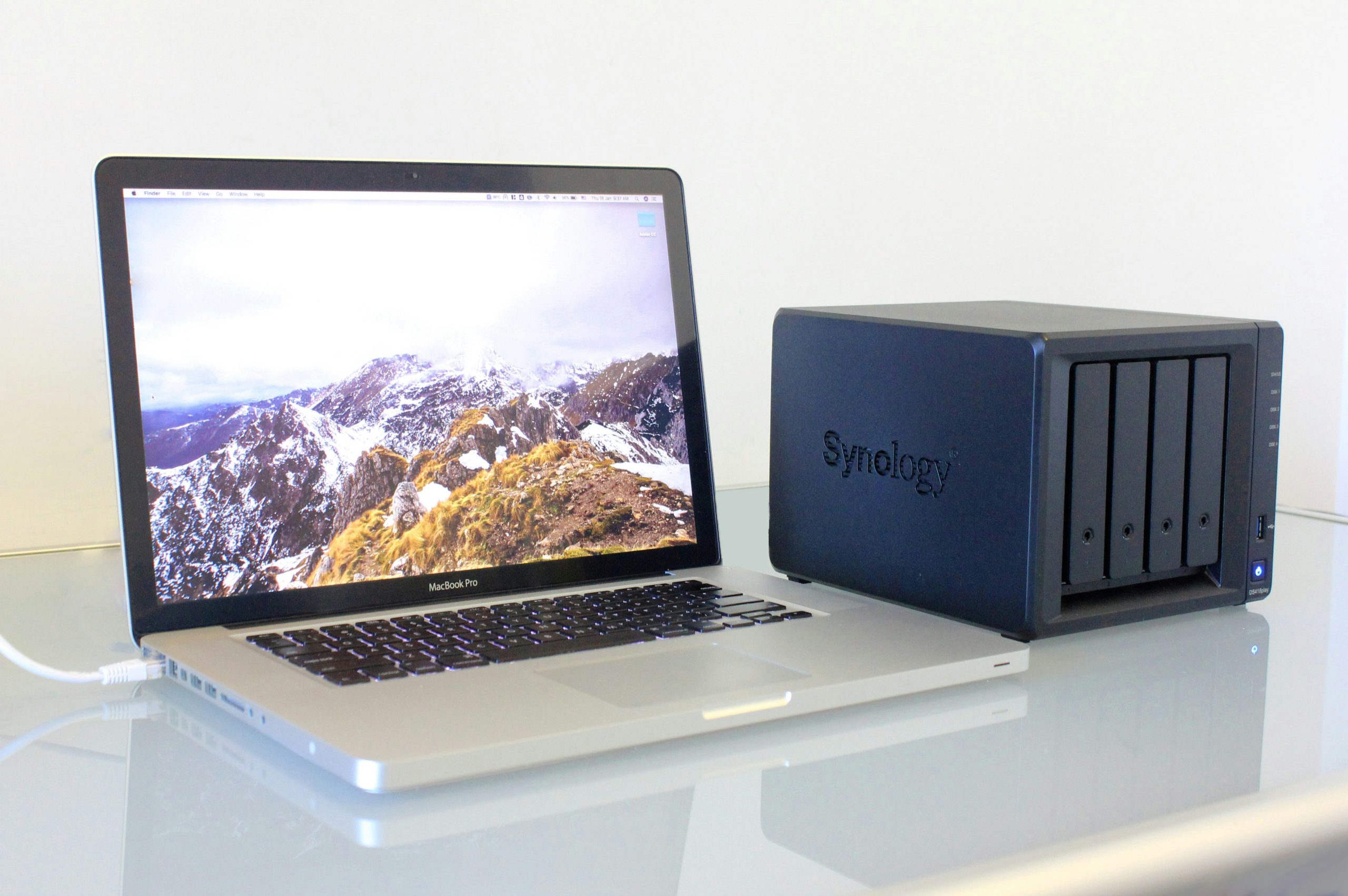
Two models in our database make good Plex hosts. The Synology DS423+ is a four-bay unit with an Intel processor that can handle a handful of simultaneous streams, and it runs the Plex package cleanly through Synology’s package system. The QNAP TS-464 is another four-bay option with an Intel CPU and extra expansion options if you want to add faster networking later.
Synology DS423+ 4-Bay NAS
A solid, quiet pick for a mixed household. It has enough CPU headroom for light transcoding and a reliable software environment for updates.
💰 Buy on Amazon → Synology DS423+ 4-Bay NAS
QNAP TS-464 4-Bay NAS
A flexible alternative with more hardware expansion. Choose it if you like tinkering with apps, containers and add-in cards.
💰 Buy on Amazon → QNAP TS-464 4-Bay NAS
Choose the Right Drives for a Media Server
Media libraries are mostly large files read in long sequences, which is easy work for a drive. What matters more is that the drives are designed to run in a NAS around the clock. NAS-rated models tolerate vibration from neighboring drives and are tuned for continuous operation. We cover specific models and capacities in our guide to the best NAS hard drives for Plex home servers.
WD Red Plus NAS Hard Drives
The WD Red Plus line is a common choice for media NAS builds, with CMR recording and a good balance of noise, capacity and price.
💰 Buy on Amazon → WD Red Plus NAS Hard Drives
Plan your redundancy at the same time. A media library is replaceable in theory, but re-ripping hundreds of discs is not something anyone enjoys. Our explainer on NAS RAID levels helps you pick between mirrored and parity layouts. Remember that RAID protects against a drive failure, not accidents or ransomware, so keep a backup of anything irreplaceable such as family videos.
Organize Your Media Folders First
The single most useful thing you can do before installing anything is to get your folders and filenames in order. Plex matches files to its online database by name, so tidy naming means correct posters, summaries and episode order with almost no manual fixing.
Create a shared folder on the NAS, then separate top-level folders for each content type:
- Movies — one folder per film, named with the title and year, for example
Movies/Blade Runner (1982)/Blade Runner (1982).mkv - TV Shows — one folder per series, then season folders, with files named like
Show Name - S01E01.mkv - Music — organized by artist, then album
- Photos — optional, but Plex can browse these too
- Home Videos — kept separate so personal clips don’t get mixed with matched titles
Keep each type in its own folder tree, because the Plex Media Server scans each library separately. Mixing movies and shows in one directory is the number one cause of wrong matches.
Set the Right Permissions
On most NAS platforms the Plex package runs as its own user. That user needs read access to your media shared folders, or the library will look empty even though the files are there. Grant read access, and write access only if you want Plex to manage things like deleting watched files. If a library scan finds nothing, permissions are the first thing to check.
Install Your Plex Media Server
There are two common ways to install it, and both work well.
Option 1: The NAS App Center
Synology, QNAP and several other platforms offer Plex as a package or app. Install it from the app store, open it and the setup wizard will guide you. This is the simplest route, and it handles startup, updates and permissions for you. Plex’s own installation guide lists supported platforms and package sources, and the official download page has builds for NAS devices if the app store version is out of date.
Option 2: Docker
If you’re comfortable with containers, running the server in Docker keeps it isolated, makes upgrades repeatable and lets you pin versions. If you’re new to the concept, the Docker getting started guide is a quick primer. A typical setup maps three things into the container: a configuration folder, a transcode folder and your media folders as read-only volumes. Host networking mode simplifies discovery on a local network.
Whichever method you pick, give the configuration folder a fast home. Plex stores its database, thumbnails and metadata there, and the library will feel snappier on SSD storage than on a spinning array. If your NAS has an SSD volume or cache option, use it for the application data.
Claim the Server and Add Your Libraries
Once it’s running, open the server’s web interface from a computer on your network, usually on port 32400. Sign in with your Plex account to claim the server. This links it to you and enables remote features later.
Then add libraries:
- Choose Add Library and pick the type, such as Movies or TV Shows.
- Select the matching folder on the NAS.
- Confirm the metadata agent, which controls how Plex looks up titles.
- Let the first scan finish. A large library can take a while, since Plex downloads artwork and descriptions for every item.
Check a few titles afterward. If something is mismatched, use the Fix Match option, or rename the file to follow the pattern above and rescan. A little cleanup now saves much more later.
Tune Playback for Smooth Streaming
Most Plex complaints come down to transcoding, and most can be fixed with a few settings rather than new hardware.
- Prefer direct play. In each client app, set the video quality to the original or maximum so the server doesn’t convert files unnecessarily.
- Use compatible formats. H.264 video with AAC or AC3 audio plays directly on almost every device. HEVC is efficient but not universally supported by older TVs.
- Set the transcoder temporary directory to a fast drive, not the same array holding your library.
- Limit remote streams if your upload bandwidth is modest, so one remote viewer doesn’t saturate your connection.
Hardware Transcoding
Some NAS processors include Intel Quick Sync, a dedicated video engine that can transcode with a fraction of the CPU load. Plex offers hardware-accelerated transcoding as a paid feature, and when it works it’s the best way to support several simultaneous remote streams on a modest box. Check your NAS processor’s specifications before counting on it, and test with a real file rather than assuming.
Set Up Remote Access Safely
Plex can be reached from outside the house, which is great for watching on a trip or sharing with family. It also means exposing a service to the internet, so do it deliberately.
Plex’s built-in remote access feature uses port 32400, and the firewall port guide lists which ports matter. If your router supports UPnP, Plex can open the port automatically, but many careful users prefer a manual port forward, or no forward at all.
A safer alternative is to skip public exposure entirely and reach the server over a private tunnel. We cover that approach in how to access your NAS remotely with a VPN, Tailscale or Cloudflare. If you do forward a port, keep the server updated, use a strong account password with two-factor authentication, and make sure your router is locked down by following router security best practices.
Keep the Server Healthy
A Plex Media Server is easy to forget until something breaks. A few habits prevent most problems:
- Enable automatic updates for the Plex package and the NAS operating system.
- Back up the Plex configuration folder. Your watch history, collections and custom settings live there, and rebuilding them by hand is tedious.
- Watch disk space. Libraries grow faster than expected, and a full volume causes odd failures.
- Use a UPS. A sudden power loss during a database write can corrupt the library. A small battery backup is cheap insurance, and our guide on choosing a UPS for your home network explains sizing.
- Schedule library scans for quiet hours, or use automatic change detection if your platform supports it.
If you want to understand what Plex actually is under the hood, the Plex software overview gives a neutral history of the product and its features.
Frequently Asked Questions
Do I need a powerful NAS to run a Plex Media Server?
Not for direct play. A modest NAS can serve many files to several devices when no conversion is needed. You need more CPU, ideally an Intel chip with hardware transcoding, only when clients can’t play your files natively or when you stream remotely at reduced quality.
Can I run Plex on an ARM-based NAS?
Yes, many ARM units run Plex, and they handle direct play well. They tend to struggle with transcoding, especially high-bitrate 4K, so check your devices’ format support before buying.
Is a Plex Pass required?
No. The server software and basic streaming are free. A Plex Pass unlocks extras such as hardware-accelerated transcoding and some mobile features. Whether it’s worth it depends on how many remote or transcoded streams you need.
Why does Plex show the wrong poster or title for my movie?
Almost always because of naming. Rename the folder and file to the “Title (Year)” pattern, remove the item, empty the trash and rescan, or use the Fix Match option to pick the right entry manually.
Should I use Docker or the NAS app for Plex?
Use the NAS app if you want the quickest, lowest-maintenance setup. Choose Docker if you already run other containers, want to pin versions or like keeping configuration in a single compose file.
Is it safe to open Plex to the internet?
It can be, with care. Keep the server updated, use two-factor authentication and a strong password, and consider a VPN or private tunnel instead of a public port forward. The fewer services you expose, the smaller your risk.
How many drives should I put in a Plex NAS?
Two bays is enough to start with mirroring, but four bays give you room to grow and more flexible redundancy. Pick the size based on your library today and how fast it’s growing.