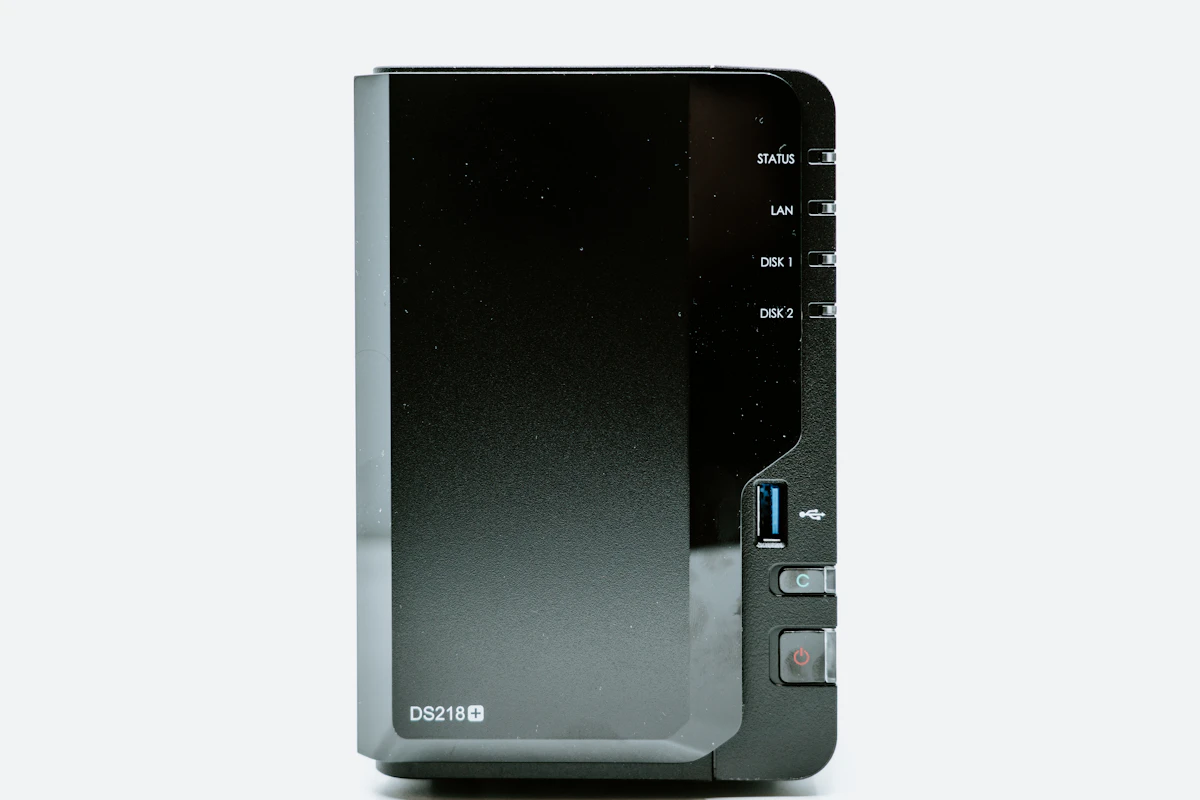
NAS RAID Explained: Which Level Should You Use?
NAS RAID is the single most important storage decision you will make when configuring a NAS device. The NAS RAID level you choose determines your data protection, available capacity, read and write speeds, and what happens when a drive inevitably fails. This guide explains every common RAID level, when to use each one, and which configurations make the most sense for home and small business deployments in 2026.
What Is NAS RAID and Why Does It Matter?
RAID stands for Redundant Array of Independent Disks. It is a storage technology that spreads data across multiple drives to provide redundancy, performance improvements, or both. In a NAS, RAID is managed either by the operating system (software RAID) or by a dedicated controller (hardware RAID). Most consumer NAS devices use Linux mdadm software RAID under the hood, which is reliable and well-tested across millions of deployments.
According to Tom’s Hardware, software RAID on modern NAS devices performs nearly identically to hardware RAID for typical home workloads. The days of needing a dedicated RAID controller card for acceptable performance are long past.
Choosing the right NAS RAID configuration protects your data from drive failures — the most common hardware failure in any storage system. For broader NAS buying guidance, see our best NAS for home use guide. For drive recommendations, check our best NAS hard drives list.
RAID 0: Striping (No Redundancy)
RAID 0 splits data evenly across two or more drives. Every drive stores part of every file, which means read and write speeds increase proportionally with the number of drives in the array.
Capacity: 100% of total drive capacity (two 4 TB drives = 8 TB usable)
Redundancy: None whatsoever. If any single drive fails, all data on the entire array is lost.
Read/Write speed: Fastest of any RAID level for sequential operations.
Recommendation: Do not use RAID 0 on a NAS. You lose the primary benefit of having multiple drives — data protection. RAID 0 is appropriate for scratch disks and temporary data, not for stored files on a network-attached storage device.
RAID 1: Mirroring
RAID 1 duplicates every file identically across two drives. Both drives contain complete copies of all your data at all times.
Capacity: 50% of total drive capacity (two 4 TB drives = 4 TB usable)
Redundancy: Survives 1 drive failure with zero data loss and no downtime.
Read speed: Slightly improved — the controller can read from both drives simultaneously for different requests.
Write speed: No improvement — every write operation must go to both drives.
RAID 1 is the default recommendation for 2-bay NAS devices like the Synology DS224j or QNAP TS-133. It is simple, reliable, and provides exact duplication. When a drive fails, replace it and the NAS rebuilds the mirror automatically while remaining fully operational. For choosing between platforms, see our Synology vs QNAP comparison.
RAID 5: Striping with Parity
RAID 5 requires a minimum of 3 drives. Data is striped across all drives with parity information distributed among them. If one drive fails, the missing data reconstructs from the parity stored on the remaining drives.
Capacity: (N-1) drives usable (three 4 TB drives = 8 TB usable, four 4 TB drives = 12 TB usable)
Redundancy: Survives exactly 1 drive failure. The array runs in degraded mode until the failed drive is replaced and rebuilt.
Performance: Good read speeds comparable to RAID 0 for multiple simultaneous reads. Moderate write speeds due to the parity calculation overhead on every write operation.
RAID 5 has been the go-to choice for 3-bay and 4-bay home NAS for years. The critical trade-off is rebuild time. With modern large drives (8 TB+), rebuilding a RAID 5 array after a drive failure can take 12–48 hours, during which the array runs in a degraded state with no additional redundancy. If a second drive fails during rebuild, all data is lost. Use reliable drives to minimize this risk.
RAID 6: Double Parity
RAID 6 requires a minimum of 4 drives. It works like RAID 5 but stores two independent sets of parity data, allowing the array to survive two simultaneous drive failures without data loss.
Capacity: (N-2) drives usable (four 4 TB drives = 8 TB usable, six 4 TB drives = 16 TB usable)
Redundancy: Survives 2 drive failures simultaneously. This is significantly safer than RAID 5 for large arrays.
Performance: Good read speeds. Slower writes than RAID 5 due to the computational overhead of calculating double parity on every write operation.
RAID 6 is the safest traditional NAS RAID level for multi-bay configurations with 4 or more drives. The double parity means you can lose two drives at once — which is more likely than you might think during the long rebuild window of large arrays. The capacity cost is one additional drive compared to RAID 5, but the safety improvement is substantial.
RAID 10: Mirrored Stripes
RAID 10 (also called RAID 1+0) combines mirroring and striping. Drives are paired into mirrors, then those mirrors are striped together. It requires a minimum of 4 drives and always an even number total.
Capacity: 50% of total drive capacity (four 4 TB drives = 8 TB usable)
Redundancy: Survives up to 2 drive failures, provided the failed drives are in different mirror pairs. If both drives in the same mirror pair fail, data in that stripe is lost.
Performance: Excellent for both reads and writes — fastest option among common RAID levels.
RAID 10 delivers the best performance of any common RAID level, but at 50% capacity overhead. For most home users this is overkill. It makes sense if you run VMs, databases, or other I/O-intensive applications where both redundancy and speed are critical. For a different approach to performance workloads, see our NAS vs home server vs mini PC comparison.
NAS RAID Comparison Table
| RAID Level | Min Drives | Usable Capacity | Drive Failures Tolerated | Write Performance |
|---|---|---|---|---|
| RAID 0 | 2 | 100% | 0 | Fastest |
| RAID 1 | 2 | 50% | 1 | Normal |
| RAID 5 | 3 | (N-1) | 1 | Moderate |
| RAID 6 | 4 | (N-2) | 2 | Slowest |
| RAID 10 | 4 | 50% | 1–2 | Fast |
Synology SHR vs Traditional RAID
Synology Hybrid RAID (SHR) is Synology’s proprietary RAID management system. It automatically selects the optimal RAID level for your drive configuration and allows mixed drive sizes. SHR-1 (1-drive redundancy) functions like RAID 5 with flexibility for mixed sizes. SHR-2 (2-drive redundancy) functions like RAID 6 with the same flexibility.
SHR makes sense if you plan to upgrade drives incrementally over time — start with two mismatched drives and SHR handles the optimization automatically. If all your drives are the same size and model, SHR performs identically to the equivalent traditional your RAID setup level. For most Synology NAS owners, SHR is the recommended default choice because of its flexibility.
Understanding Rebuild Times and Risks
One of the most overlooked aspects of choosing a RAID level is rebuild time. When a drive fails and you replace it, the array must rebuild the missing data from parity. With a RAID 5 array of 8 TB drives, this process can take 24–48 hours. During that entire window, your array is running without redundancy — a second drive failure means total data loss.
RAID 6 mitigates this risk with double parity, but rebuild times are even longer (36–72 hours for large drives). RAID 1 arrays rebuild quickly since they simply mirror the remaining drive, making them the safest option for 2-bay NAS devices regardless of drive size. According to ZDNet, even the best RAID configuration does not replace proper off-site backups.
NAS RAID Performance in Practice
Real-world NAS RAID performance depends on several factors beyond the RAID level itself. Drive speed matters — 5400 RPM NAS drives are slower than 7200 RPM models in both reads and writes. Network bandwidth is often the actual bottleneck: a 1GbE connection maxes out at roughly 115 MB/s regardless of how fast your array can theoretically perform. Upgrading to 2.5GbE or 10GbE networking enables higher transfer speeds, but only if your RAID level and drives can deliver data fast enough to saturate the link.
QNAP NAS Recommendations
💰 Buy on Amazon → QNAP
For sequential file transfers like large video files and disk images, RAID 0 and RAID 10 deliver the highest throughput. For random I/O patterns like many small files or database queries, the difference between RAID levels is less pronounced because disk seek times dominate. If your primary workload involves accessing many small files — such as photo libraries or document archives — focus on total drive count and SSD caching rather than RAID striping performance. Most NAS devices from Synology and QNAP support NVMe SSD caching which dramatically improves random read performance regardless of your RAID level.
Another practical consideration is the impact of a degraded array on performance. When a drive fails in RAID 5 or RAID 6, the array must reconstruct missing data on every read, which significantly slows performance during the rebuild window. RAID 1 arrays do not suffer this degradation because the remaining drive contains a complete copy. RAID 10 arrays also maintain good degraded performance because only the affected mirror pair sees a slowdown. According to ServeTheHome’s RAID calculator, degraded performance can drop by 30–50% depending on the RAID level and workload type.
Frequently Asked Questions
Which RAID level is best for a home NAS?
For most 2-bay home NAS users, RAID 1 (mirroring) is the right pick — simple to understand, simple to recover, and fully tolerant of any single drive failure. For 4-bay setups where capacity matters, RAID 5 or Synology Hybrid RAID (SHR) gives a better balance of capacity and redundancy.
Is RAID a backup strategy?
No. RAID protects against drive failure but not against ransomware, accidental deletion, fire, theft, or controller failure. You still need a separate backup — cloud (Backblaze B2, Synology C2), an external drive rotation, or a second NAS at another location.
How long does a RAID rebuild take?
For a 4 TB drive, 6–12 hours on a typical home NAS. For an 8 TB drive, 12–24 hours. During rebuild the NAS is operational but slower, and a second drive failure during rebuild causes total data loss in single-parity setups (RAID 5 and RAID 1).
Can I expand a RAID array later?
Synology Hybrid RAID (SHR) and most RAID 5/6 implementations support online capacity expansion — you replace drives one at a time with larger ones, the array rebuilds after each, and the new capacity is available once all drives are upgraded. RAID 0 and RAID 1 typically require a full rebuild to expand.
Do I need NAS RAID 6 for a home NAS?
Only if you have 6+ bays or use very large drives (10 TB+). NAS RAID 6 adds protection against a second drive failure during rebuild — important when rebuild time stretches into days. For most home 2-bay or 4-bay setups with smaller drives, RAID 1 or RAID 5 is sufficient.
If you’re into networking gear jokes and geeky merch, check out Witty Design Finds on Etsy — some fun stuff for the home lab crowd.

2 Comments
Comments are closed.