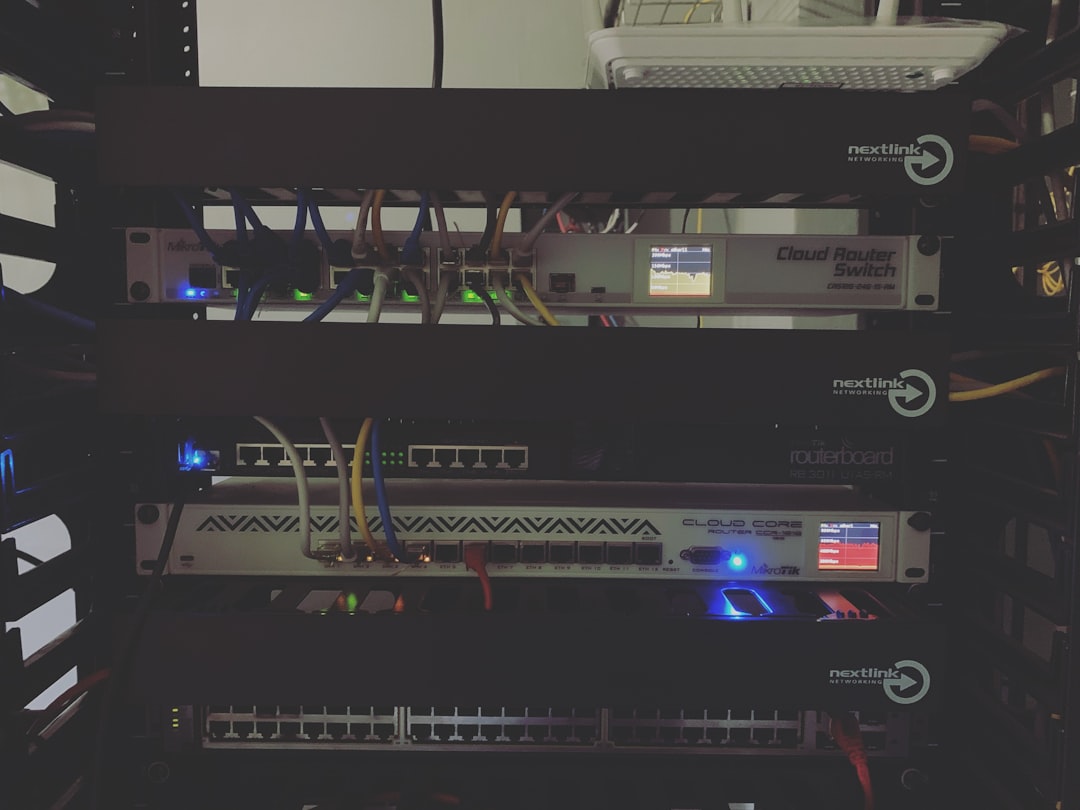
NAS vs Home Server vs Mini PC
You want network-attached storage for Plex, backups, and maybe some Docker containers. So you start researching and immediately hit the wall: in the NAS vs home server debate, should you buy a dedicated NAS, build a home server, or just get a mini PC and slap some drives on it?
The NAS vs home server question is one of the most common in r/homelab and r/synology, and the answer depends entirely on what you actually plan to do with the box. This guide walks through both — plus the increasingly attractive mini PC option — so you can pick the right hardware on the first try.
Reddit’s r/homelab and r/HomeServer will give you fifty different answers, most of them involving salvaged enterprise gear from eBay. That’s fine if you want a hobby project. But if you just want something that works, this comparison will save you time and money.
The NAS Option: Purpose-Built but Limited
Top NAS Picks
💰 Buy on Amazon → QNAP TS-464
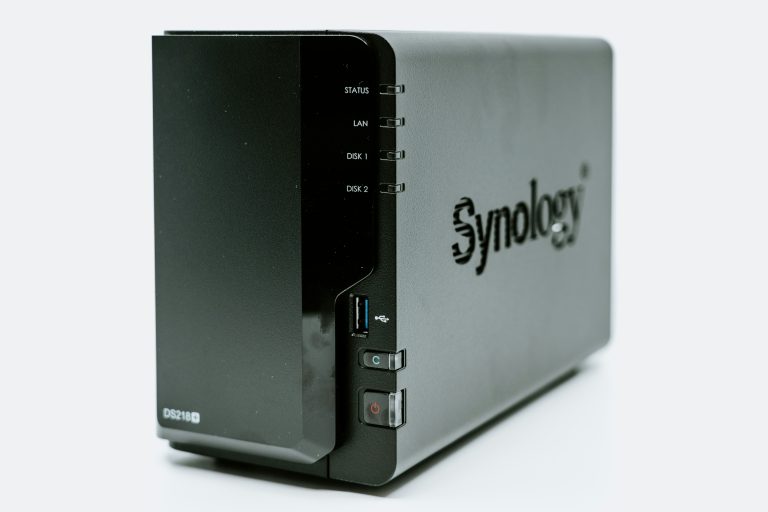
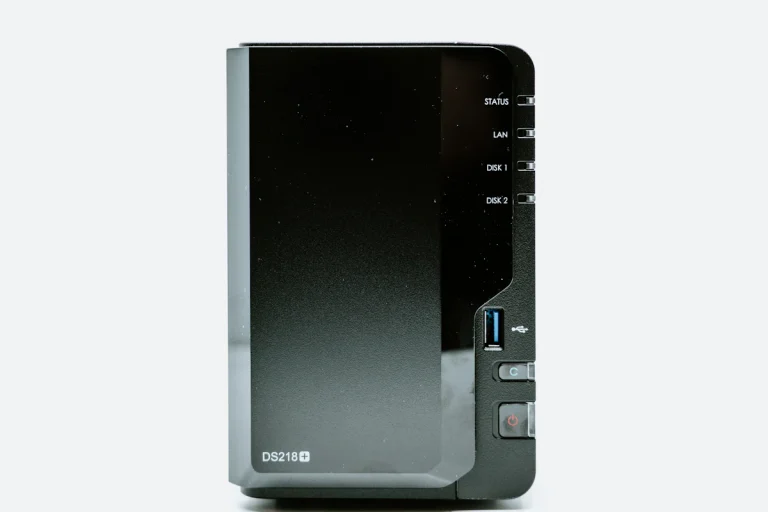
A dedicated NAS like a Synology DS923+ or QNAP TS-464 is designed to do exactly one thing: store and serve files reliably. The operating system (DSM or QTS) is optimized for this, and everything from drive management to snapshot scheduling to user permissions is polished. Lifewire’s NAS overview provides a good primer on how NAS devices differ from general-purpose computers.
We covered the brand differences in our Synology vs QNAP 2026 comparison, but here’s the elevator pitch on NAS pros and cons.
NAS Pros
- Set-and-forget reliability. Synology’s DSM handles drive health monitoring, RAID scrubbing, email alerts, and automatic updates. You configure it once and it runs for years.
- Low power consumption. A 4-bay Synology draws 25-40W under load. That’s $3-5/month in electricity. Home servers and mini PCs often draw more.
- Polished software. DSM’s Photo Station, Drive (Dropbox alternative), Surveillance Station, and Audio Station are genuinely useful apps that don’t require technical knowledge.
- Easy expansion. Most NAS units support external expansion units when you run out of bays.
NAS Cons
- Weak CPU for the price. A $600 Synology might ship with a Ryzen R1600 or Celeron J4125 — processors that were mid-range five years ago. You’re paying for the software ecosystem, not compute power.
- Limited RAM. Most consumer NAS units cap at 8-32GB. Fine for file serving, but Docker-heavy setups can feel constrained. Tom’s Guide’s NAS reviews regularly highlight this as the main limitation for power users.
- Vendor lock-in. Your data is stored in Btrfs or ext4 with proprietary metadata. Moving from Synology to QNAP or TrueNAS isn’t simple.
For hard drive recommendations, see our best NAS hard drives guide — the drives you choose matter more than the NAS brand for long-term reliability.
The Home Server Option: Maximum Flexibility, Maximum Headache
A home server is typically a custom-built PC or repurposed enterprise gear running TrueNAS, Unraid, Proxmox, or plain Linux. This is the r/homelab specialty. ServeTheHome covers the spectrum of home server builds and hardware, from mini PCs to full rackmount setups.
Home Server Pros
- Maximum flexibility. You can run TrueNAS for storage, Proxmox for VMs, Docker containers, Home Assistant, Plex with hardware transcoding, Pi-hole, and Frigate NVR — all on one box.
- Better performance per dollar. A $400 used Dell OptiPlex or HP ProDesk with a Core i5 and 16GB RAM stomps most consumer NAS units in compute power.
- No vendor lock-in. Standard Linux filesystems (ZFS on TrueNAS, XFS/Btrfs on Unraid) mean your data is portable.
- Unlimited expandability. Add NICs, 10GbE cards, GPU for transcoding, more drives — whatever you need.
Home Server Cons
- Higher power draw. An OptiPlex mini tower pulls 30-60W at idle, and full tower builds can hit 100W+. Adds up over time.
- Requires Linux knowledge. TrueNAS and Unraid have web UIs, but when something breaks, you’re in a terminal. Proxmox is even more technical.
- Noise. Enterprise gear is loud. The 40mm fans in 1U servers scream. Even desktop builds need careful fan selection for a quiet living space.
- Maintenance overhead. You’re the sysadmin. Updates, monitoring, backups of your backup server — it’s a hobby that demands attention.
The Mini PC Option: The Best Compromise Nobody Talks About
Top Mini PC Picks
💰 Buy on Amazon → Minisforum
A mini PC from Intel NUC, Beelink, or Minisforum paired with external drives or a DAS (direct-attached storage) enclosure is increasingly popular. According to ServeTheHome, the mini PC + DAS approach has become one of the fastest-growing segments in home lab setups.
The formula: buy a mini PC with enough CPU/RAM for your compute needs (Plex transcoding, Docker, Home Assistant), then attach a USB 3.2 or Thunderbolt DAS enclosure with your NAS drives. Run Ubuntu Server, Proxmox, or TrueNAS Scale.
Mini PC + DAS Pros
- Modern hardware. Mini PCs ship with current-gen Intel Core or AMD Ryzen processors — massively more powerful than NAS CPUs at the same price point.
- Compact and silent. Fits on a shelf. Most mini PCs are nearly silent at idle. No rackmount noise.
- Cheap entry point. A Beelink SER5 with Ryzen 5 5600H and 16GB RAM costs around $350-400. Pair it with a $100 2-bay USB enclosure and two 4TB drives for a complete setup under $600.
- Full OS flexibility. Run whatever you want — Ubuntu, Proxmox, Unraid, TrueNAS Scale, or even Windows if that’s your thing.
Mini PC + DAS Cons
- No native RAID protection for USB-attached drives. USB drive disconnects can cause array issues. Software RAID on USB-attached drives is riskier than on internal SATA.
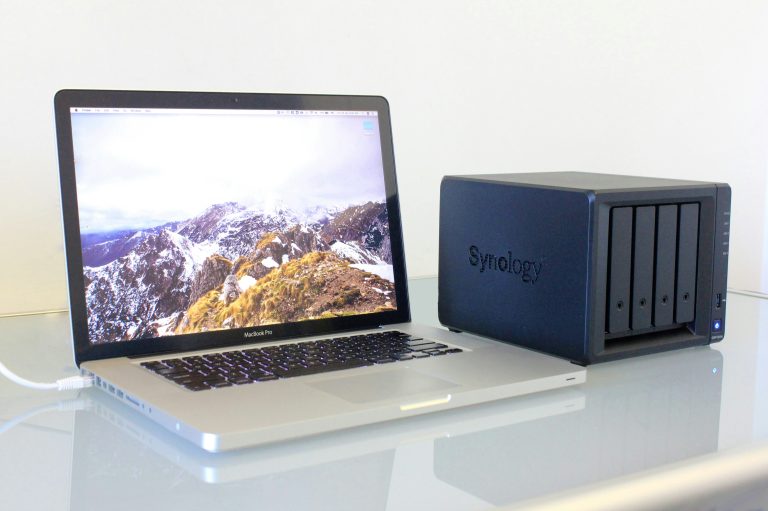
- Limited drive count. Most DAS enclosures hold 2-4 drives. A 4-bay Synology holds 4 internally with hot-swap bays and better cable management.
- USB reliability. USB connections can drop under heavy I/O or after system sleep/wake cycles. Not ideal for always-on storage.
- No hardware redundancy. If the mini PC fails, your DAS drives are just drives — you need another machine to access them. A NAS failing doesn’t brick your drive access.
NAS vs Home Server: Cost Comparison Across All Three Options
- Synology DS923+ (4-bay, diskless): $500-550 + 4x drives ($80-200 each) = $820-1,350 total
- Custom home server (used OptiPlex + 4 drives): $250-400 (PC) + $320-800 (drives) = $570-1,200 total
- Mini PC + 2-bay DAS + 2 drives: $350-450 (mini PC) + $100 (DAS) + $160-400 (drives) = $610-950 total
The home server wins on raw value. The NAS wins on polish and simplicity. The mini PC sits in the middle — powerful hardware in a small package, but with some storage reliability tradeoffs.
Which Should You Actually Buy?
Buy a NAS if:
- You want reliable file storage with minimal maintenance
- Photo management, cloud sync, and backup are your primary needs
- You don’t want to learn Linux or manage a server
- Power consumption and noise matter (small apartment, always-on device)
Buy a home server if:
- You’re running 5+ Docker containers, VMs, or services alongside storage
- You want hardware transcoding for Plex/Jellyfin with a dedicated GPU
- You enjoy tinkering and have the technical skills to maintain Linux
- You need 10GbE or other advanced networking — see our 10GbE home network guide
Buy a mini PC if:
- You need compute power (Plex transcoding, Home Assistant, Docker) more than massive storage
- Space is limited and noise must be minimal
- You’re comfortable with Linux but don’t want a full rackmount server
- Your storage needs are modest (2-4 drives) and you can tolerate USB DAS limitations
NAS vs Home Server: The Bottom Line
There’s no universal winner in the NAS vs home server vs mini PC debate — there’s only the right answer for your situation. Most people who just want reliable backup and Plex should get a Synology. Power users who want to run everything should build a home server. And the growing mini PC + DAS crowd has found a sweet spot that deserves more attention than it gets.
The worst choice is spending $1,000 on a NAS, realizing its CPU is too weak for transcoding, and then building a home server anyway. Figure out what you actually need to run, then pick the platform that matches.
Real-World Performance Expectations
Marketing specifications can be misleading. A MoCA 2.5 adapter rated for 2.5 Gbps will never actually deliver that in a home environment — 400-900 Mbps is realistic depending on your coax quality and splitter configuration. Similarly, powerline adapters claiming 2,000 Mbps typically deliver 50-200 Mbps. Ethernet is the only technology that reliably delivers its rated speed because it uses a dedicated, shielded copper path with no interference from household wiring.
For context: 400 Mbps is sufficient for 4K streaming on multiple devices, video calls, and most online gaming. 900 Mbps handles everything a typical household throws at it. The gap between MoCA and gigabit Ethernet matters for NAS transfers and local server hosting, but for most internet-facing use cases, MoCA’s real-world performance is adequate.
## Power Consumption and Long-Term Cost
The often-ignored factor when comparing a NAS, home server, and mini PC is power consumption — and over years of always-on operation, the cost difference adds up. A typical 2-bay Synology NAS idles at 15–25 W. A 4-bay model lands at 25–40 W. A custom-built home server with a tower case, dedicated GPU, and consumer power supply can pull 60–120 W at idle. A modern mini PC like the Beelink S12 or Minisforum UM560 idles between 8 and 15 W.
At $0.15/kWh (a typical US average), 24 W of continuous draw costs about $32 per year. 80 W costs about $105 per year. Over five years, the difference between a power-efficient NAS and an inefficient home server is roughly $400 in electricity alone. This is not a reason to avoid a home server entirely — but it is a reason to think carefully about idle power when you build one. Spec a low-TDP CPU, skip the dedicated GPU unless you need it, and use an 80 Plus Gold or Platinum power supply.
Mini PCs are the runaway power-efficiency winners. A modern Intel N100 mini PC at idle uses roughly the same power as a single LED lightbulb. For workloads that fit on a small SSD or two — Plex with hardware transcoding, Home Assistant, light Docker workloads — they deliver capable performance for under 15 W average draw.
## Frequently Asked Questions about Home Server Hardware
### Is a NAS still worth it in 2026?
Yes — for households with multiple users, large media libraries, or who want local backups for Macs and PCs. The convenience of a turnkey appliance still beats DIY for most people. Cloud storage works for documents but quickly gets expensive once you store family photos and video at scale.
### Can a Mac mini replace a NAS at home?
Partially. A Mac mini with external storage handles Time Machine, Plex, and small Docker workloads, but it is not designed for 24/7 storage redundancy. You cannot run RAID without third-party software, and macOS does not have first-class SMB share management for multi-user setups. A NAS still wins for shared storage.
### What is the cheapest way to get reliable home storage?
A 2-bay NAS with two NAS-rated hard drives in RAID 1, totaling around $400 with drives. This gives you drive redundancy, automated backup, and a simple management interface — without the complexity of a DIY home server build.
### Does a mini PC make a good NAS substitute?
A mini PC with an external drive enclosure can work as a NAS substitute, but you will be running TrueNAS, OpenMediaVault, or Unraid yourself. Power efficiency and noise are usually better than a tower, but you will lose hot-swap bays and simple recovery. For most home users, a turnkey NAS is the better trade.
### What about running a home server in a VM on my NAS?
QNAP and Synology both support VMs through Virtualization Station and Virtual Machine Manager. This works for light workloads (Pi-hole, a small Linux dev box) but performance is constrained by the NAS CPU. If you need real VM horsepower, a dedicated home server or mini PC is the better choice.
—
*If you’re into networking gear jokes and geeky merch, check out [Witty Design Finds](https://wittydesignfinds.etsy.com) on Etsy — some fun stuff for the home lab crowd.*
## More from Wiredhaus
– [NAS Integration: Dropbox and Google Drive](https://wiredhaus.com/nas-cloud-integration-dropbox-google-drive-2026-2/)
– [7 Best NAS Hard Drives in 2026 (Tested for 24/7 Reliability)](https://wiredhaus.com/best-nas-hard-drives-2026/)
– [Synology vs QNAP 2026: Which NAS Brand Should You Buy?](https://wiredhaus.com/synology-vs-qnap-2026/)
– [How to Set Up Plex on a NAS: The Complete Guide 2026](https://wiredhaus.com/plex-on-nas-setup-guide-2026/)
– [Synology DS423+ Review 2026: The Best Home NAS You Can Buy?](https://wiredhaus.com/synology-ds423-plus-review-2026/)


One Comment
Comments are closed.