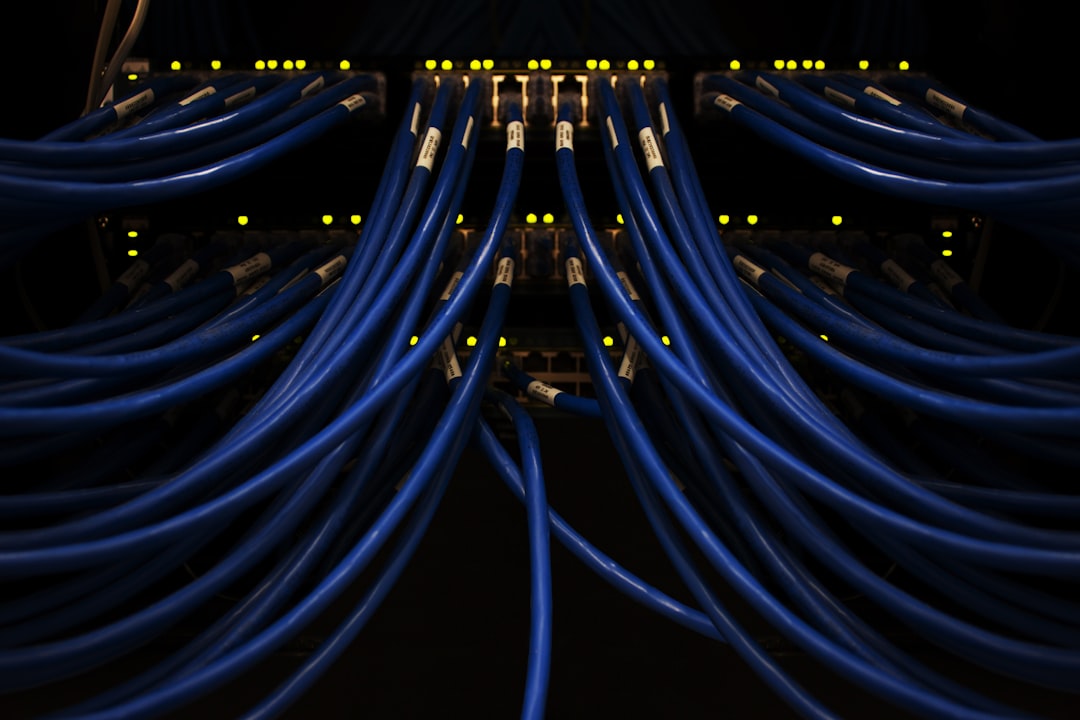
Best NAS Enclosures (Diskless): Build Your Own
A diskless NAS enclosure lets you choose your own drives, avoid manufacturer markups on bundled storage, and build exactly the capacity your setup requires. In 2026, the best diskless NAS enclosures come from Synology, QNAP, Terramaster, and UGREEN — each offering 2-bay to 8-bay bare models at competitive prices. This guide covers the best diskless NAS enclosures in 2026 so you can build your own NAS with the exact drives and configuration you want. For deeper comparisons, [NASCompares](https://www.nascompares.com) maintains extensive benchmarks across all major brands.
Why Buy Diskless Instead of Populated Bundles
Most NAS devices ship in two configurations: populated (with drives included) and diskless (bare enclosure only). Buying from the diskless category has several clear advantages:
- Drive selection control — choose NAS-specific drives from our best NAS hard drives guide rather than accepting whatever the manufacturer bundles
- Cost savings — NAS vendors charge a premium on included drives. Buying bare and sourcing drives separately is typically $40–$80 cheaper for the same capacity
- Exact capacity matching — install the precise capacity you need, from 2 TB to 20+ TB per bay, without paying for unused space
- Drive matching for RAID — use identical drive models and batches for optimal RAID performance and reliability
For a complete NAS buying overview, see our best NAS for home use in 2026 guide. For understanding which RAID levels work with these enclosures, read our NAS RAID explained article.
Best 2-Bay Diskless NAS Enclosures
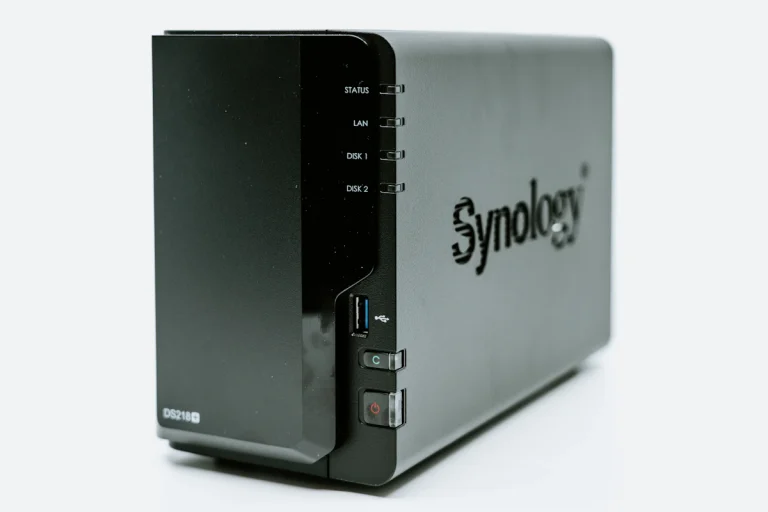
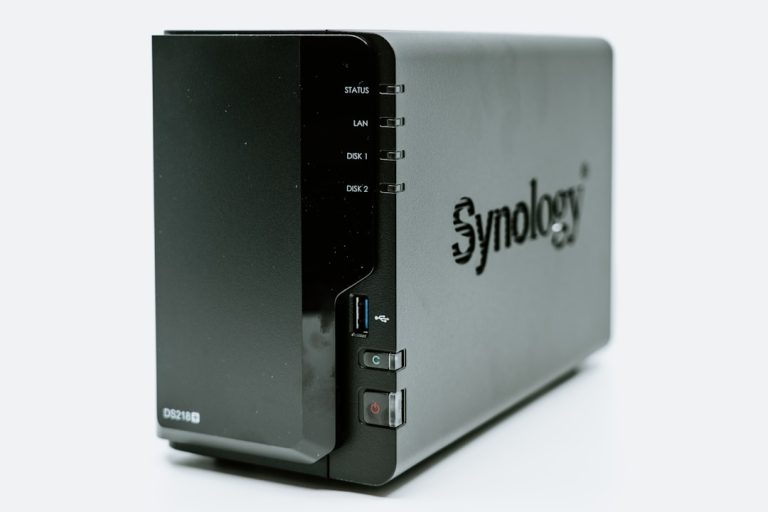
Synology DS224j (Diskless)
💰 Buy on Amazon → Synology DS224j
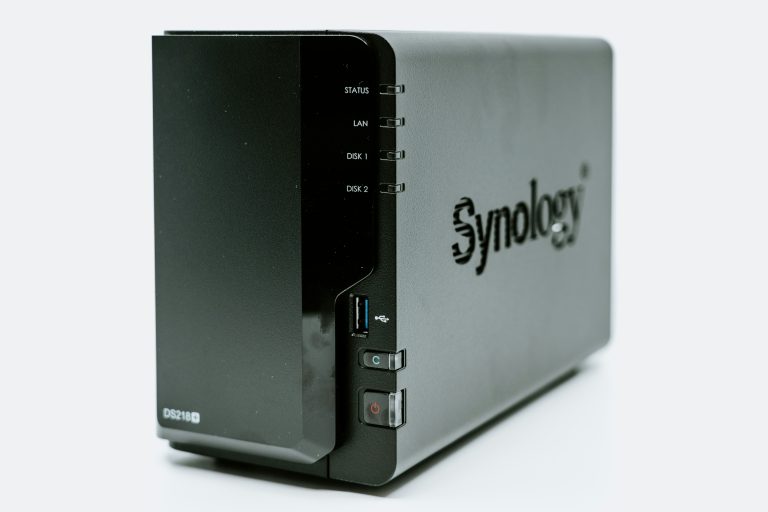
The Synology DS224j is the entry point into the Synology ecosystem. At around $170–$190 for the diskless enclosure, it delivers DSM 7.2 — the same polished operating system that runs on Synology’s premium models costing $500+.
Key specs:
- Realtek RTD1619B quad-core 1.7 GHz ARM
- 1 GB DDR4 RAM
- 1× Gigabit LAN
- 2× 3.5″ SATA bays
Pros: Full DSM software, extremely low power draw, excellent documentation and community support
Cons: 1 GB RAM limits container usage, only 1GbE networking
Best for users who want the best software experience and plan to use the NAS primarily for file sharing, backups, and basic media serving.
UGREEN NASync DXP2800 (Diskless)
💰 Buy on Amazon → UGREEN NASync DXP2800
UGREEN’s NASync DXP2800 ships as a diskless NAS enclosure at roughly $220–$250 and delivers an Intel N100 processor with 8 GB of RAM and dual 2.5GbE ports. It is the most capable 2-bay option among bare enclosures available at this price point in 2026.
Key specs:
- Intel N100 quad-core x86 (up to 3.4 GHz)
- 8 GB DDR5 RAM
- 2× 2.5GbE LAN ports
- 2× 3.5″ SATA bays + 1× M.2 NVMe cache slot
Pros: x86 chip for Docker/VMs, 2.5GbE networking, NVMe cache, 8 GB RAM standard
Cons: UGREEN OS software is less mature than Synology DSM or QNAP QTS
If you want to run Docker containers, Plex with software transcoding, or Home Assistant alongside storage, the DXP2800 provides the hardware capability that ARM-based bare enclosures cannot match. See our NAS vs home server vs mini PC guide for how this compares to a barebones PC build.
Best 4-Bay Diskless NAS Enclosures
Synology DS423+ (Diskless)
The Synology DS423+ is Synology’s mainstream 4-bay model. The diskless enclosure retails around $380–$420 and includes an Intel Celeron J4125 dual-core processor with 2 GB of upgradeable RAM.
Key specs:
- Intel Celeron J4125 dual-core 2.0 GHz
- 2 GB DDR4 RAM (upgradeable to 8 GB)
- 2× Gigabit LAN (supports link aggregation)
- 4× 3.5″ SATA bays
Pros: DSM software, x86 CPU, dual LAN for link aggregation, hardware transcoding for Plex
Cons: 1GbE ports, 2 GB base RAM is tight for Docker workloads
Our full Synology DS423+ review covers real-world performance, noise levels, and long-term ownership impressions for this popular 4-bay option.
QNAP TS-464 (Diskless)
💰 Buy on Amazon → QNAP TS-464
The QNAP TS-464 is QNAP’s most popular 4-bay model, retailing around $370–$400 for the diskless enclosure. It features an Intel N5095 quad-core, 8 GB RAM, dual 2.5GbE, and two M.2 NVMe slots — outspecifying the DS423+ on nearly every metric.
Key specs:
- Intel N5095 quad-core 2.0 GHz
- 8 GB DDR4 RAM (upgradeable to 32 GB)
- 2× 2.5GbE LAN
- 4× 3.5″ SATA bays + 2× M.2 NVMe slots
Pros: Best specs per dollar in the 4-bay class, 2.5GbE, NVMe caching, HDMI output
Cons: QTS interface has a steeper learning curve than Synology DSM
The TS-464 represents the best value among 4-bay diskless NAS units for users comfortable with QNAP’s software. For a software-level comparison, check our Synology vs QNAP breakdown.
Best 6-Bay and 8-Bay bare enclosures
Terramaster F6-424 and F8-424 (Diskless)
💰 Buy on Amazon → Terramaster F6-424
Terramaster’s F6-424 (6-bay) and F8-424 (8-bay) are among the most affordable high-bay-count options. The F6-424 retails around $400 bare and the F8-424 around $550.
Key specs (both models):
- Intel Celeron N95 quad-core 3.4 GHz
- 4 GB DDR5 RAM (upgradeable)
- 2× 2.5GbE LAN
- 6 or 8 × 3.5″ SATA bays
Pros: Lowest price per bay for high-capacity builds, modern Intel chips, 2.5GbE standard
Cons: TOS software needs polish, smaller community and fewer packages than Synology or QNAP
These are ideal diskless options when you need lots of bays on a budget and are comfortable with a less polished software experience. With 6–8 bays, you can run RAID 6 for double redundancy and still get substantial usable capacity. See our RAID guide for configuration recommendations.
Synology DS1823xs+ (Diskless)
The Synology DS1823xs+ is Synology’s premium 8-bay enclosure at around $900–$1,000 diskless. It features an AMD Ryzen R1600 processor and includes 10GbE networking for multi-gigabit throughput.
Key specs:
- AMD Ryzen R1600 dual-core 3.2 GHz
- 8 GB DDR4 ECC RAM (upgradeable to 32 GB)
- 2× 10GbE + 1× 1GbE LAN
- 8× 3.5″ SATA bays
Pros: 10GbE built-in, ECC RAM support, enterprise-grade DSM features, expandable via DX517 units
Cons: Expensive, significant overkill for most home users
According to ServeTheHome, the DS1823xs+ is one of the best value propositions in the 10GbE NAS market. It is the premium pick for users who need serious throughput and maximum software quality. Pair it with 10GbE networking for full-speed file transfers across large media libraries.
How to Choose NAS enclosures
Choose the Right Number of Bays
- 2 bays: File sharing, Time Machine backups, light media serving — use RAID 1
- 4 bays: Media libraries, multiple users, Docker containers — use RAID 5 or RAID 6
- 6+ bays: Large media collections, VMs, multi-user environments — use RAID 6 or RAID 10
Pick NAS-Rated Drives
Consumer desktop drives are not designed for 24/7 operation in a multi-bay NAS enclosure. Use drives specifically manufactured for NAS workloads — they handle vibration, sustained heat, and continuous read/write cycles better than desktop equivalents. Our NAS hard drive guide covers the top options by capacity and price tier.
Match Your Drives for Optimal RAID Performance
For RAID arrays, use identical drives (same model, same capacity, ideally same manufacturing batch). Mismatched drives limit your RAID options and can cause performance inconsistencies. With Synology SHR, you have flexibility for mixed sizes, but matching drives remains the best practice for any RAID level.
Factor in Total Cost
A diskless NAS enclosure is only half the equation. Add the cost of drives to get your true total investment:
- 2-bay with 4 TB drives: enclosure ($180) + 2 drives ($180) = ~$360 total
- 4-bay with 8 TB drives: enclosure ($380) + 4 drives ($600) = ~$980 total
- 8-bay with 16 TB drives: enclosure ($550) + 8 drives ($1,600) = ~$2,150 total
Diskless NAS Comparison Table
| Enclosure | Bays | Diskless Price | CPU | Network | Best For |
|---|---|---|---|---|---|
| Synology DS224j | 2 | ~$180 | ARM RTD1619B | 1GbE | DSM users on a budget |
| UGREEN DXP2800 | 2 | ~$230 | Intel N100 | 2× 2.5GbE | Docker and media users |
| Synology DS423+ | 4 | ~$400 | Intel J4125 | 2× 1GbE | Reliable 4-bay with DSM |
| QNAP TS-464 | 4 | ~$380 | Intel N5095 | 2× 2.5GbE | Best 4-bay value |
| Terramaster F6-424 | 6 | ~$400 | Intel N95 | 2× 2.5GbE | Budget high-bay build |
| Terramaster F8-424 | 8 | ~$550 | Intel N95 | 2× 2.5GbE | Capacity on a budget |
| Synology DS1823xs+ | 8 | ~$950 | AMD R1600 | 2× 10GbE | Enterprise home use |
Understanding NVMe Caching in Bare Enclosures
Several modern bare NAS options include M.2 NVMe slots for read caching. NVMe caching dramatically improves performance for random read workloads — photo thumbnail generation, database queries, and VM boot times benefit the most. The UGREEN DXP2800 includes one NVMe slot, the QNAP TS-464 includes two, and the Synology DS1823xs+ includes two. When using NVMe caching, your most frequently accessed data gets served from the SSD instead of spinning disks, resulting in noticeably snappier response times for everyday operations.
NVMe caching does not improve sequential write speeds for large file transfers — those are still limited by your HDD array’s write performance and your network connection speed. If your primary workload is storing and streaming large video files, NVMe caching provides minimal benefit. The cache works best when your workload involves many small file operations spread across a large storage pool. Factor in the cost of NVMe SSDs (typically $30–$80 for 250–500 GB cache drives) when calculating the total investment for your diskless NAS enclosure build.
Networking Considerations for diskless units
The fastest storage array in the world is useless if your network cannot keep up. Most budget NAS enclosures include 1GbE networking, which caps real-world transfers at roughly 115 MB/s. Mid-range options like the QNAP TS-464 and Terramaster F-series include dual 2.5GbE ports, doubling your potential throughput to about 280 MB/s with link aggregation. The Synology DS1823xs+ includes 10GbE for speeds up to 1.1 GB/s.
When choosing bare NAS devices, match the networking to your actual needs. If you primarily back up laptops and stream media, 1GbE is sufficient. If you frequently transfer large files between your NAS and workstations, 2.5GbE provides a noticeable improvement at modest cost. For professional workflows involving 4K video editing or large datasets, 10GbE justifies the higher hardware cost. According to SmallNetBuilder’s network calculator, 2.5GbE provides the best price-to-performance ratio for home NAS upgrades in 2026.
Software Ecosystem: A Critical Factor in Bare NAS Enclosures
Hardware specifications matter, but the software running on your diskless NAS enclosure determines your day-to-day experience. Synology’s DSM is widely regarded as the most polished NAS operating system for home users. Its interface is clean, its documentation is extensive, and its third-party package ecosystem includes hundreds of community and official applications. Synology also maintains the longest support lifecycle — typically 5–7 years of security updates and new features for each NAS model.
QNAP’s QTS offers more advanced features out of the box, including native virtualization, container management, and multimedia applications. However, the interface has more of an enterprise feel and the learning curve is steeper for beginners. QNAP’s package store is well-stocked but less curated than Synology’s.
UGREEN’s NAS OS is the newest entrant and still maturing. It supports Docker and basic media server functionality but lacks the depth of Synology’s or QNAP’s ecosystems. Terramaster’s TOS 6 has improved significantly in recent versions but still trails the competition in polish and third-party support. For users who prioritize software quality and long-term support, Synology enclosures remain the safest choice despite sometimes offering less hardware per dollar.
Setting Up Your Diskless NAS Enclosure: What to Expect
The physical setup process for any diskless NAS enclosure follows the same basic steps. First, insert your drives into the bays and secure them with the provided screws or toolless sleds. Connect the NAS to your router via Ethernet and power it on. Open a browser and navigate to the NAS IP address shown in your router’s DHCP client list. The initial setup wizard guides you through creating an admin account, installing the operating system, and configuring your first storage pool. From unboxing to a fully operational NAS, the entire process typically takes 30–60 minutes for first-time users.
Frequently Asked Questions about Diskless NAS Enclosures
What does a diskless NAS enclosure actually mean?
Diskless NAS enclosures are sold without hard drives. You buy the enclosure, then add the drives separately. This lets you choose drive brands, capacities, and warranties yourself instead of accepting whatever the manufacturer pre-installs.
Why buy diskless NAS enclosures instead of pre-populated bundles?
Three reasons: drive choice (NAS-rated models from your preferred brand), better warranty terms (each drive has its own manufacturer warranty), and often lower total cost when you buy drives during sales. Pre-populated NAS units are convenient but rarely the best value.
How many bays do I need?
For most home users, 2 bays (RAID 1) cover backup and basic media. Step up to 4 bays once you want serious media storage, mixed workloads (Plex + backups + Docker), or RAID 5/SHR capacity. 6+ bays only make sense for large media libraries or NAS as primary storage for multiple users.
Are diskless NAS enclosures hard to set up?
No. Modern diskless NAS enclosures from Synology, QNAP, and UGREEN walk you through drive installation, RAID setup, and initial configuration with a guided wizard. Adding drives is tool-free or requires a single screwdriver, and the initial setup typically takes 15–30 minutes.
Can I mix drive sizes in diskless NAS enclosures?
You can, but RAID arrays will only use the smallest drive’s capacity per drive. Synology Hybrid RAID (SHR) is the exception — it intelligently uses extra capacity on larger drives. Use matched drive sizes for predictable behavior, or stick to SHR if you want flexibility.
If you’re into networking gear jokes and geeky merch, check out Witty Design Finds on Etsy — some fun stuff for the home lab crowd.
One Comment
Comments are closed.