NAS Cloud Sync: Dropbox & Google Drive
How to Integrate Your NAS with Dropbox, Google Drive, and Other Cloud Services
Your NAS holds terabytes of files, photos, and backups — but what happens when you need access to those files from your phone at a coffee shop, or you want to share a folder with a colleague who doesn’t have access to your local network? Proper NAS cloud integration Dropbox Google Drive setup bridges your local storage with cloud services, giving you the best of both worlds without paying for redundant cloud storage tiers.
Proper NAS cloud integration Dropbox Google Drive setup means your files sync bidirectionally and you never have to think about manual transfers again.
Whether you’re running a Synology or QNAP NAS, both platforms have mature cloud sync tools that handle this. Here’s how to set it up correctly without creating sync conflicts, duplicate files, or unexpected bandwidth consumption.
Why Integrate NAS with Cloud Services?
The obvious question: if you have a NAS, why bother with cloud storage at all? The answer is access and redundancy. Your NAS is fast, cheap per terabyte, and completely under your control. But it’s only accessible from your local network (unless you set up remote access, which has its own security considerations). Cloud services are accessible from anywhere, shareable with anyone, and provide off-site backup — critical if your home suffers a fire, flood, or theft.
The ideal setup uses your NAS as the primary storage and cloud services as the selective sync and sharing layer. Not everything needs to be in the cloud — your movie rips and system backups stay local — but documents, photos, and work files benefit from cloud accessibility and the off-site backup it provides.
Both Synology Cloud Sync and QNAP Hybrid Backup Sync are well-documented, regularly updated, and support dozens of cloud providers. The setup process differs slightly between platforms, but the concepts are identical.
Synology Cloud Sync: The Standard for DSM Users
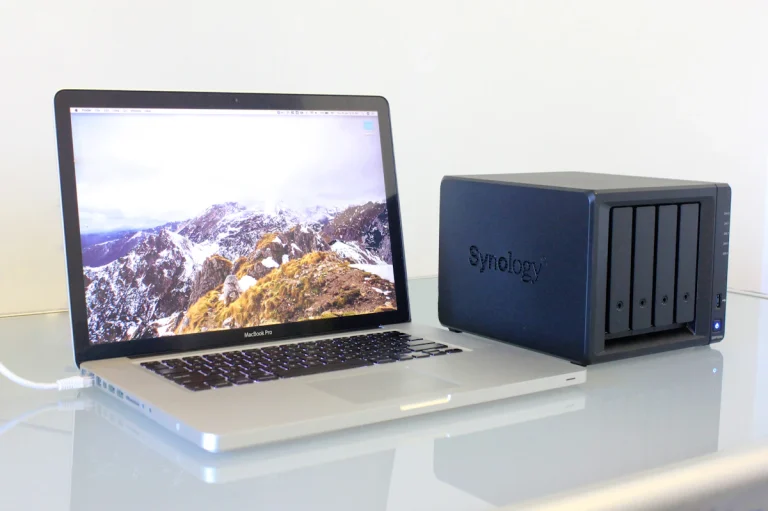
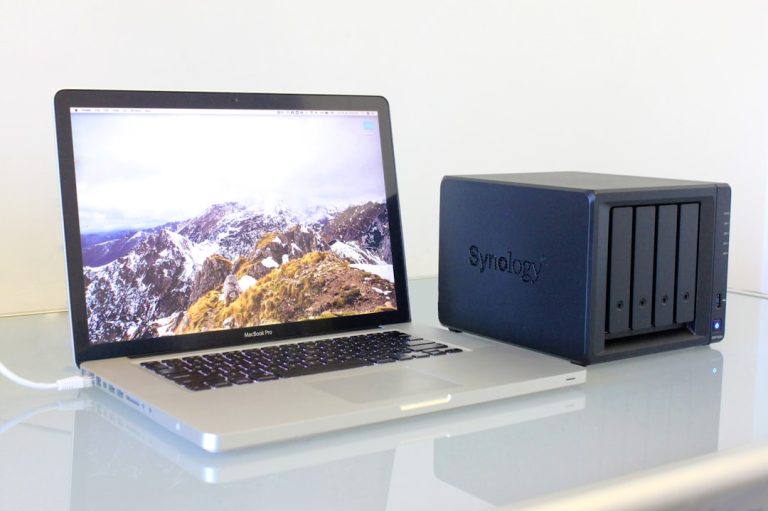
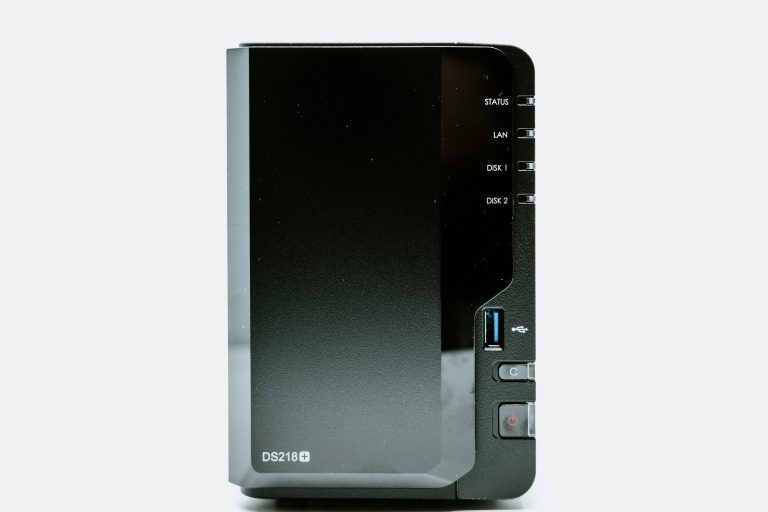
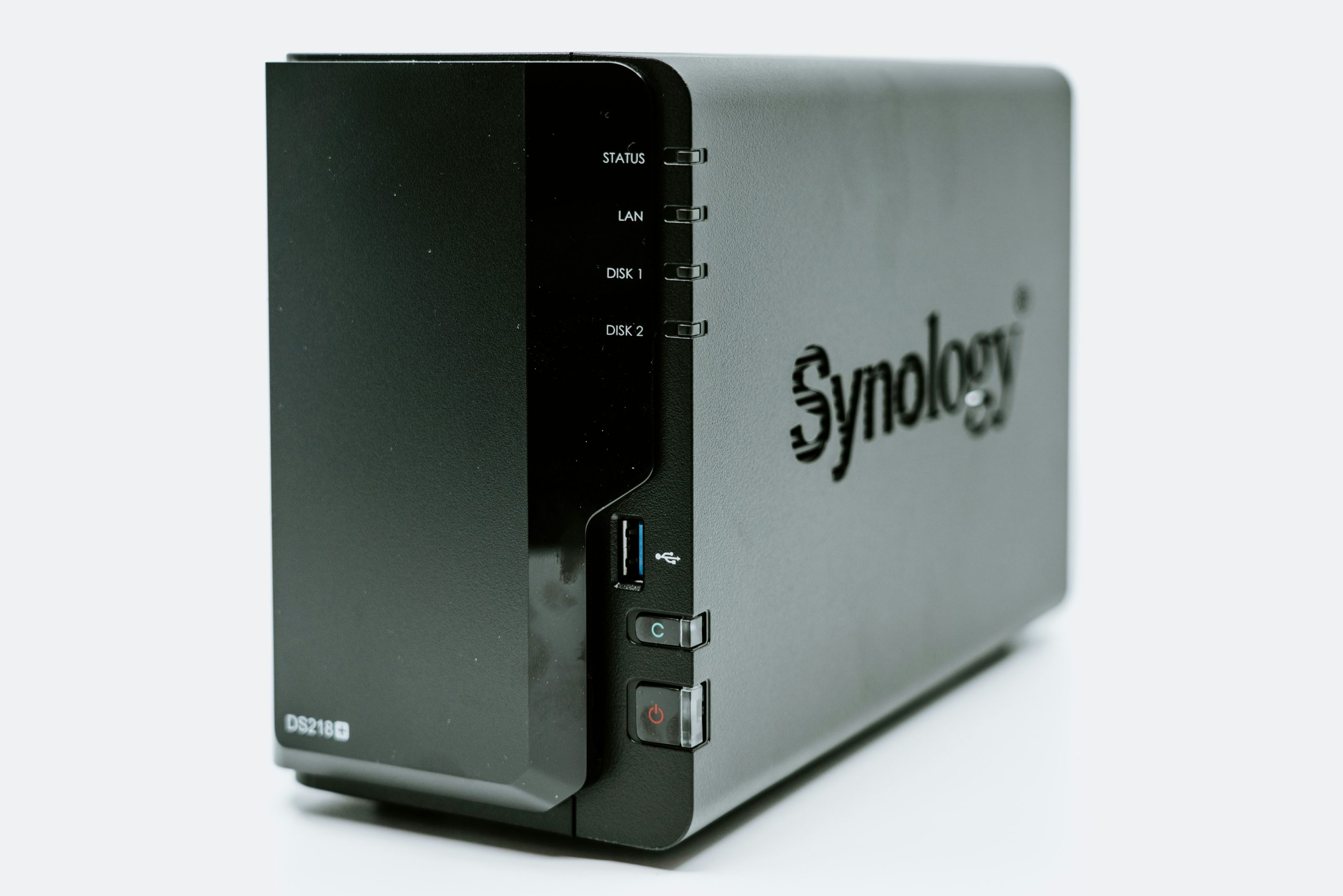
If you own a Synology NAS like the DS224+, Cloud Sync is already available as a package in the Package Center. It supports two-way sync with Dropbox, Google Drive, OneDrive, Box, Amazon Drive, and about 20 other services. Here’s the correct way to configure it:
Two-Way Sync (Proceed with Caution)
Two-way sync keeps your NAS folder and cloud folder identical — changes on either side propagate to the other. This sounds ideal but is dangerous if you’re not careful. If you delete a file on one side, it deletes on both. If you edit a file simultaneously from two locations, you get sync conflicts with duplicate copies.
For two-way sync to work safely, only edit files from one location at a time. If your spouse edits a document on their laptop via Google Drive while you edit the same file on the NAS via SMB, one of you will lose changes. For shared folders where multiple people might work simultaneously, consider one-way sync instead.
One-Way Sync (Upload or Download Only)
One-way sync is safer and more predictable. You configure it to either upload from NAS to cloud (backup) or download from cloud to NAS (aggregation). This eliminates conflict issues entirely.
The most common one-way setup: configure scheduled uploads from your NAS photo folder to Google Drive or Dropbox. Your photos live on the NAS, you access them locally on your home network for fast browsing and editing, and they automatically sync to the cloud for off-site backup and remote access from your phone.
For scheduled sync, set it to run daily at a specific time (like 2am) to avoid impacting your daytime network usage. You can also configure bandwidth limits in Cloud Sync settings to prevent sync jobs from saturating your upload during peak hours.
Selective Folder Sync
Don’t sync your entire NAS to the cloud — that defeats the purpose of having local storage. Instead, create a specific shared folder (call it “CloudSync” or “Sync”) and only sync that folder to your cloud services. Keep your media library, system backups, and other large local-only data in separate folders that are excluded from cloud sync.
QNAP Hybrid Backup Sync: More Features, Steeper Learning Curve
💰 Buy on Amazon → QNAP TS-264
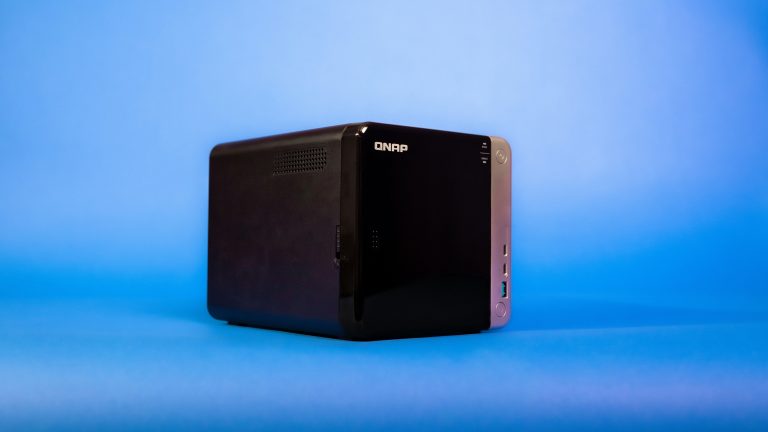
The QNAP TS-264 and other QNAP NAS models use Hybrid Backup Sync (HBS) for cloud integration. HBS is more feature-rich than Synology Cloud Sync but also more complex. It supports cloud sync, cloud backup, cloud storage gateway, and hybrid backup (local + cloud combined).
Cloud sync in HBS works similarly to Synology’s offering: one-way or two-way, scheduled, with selective folder support. Cloud backup mode creates versioned snapshots on the cloud, so if you accidentally delete or overwrite a file, you can restore a previous version — something that regular sync doesn’t preserve.
HBS also supports encryption for cloud-stored data, which is important if you’re syncing sensitive documents. Files are encrypted on the NAS before upload, so even if your cloud account is compromised, the data is unreadable without your encryption key.
Dropbox Integration: Specific Considerations
Dropbox has unique characteristics that affect how you integrate it with a NAS:
- Bandwidth limits — Dropbox throttles free accounts to roughly 200GB/day upload and 20GB/day download. Even paid accounts have practical limits based on your connection speed and their servers. Syncing terabytes of data to Dropbox isn’t practical.
- Selective sync — Use Dropbox’s selective sync feature on your computers to avoid downloading the entire NAS-synced folder to every device. Only sync the folders you actually need on each device.
- File size limits — Dropbox has a 2GB per-file limit on uploads through the web interface and 50GB through their desktop client. Keep individual file sizes reasonable.
- API rate limits — Cloud Sync uses the Dropbox API, which has rate limits. If you’re syncing thousands of files for the first time, the initial sync may take a while as it processes files in batches.
For best results, sync a focused “work documents” or “shared photos” folder rather than your entire NAS contents. Dropbox integration shines for files you need to access remotely and share with others, not as a complete NAS backup solution.
Google Drive Integration: Best for Photos and Documents
Google Drive integration works particularly well for photo workflows. If you store your photo library on your NAS (as you should — local storage is far cheaper than cloud photo subscriptions), you can sync selected photo folders to Google Drive for remote access and sharing.
Google’s 15GB free tier is limiting but workable for document sync. Google One (100GB for $2/month, 200GB for $3/month) provides enough space for most people’s document and photo needs when combined with their NAS as the primary storage.
One advantage of Google Drive over Dropbox: Google Drive integrates directly with Google Docs, Sheets, and Slides. If you collaborate on documents using Google’s productivity suite, having your NAS synced to Google Drive means your local copies stay current automatically.
Alternative Cloud Services Worth Considering
- Microsoft OneDrive — Included with Microsoft 365 subscriptions. If you’re already paying for Office, you have 1TB of OneDrive storage. Synology Cloud Sync and QNAP HBS both support it.
- Backblaze B2 — Object storage at $6/TB/month. Designed for backup, not sync. Better suited for automated NAS backup than real-time file access. Supports S3-compatible API.
- Amazon S3 / Glacier — Enterprise-grade cloud storage with granular pricing. Overkill for most home users but useful if you want fine-grained control over storage classes and lifecycle policies.
- pCloud — Swiss-based cloud storage with strong privacy features. Supports client-side encryption. Good alternative if you’re uncomfortable with US-based cloud providers.
Bandwidth Management and Scheduling
Cloud sync consumes bandwidth — potentially a lot of it during initial uploads. Both Synology and QNAP let you configure bandwidth limits and sync schedules. Set your sync jobs to run during off-peak hours (overnight) and cap upload bandwidth to 50-70% of your available upload speed. This keeps your daytime internet usable while still completing syncs in a reasonable timeframe.
If you have data caps on your internet plan, calculate how much data your sync jobs will transfer monthly. Syncing 50GB bi-directionally daily adds up to 3TB per month of bandwidth usage. Plan accordingly.
For network capacity planning, our network speed improvement guide covers optimizing your connection for both local and cloud-bound traffic.
NAS Cloud Integration — Setup Recommendations
Start with one-way sync from your NAS to your preferred cloud service. Pick a specific folder to sync (not your entire NAS). Set the sync schedule for overnight and configure bandwidth limits. Test thoroughly before trusting it with important files. Once you’re confident the sync works correctly, add additional cloud services or folders incrementally.
The combination of local NAS storage plus selective cloud sync gives you speed, accessibility, and redundancy. You’re not choosing between local and cloud — you’re using both for what they’re best at.
Rclone: The Universal Cloud Sync Tool
If your NAS platform doesn’t support a specific cloud service natively, rclone is the answer. It’s a command-line tool that supports over 70 cloud storage providers and runs on virtually any platform. For NAS users, rclone can be installed via Docker (available on Synology, QNAP, and TrueNAS), package managers, or direct binary download.
Rclone handles two-way sync, incremental backups, encryption, bandwidth throttling, and scheduled operations. The learning curve is steeper than GUI-based solutions, but the flexibility is unmatched. How-To Geek’s rclone guide provides a solid introduction to setting up rclone for automated cloud backups.
Cost Comparison: Cloud Tiers vs NAS Integration
One of the strongest arguments for NAS cloud integration Dropbox Google Drive is cost savings. Here’s what major cloud providers charge per terabyte per year:
- Google One: $100/year (2TB tier)
- Dropbox Plus: $120/year (2TB)
- Microsoft 365: $100/year (1TB with Office)
- iCloud+: $120/year (2TB)
- AWS Backblaze B2: $60/year (1TB, pay-per-use)
If you’re paying for multiple cloud tiers across services, consolidating to a NAS with selective cloud sync can save $200-400/year while giving you faster local access to all your files. The NAS handles primary storage, and cloud sync provides offsite backup and mobile access.
Security Considerations
The Electronic Frontier Foundation’s guide to cloud privacy highlights that files stored in major cloud services are accessible to the provider and subject to government warrants. With NAS cloud integration, you control the encryption — tools like rclone’s crypt remote encrypt files before they leave your NAS, meaning the cloud provider stores only encrypted data they can’t read.
Setting up proper NAS cloud integration Dropbox Google Drive connections eliminates the need to manually sync files between local storage and cloud platforms.
The NAS cloud integration Dropbox Google Drive workflow gives you local speed for active files with cloud backup and sharing for everything else.
Frequently Asked Questions
Does cloud sync work when I’m away from home?
Yes. The sync runs on your NAS itself, not on your computer. As long as your NAS has internet access (through your modem and router), it will sync on schedule regardless of whether you’re home or not.
Can I sync to multiple cloud services simultaneously?
Yes. Both Synology Cloud Sync and QNAP Hybrid Backup Sync support multiple cloud connections. You can sync folder A to Dropbox, folder B to Google Drive, and folder C to OneDrive — each with its own schedule and settings.
What happens if I delete a file on the cloud side during two-way sync?
In two-way sync, deletions propagate. If you delete a file in Dropbox, it will be deleted from your NAS folder on the next sync. To prevent accidental deletions, use one-way sync or configure versioning/snapshot retention on your NAS.
How much bandwidth does cloud sync typically use?
It depends entirely on how much data you’re syncing and how often. An initial sync of 100GB takes roughly 2-4 hours on a typical 100Mbps upload connection. Ongoing daily syncs of changed files are usually small (megabytes to a few gigabytes).
Is my data encrypted when syncing to cloud services?
Both Synology and QNAP support encrypted connections to cloud providers (HTTPS/TLS). Additionally, QNAP’s HBS supports client-side encryption, which encrypts files on the NAS before uploading. For Dropbox and Google Drive, the data is encrypted in transit and at rest on their servers, but the providers hold the encryption keys.
If you’re into networking gear jokes and geeky merch, check out Witty Design Finds on Etsy — some fun stuff for the home lab crowd.