NAS vs Cloud Storage: Which Backup Solution is Best for You?
When planning your data backup strategy, the debate between nas vs cloud storage is one of the most critical decisions you will make. With our personal and professional lives increasingly digitized, the way we store, protect, and access our documents, photos, and media collections has direct implications for our privacy, budget, and daily workflow. Each approach has passionate advocates, but neither solution is a one-size-fits-all answer.
A local Network Attached Storage (NAS) enclosure puts you in complete control of your hardware and data, offering blazing-fast transfer speeds and massive expansion potential. On the other hand, commercial cloud storage services offer effortless, hands-free backups that are physically located off-site, protecting your data from local disasters like fires or floods. In this head-to-head comparison, we will examine the physical, financial, and operational trade-offs of both systems to help you determine which architecture fits your needs.
Understanding NAS vs Cloud Storage Basics
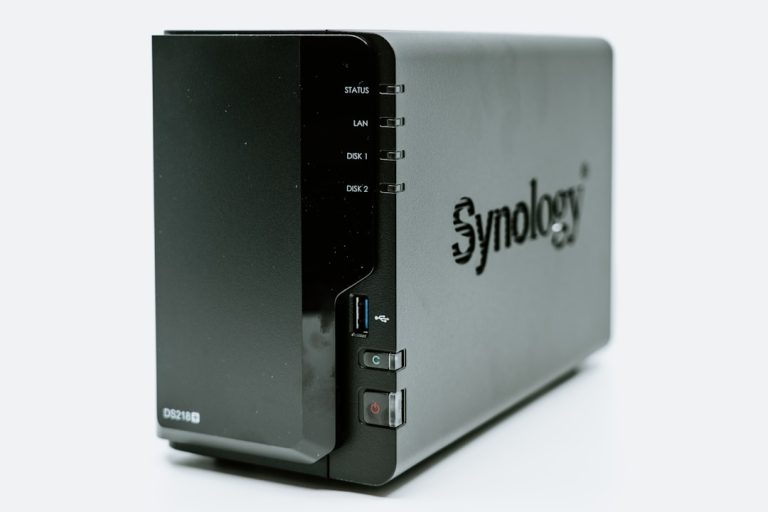
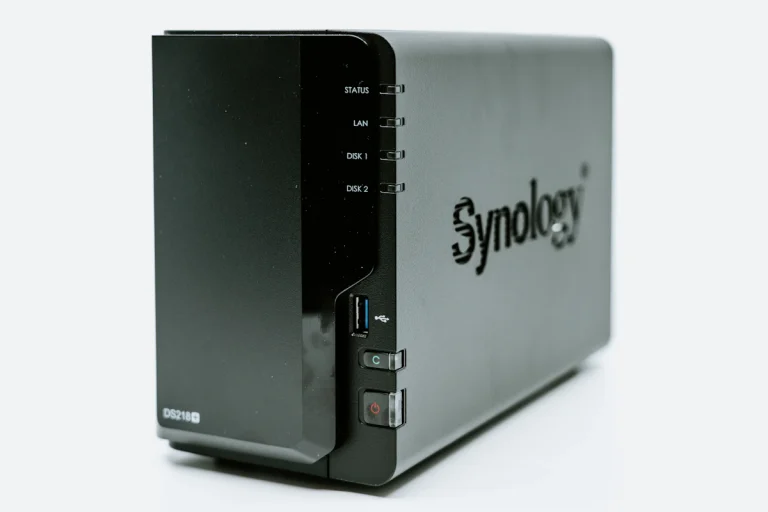
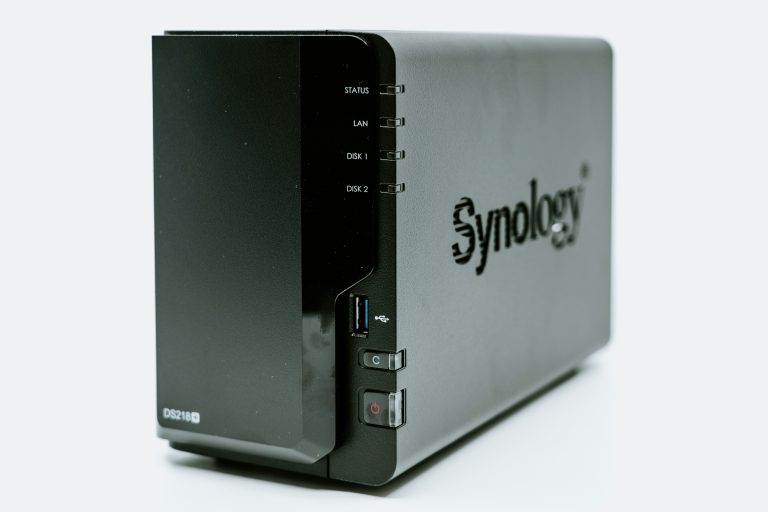
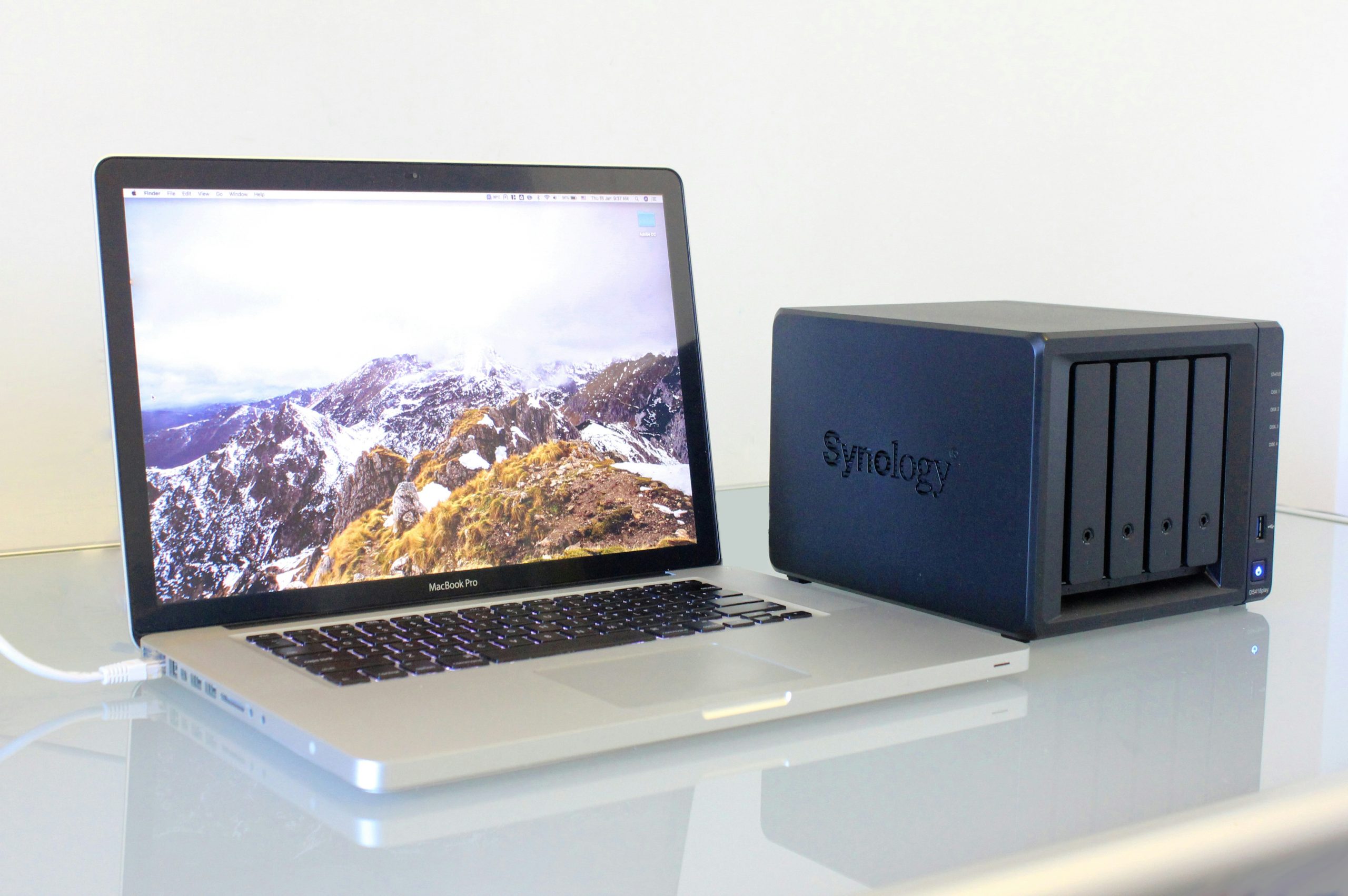
To make an informed decision, it is essential to first understand how each technology operates and what physical components are involved. A NAS is essentially a private server that plugs directly into your local home router or switch. It houses one or more hard drives and remains powered on 24/7, allowing any authorized device on your local network to read and write files to it.
In contrast, cloud storage operates on a utility model. You do not own the physical servers or the hard drives; instead, you rent space on massive server farms operated by multi-billion-dollar technology companies. These files are accessed over the internet via specialized software, web browsers, or mobile applications. While the cloud abstracts away the complexities of hardware maintenance, it introduces dependencies on external infrastructure and subscription pricing models.
Cost Analysis: Long-Term vs Short-Term Investment
Analyzing nas vs cloud storage from a cost perspective reveals that local drives have a higher upfront cost but zero monthly fees. When you purchase a NAS, you must buy the enclosure itself plus several high-capacity hard drives designed specifically for continuous operation. For a reliable 4-bay setup, this initial investment can easily range between $400 and $800.
However, once that initial purchase is made, the ongoing costs of running a local NAS are incredibly low, consisting entirely of the minor electrical draw of the enclosure. There are no monthly fees, and the storage capacity is yours to use entirely. If you require 10 terabytes or more of storage, a NAS will pay for itself within two to three years when compared to the ongoing subscription costs of commercial cloud alternatives.
Conversely, cloud storage features a low barrier to entry. Most services offer a few gigabytes of free tier storage, and paid plans starting at a few dollars a month can secure up to 2 terabytes of space. This makes the cloud highly attractive for users with modest storage needs. However, as your data footprint grows into the tens of terabytes, subscription fees compound quickly. Over a five-to-ten-year horizon, a commercial cloud subscription for massive data sets becomes significantly more expensive than owning local hardware.
Privacy, Security, and Data Ownership
When evaluating nas vs cloud storage for privacy, local hardware keeps your personal files completely out of third-party hands. With a NAS, you hold the physical drives. There are no user agreements that allow a corporation to scan your family photos for content classification, nor are you subject to the sudden account suspensions that have locked many users out of their digital lives without recourse.
However, keeping your data local means you are entirely responsible for its security. You must configure your own firewall, manage user permissions, and ensure your system is patched against security vulnerabilities. If your local network is compromised due to weak passwords, your NAS could be susceptible to ransomware. To learn how to secure your local files, you can read about data protection on Cloudflare Security Fundamentals.
Commercial cloud storage providers employ world-class cybersecurity teams to secure their infrastructure. They utilize advanced encryption protocols for data in transit and at rest, making it extremely difficult for unauthorized parties to access your files. However, cloud storage remains a high-profile focus for hackers, and data breaches do occur. Additionally, unless you utilize client-side encryption before uploading, the cloud provider technically has the ability to view your data.
Performance and Transfer Speeds
If you are a photographer dealing with massive RAW files, nas vs cloud storage is a matter of transfer speed vs accessibility. Inside your home, a NAS operates at the speed of your local network. If you have a standard gigabit network, you can transfer files at roughly 110 megabytes per second. If you upgrade your network to 2.5 GbE or 10 GbE, those speeds can increase to over 1,000 megabytes per second, allowing you to edit high-definition video directly off the network drive.
Cloud storage performance is entirely limited by your home internet connection’s upload speed. Most residential internet plans offer asymmetrical speeds, meaning that while your download speed might be fast, your upload speed is capped at a fraction of that bandwidth. Uploading a single terabyte of data to the cloud can take several days of continuous uploading, heavily saturating your connection and slowing down other household activities.
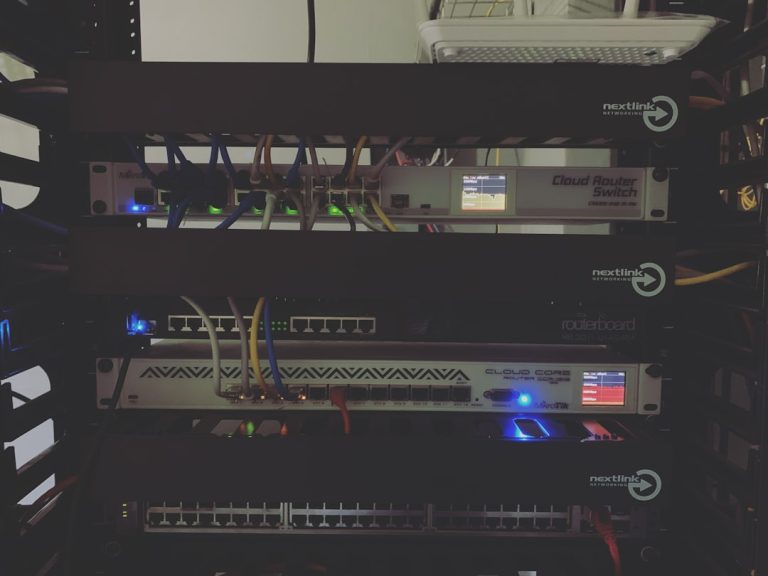
To see how specialized high-speed local switches can optimize your local transfer performance, take a look at our guide on the best managed switches under $100. By building a robust local backbone, you ensure that your local file transfers remain lightning-fast and never bottleneck your devices.
Usability and Mobile Access
Many families struggle to choose between nas vs cloud storage, as both offer automatic phone photo backups. Cloud services excel at seamless, background synchronization across multiple devices. Apple and Microsoft integrate cloud services directly into their operating systems, making it incredibly simple for non-technical users to access their files from anywhere in the world. You can read about these native integrations directly on the Apple iCloud Platform and the Microsoft OneDrive Service.
Modern NAS operating systems, such as Synology’s DSM or QNAP’s QTS, have made massive strides in closing this usability gap. They offer polished mobile applications that automatically upload photos from your smartphone directly to your home server whenever you connect to Wi-Fi. Additionally, they feature remote access tools that allow you to connect to your NAS from outside your home without complex VPN configurations.
However, a NAS still requires a basic level of technical comfort. You must understand how to replace a failing hard drive, how to manage storage pools, and how to configure RAID levels to protect against drive failure. For a detailed breakdown of how to protect your local data from hardware issues, check out our guide on NAS RAID explained.
The Hybrid Approach: Integrating Both Worlds
For a complete 3-2-1 backup strategy, you do not actually have to choose nas vs cloud storage, as you can integrate both. The 3-2-1 backup rule states that you should have three copies of your data, stored on two different types of media, with at least one copy located off-site. A hybrid approach utilizes a local NAS as your primary, high-speed working copy and automatically syncs critical folders to a secure cloud destination.
This hybrid model gives you the best of both worlds: local file access at multi-gigabit speeds and peace of mind knowing that your most critical documents are safe in the cloud if your home is damaged. Modern NAS enclosures have built-in backup tools that allow you to schedule automatic, encrypted uploads to cloud storage providers during off-peak hours. To understand how a NAS can integrate with other servers or operating systems, you can explore the Linux Kernel Architecture and Debian OS Documentation.
Top Recommended NAS Hardware
If you decide that local storage is the right choice for your backup strategy, investing in a high-quality enclosure is critical. We have selected three of the most reliable multi-bay enclosures on the market today.
Synology DS923+ 4-Bay NAS
💰 Buy on Amazon → Synology DS923+ 4-Bay NAS
The Synology DS923+ is an exceptional 4-bay enclosure designed for home offices and tech enthusiasts. Powered by Synology’s industry-leading DiskStation Manager (DSM) operating system, it offers a user-friendly interface that simplifies file sharing, media streaming, and automated backups. It features an expandable design that supports up to 32 GB of RAM and an optional 10 GbE network card.
During our testing, the DS923+ demonstrated incredible software versatility. Its active backup suite allows you to back up multiple computers, physical servers, and even cloud accounts directly to the NAS with zero licensing fees. For a detailed comparison of how Synology stacks up against its biggest competitor, check out our analysis of Synology vs QNAP in 2026.
QNAP TS-464 4-Bay NAS
💰 Buy on Amazon → QNAP TS-464 4-Bay NAS
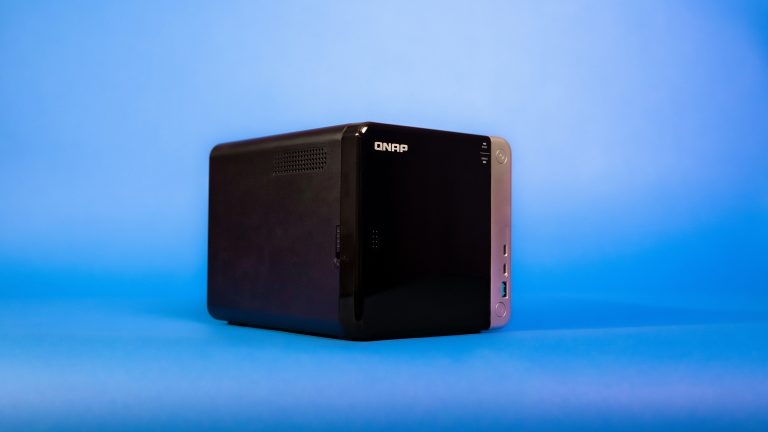
If you are looking for raw hardware power and excellent multimedia capabilities, the QNAP TS-464 is a superb choice. It features dual 2.5 GbE ports out of the box, offering double the network speed of standard gigabit enclosures. It also includes an HDMI output, allowing you to connect the NAS directly to your home theater receiver or television for direct media playback.
The TS-464 is powered by an Intel quad-core processor and supports hardware-accelerated transcoding, making it an ideal choice for running a local Plex media server. Its QTS operating system is highly customizable, giving advanced users deep control over virtual machines, docker containers, and advanced storage pool configurations.
Synology DS423+ 4-Bay NAS
💰 Buy on Amazon → Synology DS423+ 4-Bay NAS
For users who want Synology’s polished software ecosystem but do not need the professional expansion capabilities of the DS923+, the Synology DS423+ is a fantastic alternative. It features an Intel Celeron processor with built-in graphics, making it highly efficient at transcoding video files for remote playback while maintaining a very low power profile.
The DS423+ features four hot-swappable drive bays and two built-in M.2 NVMe SSD slots, which can be configured as a high-speed cache to accelerate file operations. It is a highly reliable, plug-and-play solution for families seeking a secure, centralized vault for their digital files.
Ultimately, your choice of nas vs cloud storage will depend on your budget, technical comfort, and internet speeds. By understanding the unique strengths of both systems, you can build a resilient backup strategy that ensures your critical files remain safe and accessible for years to come.
If you are also designing a smart home system alongside your local storage servers, managing network traffic becomes even more important. Check out our detailed reviews of the best smart home hubs to see how central controllers coordinate with local storage and home network infrastructure.
FAQ
What happens to my NAS if my internet goes down?
If your internet connection fails, your local NAS will continue to function perfectly inside your home. You will still be able to back up your computers, access your files, and stream media to your smart TV, because all data transfers occur over your local area network (LAN) rather than the internet. However, you will not be able to access your NAS from outside your home until your internet connection is restored.
Can a NAS replace Google Photos?
Yes, modern NAS enclosures feature dedicated photo applications that serve as a complete replacement for Google Photos. Applications like Synology Photos or QNAP QuMagie offer automatic background uploads from iOS and Android devices, facial recognition, subject classification, and chronological timelines. Your photos are stored securely on your own drives at full quality without any monthly storage fees.
Is RAID a backup?
No, RAID is not a backup. RAID (Redundant Array of Independent Disks) protects your system against physical hard drive failures by mirroring or striping data across multiple drives. This ensures that your NAS remains online even if a drive dies. However, RAID does not protect against accidental file deletions, file corruption, local physical disasters, or ransomware. To secure your data, you must still back up your NAS to an external destination.
Can I run a Plex server on cloud storage?
While it is technically possible to run a Plex media server using cloud storage, it is highly discouraged. Running Plex off the cloud requires mounting your cloud drive to a local computer or virtual machine, which introduces severe latency, high buffering times, and massive data usage. A local NAS is a vastly superior solution for Plex, offering local multi-gigabit speeds and hardware-transcoding capabilities.
How long do NAS hard drives last?
High-quality hard drives designed specifically for NAS use, such as Western Digital Red or Seagate IronWolf, typically last between three and five years of continuous 24/7 operation. To ensure your data remains safe, it is recommended to monitor your drives’ health using SMART diagnostics and replace any drive that shows signs of deterioration before a complete failure occurs.
What is the most secure way to access a NAS remotely?
The most secure way to access your NAS remotely is through a private Virtual Private Network (VPN) such as WireGuard or Tailscale, or through an encrypted tunnel like Cloudflare Tunnels. These technologies encrypt your traffic and prevent you from having to expose open ports on your home router directly to the internet, which is a major point of entry for automated hacking attempts.
More from Wiredhaus
- How to Build a DIY NAS Server: Step-by-Step Hardware and Software Guide
- Synology DS923+ vs DS423+: Which 4-Bay NAS is Best for You?
- Best Mini PCs for Home Servers and Homelabs in 2026
- Synology vs QNAP: Which NAS Should You Buy in 2026?
- How to Access Your NAS Remotely: VPN, Tailscale, and Cloudflare Tunnels