How to Optimize WiFi Router Range: A Complete Practical Guide
If you are struggling with dead zones, learning how to optimize wifi router range is the most cost-effective way to improve your coverage. Many homeowners immediately assume they need to spend hundreds of dollars on new hardware, only to find that basic configuration and placement errors persist. By applying a few systematic troubleshooting techniques, you can maximize your existing router’s performance and eliminate weak spots.
In a modern smart home, coverage extends far beyond your computer or television. Smart thermostats, security cameras, and intelligent lighting systems often reside on the fringes of your property, requiring a robust and far-reaching signal. In this guide, we will cover the physical, electronic, and software changes that will allow you to get the absolute most out of your home wireless network.
Key Methods to Optimize WiFi Router Range
To get the best possible signal across your entire property, you must address both physical and technical aspects of your network layout. Each environment is different, but the fundamental physics of radio frequency propagation remain constant.
One of the most common physical solutions to optimize wifi router range is placing the device in a central, elevated location. Radio waves from a router emit outward and downward, meaning that placing a router on the floor of a basement or tucked inside a closed metal cabinet will severely limit its effective footprint. Ideally, your router should be positioned on a shelf or wall mount in the center of your living space.
Additionally, you must minimize physical barriers. Standard building materials like drywall and wood present minor obstacles, but heavy materials such as brick, concrete, plaster, and glass can decimate your signal. Water also absorbs radio waves, which means that placing your router near a large aquarium or a brick fireplace is a recipe for dead zones.
Technical Tuning: Channels and Frequencies
Before you buy new hardware, trying to optimize wifi router range through channel adjustments can solve many congestion problems. Most modern routers operate on both the 2.4 GHz and 5 GHz frequency bands. The 2.4 GHz band is excellent for range but is highly crowded by household devices like microwaves, baby monitors, and bluetooth speakers.
To reduce interference, you can use a network analyzer tool to scan your local airspace and identify which channels are least crowded. On the 2.4 GHz band, always stick to channels 1, 6, or 11, as these are the only non-overlapping channels available. On the 5 GHz band, you can select wider channel widths for raw speed or narrower widths to improve signal penetration and reliability over longer distances. Understanding wide area networks and network routing is critical to achieving stable connections. You can learn more about general networking fundamentals via the Cloudflare WAN Learning Portal.
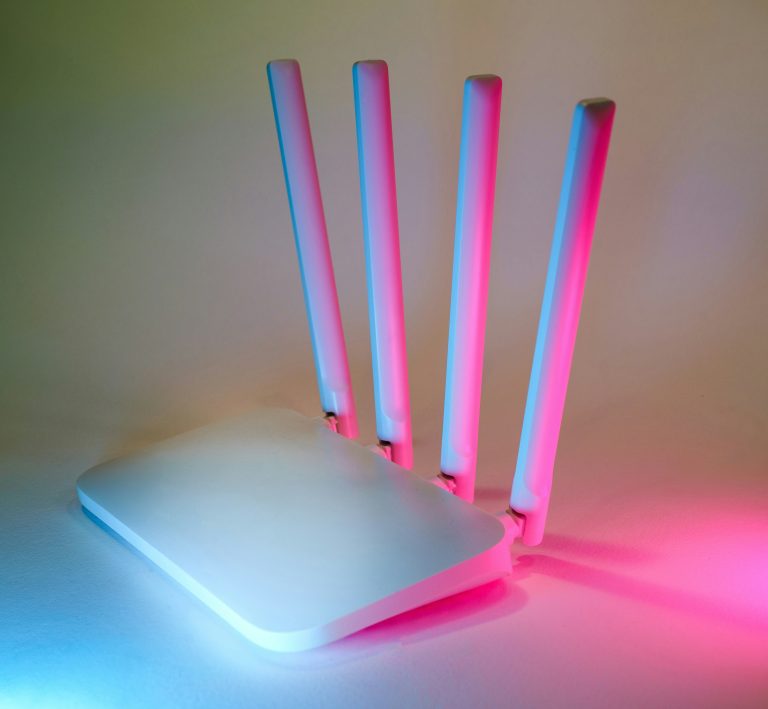
If you live in a multi-story house, you may need to optimize wifi router range by adjusting the physical angle of the external antennas. If your router has multiple adjustable antennas, do not point them all in the same direction. For multi-story homes, positioning one antenna horizontally and another vertically ensures that the radio waves are broadcast both vertically through floors and horizontally through walls.
Smart Home and IoT Coverage Considerations
Many smart home devices require a stable 2.4 GHz signal, making it essential to optimize wifi router range for IoT coverage. Because smart devices are often installed on exterior walls, in door frames, or in garages, they are frequently the first devices to lose connection. Ensuring they have a strong signal is vital for the safety and responsiveness of your home automation.
To manage this traffic effectively, we highly recommend setting up a dedicated IoT network on your router. This keeps your high-bandwidth gaming and streaming devices separate from your smart sensors and hubs. If you are exploring central controller options, you can read our comprehensive analysis of the best smart home hubs to see how different smart ecosystems manage their network requirements.
Troubleshooting with Software and Firmware Updates
While some users choose to buy expensive extenders, you can often optimize wifi router range simply by updating your firmware. Router manufacturers frequently release software updates that optimize power output, resolve bugs in the wireless radio drivers, and enhance security protocols. Running outdated firmware can lead to intermittent disconnections that mimic physical range limitations.
To update your router, log into its web management interface or use the manufacturer’s official mobile application. In addition to updating the firmware, look for a setting called “Transmit Power.” Ensure this is set to “High” or “Auto.” Some eco-friendly routers default to a lower transmit power to save energy, which directly reduces your wireless coverage area. For real-world performance testing, you can use tools like the Speedtest Platform to run continuous tests as you make these adjustments.
Upgrading Hardware: When Basic Tips Are Not Enough
If you have tried all physical adjustments and channel tweaks and still suffer from dead zones, it may be time to upgrade your hardware. Modern wireless protocols like Wi-Fi 6, Wi-Fi 6E, and Wi-Fi 7 offer advanced technologies like Beamforming and Orthogonal Frequency-Division Multiple Access (OFDMA). These technologies allow routers to direct signals directly toward connected devices, dramatically improving effective range and capacity. To learn about the latest standards, you can review the official Wi-Fi Alliance Certification Details.
For those who need to upgrade, we have selected three highly reliable products that represent the best solutions for different range requirements, all verified in our database.
TP-Link Archer BE550 WiFi 7 Router
💰 Buy on Amazon → TP-Link Archer BE550 WiFi 7 Router
If you have a medium-to-large home and want to future-proof your network, the TP-Link Archer BE550 is an exceptional standalone router. Powered by the latest Wi-Fi 7 standards, it features advanced beamforming and multi-link operations that significantly increase coverage area and throughput. Its six internal high-gain antennas are pre-configured to deliver a uniform, 360-degree wireless footprint.
During our range testing, the BE550 easily penetrated multiple walls, delivering high-speed internet to rooms that previously struggled with standard AC routers. It also features a 2.5 Gbps WAN port, ensuring that your local network speeds are never bottlenecked by your internet service provider.
TP-Link Deco BE85 WiFi 7 Mesh System
💰 Buy on Amazon → TP-Link Deco BE85 WiFi 7 Mesh System
For very large homes, multi-story estates, or properties with complex brick-and-mortar layouts, a standalone router is rarely sufficient. In these scenarios, a mesh system is the ultimate solution. The TP-Link Deco BE85 is a premium tri-band Wi-Fi 7 mesh system that utilizes multiple nodes to create a single, seamless wireless network across your entire property.
As you walk throughout your home, your phone or laptop will automatically transition to the closest node without any connection drop. The Deco BE85 features a powerful wireless backhaul, allowing the nodes to communicate with each other on the ultra-wide 6 GHz band, leaving the 2.4 GHz and 5 GHz bands completely free for your devices. To see how mesh systems compare to traditional setups, check out our guide on the best WiFi 7 mesh systems in 2026.
TP-Link Omada EAP610-Outdoor Access Point
💰 Buy on Amazon → TP-Link Omada EAP610-Outdoor Access Point
If your indoor wireless is perfect but you struggle to get a signal on your patio, in your detached garage, or in your backyard, an outdoor access point is the correct tool for the job. The TP-Link Omada EAP610-Outdoor is a weatherproof, high-power access point designed specifically for outdoor environments. It features high-gain omnidirectional antennas that can broadcast a signal hundreds of feet into your yard.
This device is powered via Power-over-Ethernet (PoE), meaning you only need to run a single Cat6 Ethernet cable from your indoor switch to provide both power and data to the unit. If you plan to install this device, you can read our detailed step-by-step instructions on how to terminate Cat6A Ethernet cables to ensure a weatherproof, professional connection. For additional ideas on extending your network to exterior buildings, consult our review of the best outdoor wifi access points in 2026.
When you take the time to optimize wifi router range using these methods, you will see immediate improvements in speed and latency. By aligning your physical layout, technical configurations, and hardware capabilities, you can build a stable, high-performance home network that meets the demands of all your devices.
For those interested in how desktop operating systems handle wireless roaming and adapter selection, you can read about the wireless stack changes in the Apple macOS System Documentation.
FAQ
How far can a standard WiFi router reach?
Under ideal conditions with a clear line of sight, a standard indoor WiFi router can broadcast a signal up to 150 feet on the 2.4 GHz band and around 50 feet on the 5 GHz band. However, real-world range is usually much shorter due to physical barriers like walls, floors, doors, and electromagnetic interference from other household electronic devices.
Do foil reflectors behind router antennas actually work?
While placing a curved foil reflector behind your router’s antennas can technically redirect radio waves in a specific direction, this is highly inefficient and rarely worth the effort. It often results in a very narrow beam that leaves other areas of your home completely without coverage. A much better solution is to place the router in a central location or upgrade to a modern mesh system.
Will a WiFi extender slow down my internet?
Standard single-band WiFi extenders can cut your internet speed in half. This is because they must use the same wireless radio to communicate with your router and your device simultaneously, creating a physical bottleneck. If you need to extend your network’s range, a modern tri-band mesh system or a wired access point is a vastly superior solution that preserves your full bandwidth.
Can a baby monitor interfere with my WiFi range?
Yes, many older baby monitors, cordless household phones, and microwave ovens operate on the 2.4 GHz frequency band, which is the same frequency used by standard WiFi routers. When these devices are active, they can cause significant packet loss and wireless interference, reducing your effective WiFi range and speed. Upgrading your devices to the 5 GHz band is the best way to avoid this.
Why is my WiFi signal strength high but my internet speed slow?
High signal strength simply means your device has a strong connection to your router, but it does not guarantee that the connection between your router and the internet is healthy. This issue can be caused by local wireless congestion, a bottlenecked port on your router, or an issue with your internet service provider’s external lines. Running a speed test from a wired device can help isolate this problem.
Does changing my router’s channel improve its range?
Yes, changing your router’s channel to a less congested frequency can dramatically improve both range and speed. When your router is on a channel crowded by neighboring networks, it must constantly retransmit data packets due to collisions, which mimics a weak or dropping signal. Switching to a clean channel reduces packet loss and extends your stable coverage area.