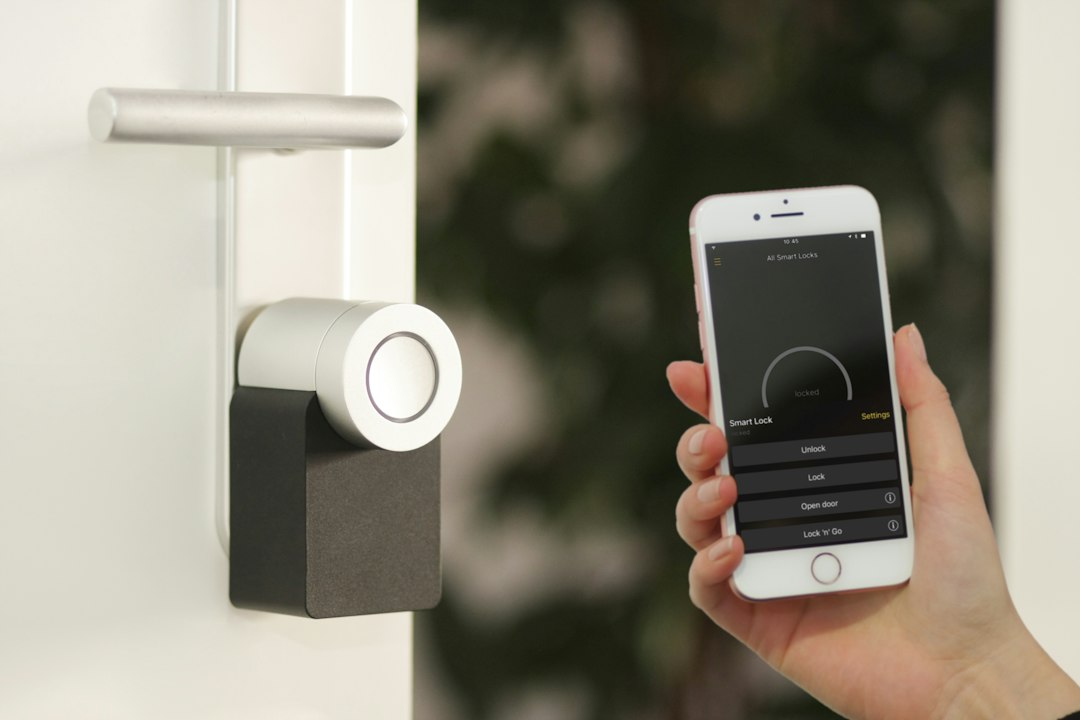
How to Use AI for Smart Home Automations Without Writing Code
Building sophisticated smart home routines used to require learning specialized programming syntax or spending hours debugging broken scripts, but conversational intelligence has changed the game completely. In this comprehensive walkthrough, you will learn how to use ai smart home automations to transform everyday household appliances into an intuitive, responsive living environment without writing a single line of computer code. By combining the visual interface of Home Assistant with modern conversational models, anyone can create complex, multi-device routines using plain human English.
For most homeowners, the biggest obstacle to advanced automation is not a lack of hardware; it is the cognitive friction of translating creative household concepts into logical triggers, conditions, and actions. Whether you want your patio lights to respond gracefully to evening sunsets, your climate system to react dynamically to occupied rooms, or your appliances to notify you when cycles finish, modern artificial intelligence acts as an effortless bridge between your goals and your home settings.
Why Plain-English AI Smart Home Automations Change Everyday Living
Every traditional smart home platform relies on rigid conditional logic. In conventional systems, you must explicitly define exact numerical thresholds, map out complex device dependencies, and anticipate edge cases manually. If you make a minor mistake in setting up a condition, your automation either runs at the wrong time or fails silently.
Using conversational tools to design ai smart home automations removes this burden entirely. Instead of struggling to translate your everyday habits into technical parameters, you describe your desired outcome in natural language:
- Handling human nuance — You can tell your AI assistant: “I want our family room lights to dim gently when a movie starts, but keep the kitchen island softly illuminated for snacks, and prevent the automation from running if someone is reading in the corner armchair.”
- Structuring complete visual blueprints — The AI breaks down complex family requests into clear visual steps: identifying the exact triggers, prerequisite conditions, and actions you need to select in your system’s visual editor.
- Preventing conflicting automations — If you already have existing schedules that might clash with a new routine, you can describe both scenarios to your AI helper to identify overlaps before you tap save.
When supported by foundational hardware setups—such as tracking electrical loads with our smart home energy monitoring guide or configuring occupancy triggers with our presence sensor lighting guide—conversational logic gives you enterprise-grade home intelligence with consumer-friendly simplicity.
The Visual-First Rule: Designing Without Code
A common misconception among smart home beginners is that customizing Home Assistant requires editing text configuration files or mastering developer markup. In modern versions of Home Assistant, all routine creation is performed within the visual Automations & Scenes menu. The entire platform is built around visual dropdowns, sliders, and checkboxes.
When applying this guide to build ai smart home automations, you never touch raw code files. Instead, your AI tool acts as an interactive manual for the visual interface:
- Trigger selection — Your AI specifies whether your routine should begin based on a time of day, a change in device state (such as a door opening), a numeric threshold (such as room humidity), or a button press.
- Condition verification — Conditions act as gatekeepers, ensuring an action only occurs when appropriate (for instance, only after sunset or only when someone is physically home). Your AI helper provides the exact conditions to add in the visual builder.
- Action execution — The final stage is telling your devices what to do, such as setting a light color, adjusting a thermostat setpoint, or broadcasting a spoken announcement.
To explore the platform’s native visual capabilities and official setup paths, consult the Home Assistant getting started documentation.
Five Practical AI Prompts for Household Automations
The most effective way to leverage artificial intelligence for your smart home is through scenario-based prompts. Below are five tested prompts you can paste directly into your preferred conversational assistant to generate ready-to-build visual automations:
1. Adaptive Evening Lighting
- “I have color-adjustable smart bulbs in the living room and hallway. What visual settings should I configure in Home Assistant so the lights smoothly shift to a warm 2700K amber glow at sunset and drop to 15% brightness after 10 PM on weeknights?”
2. Multi-Zone Climate Efficiency
- “I have a smart thermostat and door contact sensors on my patio and front entrance. How can I visually create an automation that pauses my air conditioning if any exterior door stays open for more than four minutes, and resumes cooling once all doors are closed?”
3. Smart Appliance Notifications
- “I have an energy monitoring smart plug connected to my washing machine. How can I configure Home Assistant through visual menus to send a phone push notification when the wash cycle finishes, while avoiding false alerts during brief soak cycles?”
4. Smart Security and Nighttime Perimeter Checks
- “I want a routine that checks all exterior door sensors at 11 PM. If any door is unlocked or open, I want an alert sent to our phones, but if everything is secure, I want the outdoor security lights to switch to low-power night mode.”
- For reliable security hardware integration, reference our recommendations for the best video doorbells for Home Assistant to link camera feeds with perimeter triggers.
5. Automated System Safeguards
- “What is the cleanest visual routine to monitor Home Assistant system storage and send a reminder if database backups fail?”
- Always maintain reliable recovery points by reviewing our comprehensive guide on how to back up Home Assistant before deploying automated system maintenance tasks.
Step-by-Step: Building an AI-Generated Routine in the UI
Let us walk through creating a practical “Home Office Arrival” routine from start to finish, using conversational AI to generate the steps and Home Assistant’s visual interface to execute them.
- Step 1: Ask your AI for a visual automation plan — Open your conversational tool and ask: “I want to create a Home Office Arrival automation. When my office motion sensor detects motion between 8:00 AM and 6:00 PM on weekdays, turn on my desk lamp and set the room temperature to 71 degrees, but only if the room lux level is below 50.”
- Step 2: Note the visual parameters — Your AI will break down the instructions into visual blocks: Trigger is State (Motion detected); Conditions are Time (08:00 to 18:00, Mon-Fri) and Numeric State (Illuminance below 50); Actions are Light: Turn on and Climate: Set temperature.
- Step 3: Access the Visual Editor — On your Home Assistant web dashboard or mobile app, go to Settings > Automations & Scenes, click Create Automation, and select Create new automation.
- Step 4: Configure Traces and Triggers — In the “When” section, click Add Trigger, choose State, select your office motion detector entity, and set the “To” state to “Detected”.
- Step 5: Set the Prerequisites — In the “And if” section, click Add Condition, choose Time, and select weekdays between 8:00 AM and 6:00 PM. Add a second condition for Numeric state, select your lux sensor, and set the “Below” field to 50.
- Step 6: Define Actions and Save — In the “Then do” section, click Add Action, choose Device or Call Service, select your desk lamp to turn on, and add a second action to set your climate thermostat to 71 degrees. Click the orange Save button in the lower corner.
Following this structured process allows you to implement reliable ai smart home automations in minutes without touching a single terminal command.
Troubleshooting and Refining Automations with AI
Even well-crafted automations occasionally require fine-tuning. If a routine does not fire when expected or triggers at inconvenient moments, you do not need to guess what went wrong. Your conversational AI assistant can diagnose the issue when you provide the visual context.
- Using Automation Traces visually — When an automation misbehaves, open it in Home Assistant and click the Traces button in the top right corner. Traces display an interactive, visual flowchart showing each step the system evaluated. If a step stopped at a condition, tell your AI: “My office arrival automation stopped at the illuminance condition because the sensor read 55 lux. How should I adjust the threshold so it works on overcast mornings?”
- Preventing automation loops — If two automations trigger each other in a continuous cycle, describe both automations to your AI helper. The AI will immediately identify the circular dependency and advise which visual condition to add to break the loop.
- Leveraging native conversational tools — Home Assistant provides native voice and conversation architecture, detailed in the official Home Assistant voice control overview and Home Assistant conversation integration guide. You can also explore local intelligence tools like Ollama or the native Home Assistant LLM APIs to run conversational assistants completely offline on your home network.
Frequently Asked Questions
Do I need to learn YAML to set up ai smart home automations?
No. All modern Home Assistant automation building is conducted through the visual user interface. The entire process uses point-and-click dropdown menus, sliders, and checkboxes. Your conversational AI tool simply provides the plain-English instructions on which options to select in the visual editor.
What is the best way to describe an automation to an AI tool?
Be specific about the “When” (trigger), the “And if” (conditions), and the “Then do” (actions). Mention the types of devices you own (such as motion sensors, smart plugs, or dimmable lights) and any time restrictions so the AI can provide a precise visual setup guide.
Can I run conversational AI locally without cloud subscriptions?
Yes. Home Assistant supports local offline language models through integrations like Ollama and local Assist pipelines. This allows you to process conversational automations and voice commands entirely within your home network with zero recurring fees and complete privacy.
Why did my automation stop working after a system update?
Smart home integrations occasionally update entity names or feature options. If an automation stops running, open the visual editor and check for red error warnings on device cards, or review the visual Traces screen to see which step failed.
How do I prevent multiple automations from conflicting with each other?
Use specific conditions—such as time of day, room occupancy, or sun elevation—to establish clear boundaries for when each routine is permitted to run. Consulting your AI helper with a list of your active routines is an easy way to spot conflicts before they occur.
More from Wiredhaus
- Your Smart Home Muse: Why AI Makes Home Assistant Easier Than Ever
- How to Set Up a Home Assistant Backup (Automatic and Off-Site)
- Best Video Doorbells for Home Assistant: Local and Cloud Picks
- How to Automate Smart Lighting with Presence Sensors: Step-by-Step Home Assistant Guide
- Smart Home Energy Monitoring: Complete Setup Guide