How to Set Up Dynamic DNS for Remote Access to Your Home Network
Your home internet connection almost certainly has an IP address that changes every few days or weeks, which makes reaching a NAS, camera system or home server from outside the house a guessing game. Dynamic DNS (often shortened to DDNS) solves that by giving your network a permanent hostname that always points to your current address. Once it’s running, you can type a name like myhome.example.com from anywhere and reach your router, even after the ISP hands you a new IP.
This guide walks through how dynamic DNS works, which provider to pick, how to configure it on a router or a NAS, and how to keep remote access safe. It assumes you’re comfortable logging into your router’s admin page, and nothing more than that.
How Dynamic DNS Works
Normal DNS maps a name to an IP address, and that mapping is stored on a server somewhere. With a residential connection, the address is assigned by your internet provider and can change whenever your router reconnects or the lease expires. Dynamic DNS closes the gap with a small piece of software, usually built into your router, that checks your public IP at regular intervals. When it changes, the software contacts a DNS provider and updates the record for your hostname.
The result is a name that follows your connection around. A few moments after the IP changes, the hostname points to the new address and your remote access keeps working.
What You Need Before You Start
- A public IP address on your router — if your internet provider uses carrier-grade NAT, you’ll share an address with other customers and can’t accept inbound connections. Check whether the WAN address in your router matches what a “what is my IP” site shows. If they differ, ask your provider about a public address or use a tunnel instead.
- A DNS provider that supports dynamic updates — free and paid options exist, covered below.
- Admin access to your router or NAS — you’ll enter the provider’s credentials there.
- A reason to be reachable — port forwarding to a NAS, a VPN server, a camera DVR or a self-hosted app. Without a service to reach, DDNS isn’t needed.
The carrier-grade NAT issue catches many people. Cellular home internet and some fiber and cable plans use it, and in those cases no amount of DDNS configuration will get a connection through from the outside.
Choosing a Dynamic DNS Provider
There are two broad approaches: a free hostname from a dedicated service, or a record on a domain you own.
Free Hostname Services
These give you a subdomain on their domain, such as yourname.duckdns.org. They’re free or low-cost, easy to set up and supported by most routers.
- DuckDNS — free, simple and popular with Home Assistant and homelab users. It works well with update scripts and Docker containers.
- No-IP — a long-established service with a free tier that requires periodic confirmation, and paid plans that remove the hassle.
- Router-maker services — ASUS, Synology and others offer their own hostnames at no cost, tied to the hardware.
Your Own Domain
If you already own a domain, you can point a subdomain at your home IP and update it automatically. The advantage is a clean, memorable name and full control, plus easier TLS certificates. Registrars and DNS hosts like Cloudflare offer APIs that update scripts and routers can call. The Cloudflare DNS documentation explains how records and API tokens work.
A custom domain costs a few dollars a year, which is cheap for a name you won’t have to change. For anything you plan to keep long term, it’s the better choice.
Setting Up Dynamic DNS on Your Router
Most modern routers have a DDNS client built in. The exact menu names vary, but the steps are similar.
- Create an account with your provider and register a hostname. Note the username, password or token the service gives you.
- Log into your router and find the DDNS section. It’s usually under WAN, Advanced or Services.
- Select your provider from the list, or choose a custom option if yours isn’t included.
- Enter your hostname and credentials, then save.
- Check the status — the router should show a successful update and your current public IP.
- Test from outside — use mobile data, not your home WiFi, and try resolving the hostname. A site that checks DNS records can confirm the address.
Routers That Make It Easy
ASUS RT-BE86U
ASUS routers include a free asuscomm.com hostname that you can register with one click, plus support for third-party providers. The ASUS RT-BE86U is a current WiFi 7 model with this feature built in, along with a capable VPN server for remote access.
💰 Buy on Amazon → ASUS RT-BE86U WiFi 7 Router
TP-Link Omada ER605
If you want a small business-style router with a proper DDNS client, VPN support and room to grow, the TP-Link Omada ER605 supports several providers and handles multiple WAN connections.
💰 Buy on Amazon → TP-Link Omada ER605 Router
If your ISP-supplied modem or gateway lacks DDNS support, putting it in bridge mode behind one of these routers is often the cleanest fix.
Setting Up Dynamic DNS on a NAS
A NAS is one of the most common reasons to want remote access. Synology DSM includes a built-in service under External Access, with a free synology.me hostname and support for other providers. QNAP offers similar functionality through its myQNAPcloud feature.
Synology DS224+
The Synology DS224+ is a popular two-bay model with this support built in, along with an easy-to-follow interface for remote file access.
💰 Buy on Amazon → Synology DS224+
Using the NAS to update the hostname is handy when your router doesn’t support your preferred provider, since the NAS can make the update call itself. Just be sure only one device updates a given record, or the two will fight each other.
For a deeper look at the different ways to reach a NAS from outside the house, read our guide to accessing your NAS remotely with VPN, Tailscale and Cloudflare Tunnels.
Using a Script or Container When Your Router Can’t
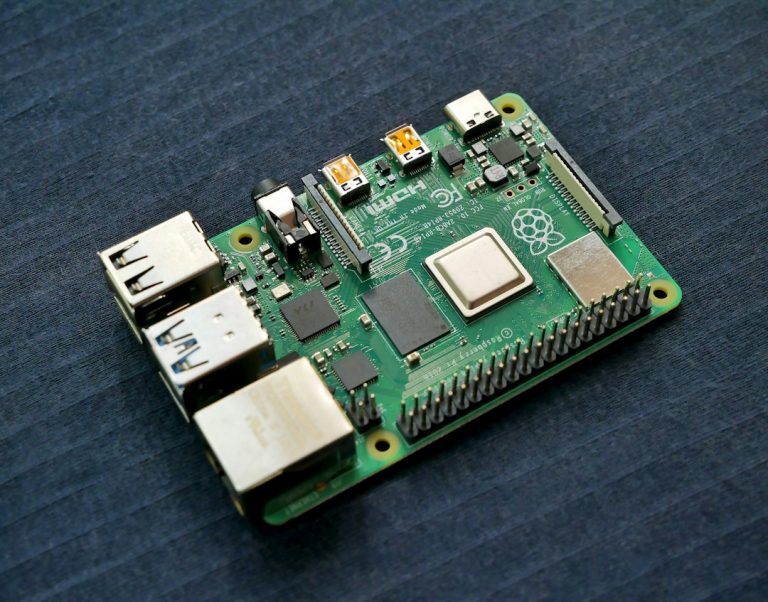
Some routers don’t support your provider, or you want the update to run from a server on your network. A small script on a Raspberry Pi, mini PC or NAS can do the job.
- DuckDNS offers a one-line update URL that you call with curl on a schedule.
- Cloudflare has a well-documented API. Many open-source projects will check your public IP and update an A record whenever it changes.
- Docker containers such as ddclient-style images run in the background and handle retries for you.
Run the update every five minutes at most. Checking more often adds nothing and may get you rate-limited. Log the results so you can tell when an update fails.
Securing Remote Access
A hostname that points to your home makes it easier for you to connect, and also easier for strangers to find you. Treat this setup as a convenience, not a security feature.
- Avoid exposing admin pages — never forward your router’s admin interface or your NAS management port directly to the internet.
- Prefer a VPN — WireGuard or OpenVPN lets you connect to the network and reach everything privately, with only one port open. Our guide to setting up a WireGuard VPN server on a mini PC shows how.
- Use strong, unique passwords and multi-factor authentication — bots scan for open ports constantly.
- Enable HTTPS with a valid certificate — Let’s Encrypt issues free certificates that work with a custom domain.
- Keep firmware updated — router and NAS vulnerabilities are a common way in. Our overview of cybersecurity best practices for your home network covers a full checklist.
- Put exposed services behind a firewall — a dedicated firewall or a properly configured router limits what’s reachable. See our guide to setting up a secure home firewall gateway.
Troubleshooting DDNS Problems
The Hostname Doesn’t Update
Check the router’s log for authentication errors. A common cause is an incorrect password or an expired token. Some providers require an app-specific key rather than your account password.
The Hostname Resolves but You Can’t Connect
DNS is working, so look at the next layer. Confirm port forwarding rules point to the right internal address, check that the device has a static or reserved IP, and test from a network outside your home. Testing from inside your own network often fails because of a missing NAT loopback feature.
The IP Address Looks Wrong
If the address the hostname returns doesn’t match your router’s WAN address, you’re probably behind carrier-grade NAT or a second router. Check for double NAT, where an ISP gateway sits in front of your own router, and either bridge the gateway or forward ports on both devices.
The Free Hostname Expired
Some free providers delete hostnames that haven’t been confirmed or updated for a month. Put a calendar reminder in, or choose a service that doesn’t require it.
When to Skip Dynamic DNS
This isn’t the right answer for every case. If your provider uses carrier-grade NAT, you can’t accept inbound connections at all, and a tunnel service like Tailscale or a Cloudflare Tunnel is a better route. If you only need remote access occasionally, a VPN with a mesh overlay can replace port forwarding entirely. And if your provider offers a static IP for a small monthly fee, that’s an option too, though it’s usually unnecessary when it works.
FAQ
What is dynamic DNS used for?
It lets you reach devices on your home network from outside using a hostname that always follows your current public IP address. It’s commonly used for NAS access, VPN servers, security cameras and self-hosted apps.
Is dynamic DNS free?
Often yes. DuckDNS and the hostnames from router and NAS makers are free. No-IP has a free tier that requires periodic confirmation. Using your own domain costs a few dollars a year, plus nothing for the DNS records themselves on providers like Cloudflare.
Is DDNS safe?
The service itself is safe, but it makes your home address easier to find. The risk comes from what you expose behind it. Use a VPN, strong passwords, HTTPS and up-to-date firmware, and don’t forward admin pages.
How often does the IP address change?
It varies. Some providers keep the same address for months, while others change it whenever your router restarts or your lease renews. Dynamic DNS handles both cases without you noticing.
Does DDNS work with CGNAT?
No. If your provider puts you behind carrier-grade NAT, outside connections can’t reach your router, so the hostname won’t help. Ask for a public IP address or use a tunnel service instead.
Can I use my own domain for DDNS?
Yes, and it’s often the best option. Point a subdomain at your home IP, then use your router, NAS or a small script to update the record via your DNS provider’s API.
Do I need DDNS if I use Tailscale?
Not usually. Tailscale creates a private overlay network and gives each device a stable name, so you don’t need port forwarding or a public hostname. DDNS is more useful when you want to expose a service directly.