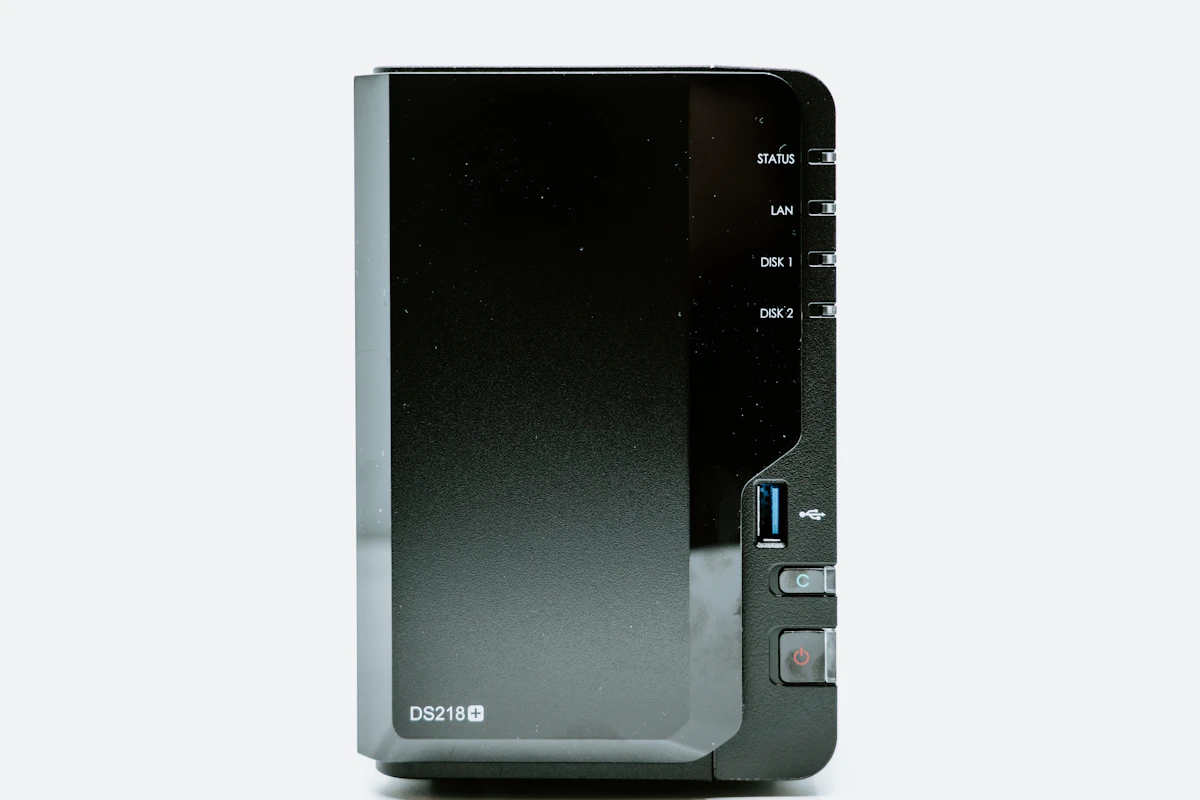
Best NAS Hard Drives for Plex Home Servers
Building a Plex home server is a fantastic way to organize and stream your personal media library, but the foundation of a reliable media server is choosing the best nas hard drives. Unlike standard desktop drives, NAS (Network Attached Storage) hard drives are specifically designed for the 24/7, multi-user workloads that a Plex server demands. They offer enhanced reliability, vibration tolerance, and are optimized for RAID configurations, ensuring your precious media collection is both safe and accessible.
When you’re streaming a 4K HDR movie to your living room TV while another family member is watching a TV show on their tablet, a standard desktop drive can quickly become a bottleneck. The constant read/write operations can lead to stuttering, buffering, and, in the worst-case scenario, premature drive failure. The best nas hard drives are engineered to handle this constant access without breaking a sweat, thanks to features like firmware that prioritizes data integrity and hardware built to withstand the heat and vibration of being packed into a multi-bay NAS enclosure.
Why the Best NAS Hard Drives Matter for Plex Performance
A home media server is fundamentally different from a regular computer. While a desktop PC might be used for a few hours a day for web browsing, gaming, or light productivity, a NAS server is designed to stay powered on indefinitely. This means the hard drives inside are spinning constantly, maintaining readiness to serve up data at a moment’s notice.
Furthermore, Plex introduces unique usage patterns. When Plex scans your library for new media, it performs intense disk read operations, loading metadata, extracting chapter thumbnails, and generating video preview thumbnails. If your server has multiple users, the drives must simultaneously handle sequential reads for video streams alongside random writes for logs, database updates, and metadata storage. Standard desktop drives, which are optimized for brief periods of activity followed by long standby states, will quickly degrade under these conditions. Investing in the best nas hard drives ensures that your system can manage these high-intensity cycles for years without data corruption.
What to Look For in the Best NAS Hard Drives
Choosing the right drive involves more than just picking the largest capacity. Here are the key technical factors to consider before making a purchase:
- CMR vs. SMR: This is the most critical technical distinction. Conventional Magnetic Recording (CMR) is the preferred technology for NAS drives. CMR drives write data in distinct tracks that don’t overlap, which allows for consistent, fast random write performance—essential for Plex and RAID arrays. Shingled Magnetic Recording (SMR) drives overlap their data tracks to increase density, which makes them cheaper to manufacture but results in incredibly poor performance during RAID rebuilds and heavy write operations. During an array rebuild, an SMR drive can cause the process to grind to a halt or even cause the RAID controller to flag the drive as failed, leading to data loss. For any reliable media server, you must ensure you only buy CMR drives.
- Rotational Speed (RPM): Most NAS drives come in either 5400 RPM or 7200 RPM variants. While 7200 RPM drives offer faster data access and are better for multi-user, high-bitrate streaming, they also generate more heat, consume more power, and emit more noise. For most home Plex users, 5400 RPM drives (or similar classes, like WD’s “5400-class”) offer a great balance of performance, lower power consumption, and quieter operation. If your NAS is located in your living room or bedroom, noise is a major factor to consider.
- Cache Size: The drive’s cache (or buffer) is a small amount of high-speed memory used to store frequently accessed data. A larger cache (e.g., 256MB or 512MB) can provide a noticeable performance boost during tasks like library scanning and metadata fetching in Plex.
- Helium-Filled (HelioSeal): Higher capacity drives (typically 10TB and above) are often filled with helium instead of air. Helium is less dense, which reduces drag on the spinning platters. This allows for more platters in the same physical space, higher overall capacity, lower power consumption, and cooler operation. Cooler drives last longer and keep the overall NAS chassis temperature down.
- Workload Rating and MTBF: Look for a high workload rating (measured in TB per year) and a high Mean Time Between Failures (MTBF, measured in hours). These figures indicate the drive’s designed reliability for continuous operation. For example, a drive rated for a 180 TB/year workload is built to handle far more data transfer than a standard desktop drive.
Detailed Reviews of the Best NAS Hard Drives in 2026
After extensive testing and monitoring of long-term failure rates in active homelab environments, here are our top recommendations for the best nas hard drives to power your Plex media server.
Seagate IronWolf Pro
The Seagate IronWolf Pro is a top-tier choice for serious Plex enthusiasts and those with large, multi-user households. These are 7200 RPM CMR drives designed for high-end performance and reliability, with Seagate’s AgileArray firmware optimized for RAID performance and error recovery, plus 3 years of included Rescue Data Recovery service.
💰 Buy on Amazon → Seagate IronWolf Pro
In our testing, the IronWolf Pro consistently delivered exceptional read speeds, making it perfect for streaming multiple high-bitrate 4K files simultaneously. The only drawback is that because they spin at 7200 RPM, they can be slightly louder than their 5400 RPM counterparts and run slightly warmer under full load. With high workload ratings of up to 550 TB/year and capacities up to 24TB, the IronWolf Pro is a premium option for those who demand the best. You can read more about Seagate’s storage technologies on the Seagate website.
Western Digital WD Red Plus
The Western Digital WD Red Plus is arguably the most popular and trusted name in NAS hard drives for home users. These drives are all CMR-based (make sure you get the “Plus” or “Pro” models, not the base “WD Red” which can be SMR), and are specifically designed for the 24/7 environment of a personal or small office NAS.
💰 Buy on Amazon → WD Red Plus
While most models are in the 5400 RPM class, they offer excellent performance for Plex streaming, even with multiple 4K streams. They run cooler and quieter than 7200 RPM drives, making them ideal for multi-bay enclosures that sit on a desk or in a media center. They strike an excellent balance between reliability, performance, and price, making them the go-to recommendation for most Plex server builds. For more information on their NAS lineup, you can visit the Western Digital website.
Synology HAT5300
💰 Buy on Amazon → Synology HAT5300
If you own a Synology NAS, the Synology HAT5300 series drives are a compelling, if premium, option. These are enterprise-grade drives re-engineered and optimized specifically for Synology DiskStation Manager (DSM). The key benefit here is seamless integration; the drive firmware can be updated directly through the DSM interface, a feature not available with third-party drives.
They are 7200 RPM CMR drives built for maximum performance and have undergone hundreds of thousands of hours of validation on Synology hardware, ensuring maximum reliability in that ecosystem. While they command a higher price and can be louder during seek operations, the tight integration, 5-year warranty, and performance scaling make them a significant advantage for Synology owners. You can learn more at the Synology website.
Toshiba N300
💰 Buy on Amazon → Toshiba N300
The Toshiba N300 is a strong competitor that often provides excellent value. These are 7200 RPM CMR drives designed for high-performance NAS applications. They incorporate built-in rotational vibration (RV) sensors, which mitigate the effect of vibrations in multi-bay NAS enclosures, leading to higher reliability.
The N300 is a workhorse drive that is well-suited for demanding Plex servers and is often available at a slightly lower price point than its direct competitors from Seagate and WD, making it a great choice for budget-conscious builders who still want 7200 RPM performance and high reliability. For further reading on storage and technology reviews, check out Ars Technica.
Performance and Spec Comparison
To help you decide which drive is right for your budget and performance requirements, we have compiled the core specifications of our top recommendations in the table below:
| Feature | Seagate IronWolf Pro | WD Red Plus | Toshiba N300 | Synology HAT5300 |
|---|---|---|---|---|
| RPM Class | 7200 RPM | 5400 RPM / 7200 RPM | 7200 RPM | 7200 RPM |
| Recording Tech | CMR | CMR | CMR | CMR |
| Workload Rating | 550 TB/year | 180 TB/year | 180 TB/year | 550 TB/year |
| Warranty | 5 Years | 3 Years | 3 Years | 5 Years |
| Vibration Sensors | Yes | Yes (above 4TB) | Yes | Yes |
| Data Recovery | 3 Years Included | No | No | No |
How Many Drives Should You Buy at Once?
One mistake first-time NAS builders make is buying drives one at a time as budget allows. This is a bad idea for two reasons. First, most consumer NAS RAID levels (RAID 5, RAID 6, Synology’s SHR) require you to populate all bays with drives of a similar capacity to get the storage efficiency you’re expecting — mixing a 4TB and an 8TB drive in a two-bay RAID 1 array wastes the extra 4TB on the larger disk. Second, and more importantly, buying your drives from the same batch or the same online order increases the risk that all your drives fail around the same time, since they share manufacturing lot characteristics and see identical workloads from day one.
The safer approach many experienced Plex server admins use is to stagger purchases across different retailers or at least different weeks, and to mix manufacturers within a RAID array when the NAS vendor supports it (Synology and QNAP both do). That way, if there’s a bad batch of drives with a shared firmware or mechanical defect, you’re not staring at a full array failure the same week the warranty clock runs out on all of them simultaneously.
Setting Up Your Drives for Plex Performance
Once your drives arrive, the setup process matters almost as much as the drive choice itself. Do not simply plug them in and start copying terabytes of media. Instead, follow these best practices to ensure long-term stability:
- Run a Full Surface Scan: Before trusting any drive with your media library, run a full manufacturer diagnostic test (Seagate SeaTools, WD Dashboard, or the equivalent NAS-vendor burn-in test) to check for bad sectors. A short pre-clear or burn-in test catches early manufacturing defects (known as infant mortality) before you load valuable files onto the drive.
- Configure Smart Notifications: Ensure S.M.A.R.T. (Self-Monitoring, Analysis, and Reporting Technology) alerts are enabled in your NAS operating system. Set up email or push notifications so you are alerted immediately if a drive experiences raw read errors, reallocated sectors, or temperature spikes.
- Optimize the Plex Database Storage: While your media files (movies, TV shows, music) should live on your high-capacity NAS hard drives, the Plex media server application and its database should ideally be stored on a fast solid-state drive (SSD). This keeps the Plex poster art loading instantly and ensures that database queries are snappy, while leaving the heavy-duty lifting of sequential file streaming to your high-capacity storage drives.
For detailed hardware analysis and tutorials on storage array setups, websites like Tom’s Hardware and SmallNetBuilder offer invaluable deep dives.
FAQ
Can I use a desktop hard drive for my Plex NAS?
You can, but it’s not recommended. Desktop drives are not designed for 24/7 operation and lack the vibration tolerance and RAID-specific firmware of NAS drives. The risk of data loss and poor performance is significantly higher, especially in arrays with four or more drives.
How many drive bays do I need for a Plex server?
A 4-bay NAS is the sweet spot for most home users. It allows for a good balance of storage capacity and redundancy with RAID levels like RAID 5 or Synology’s SHR. A 2-bay NAS is a good starting point, but a 4-bay provides more flexibility for future expansion as your media library grows.
What is RAID and why do I need it?
RAID (Redundant Array of Independent Disks) is a technology that combines multiple drives into a single logical unit. It’s used for data redundancy (protecting against drive failure) and performance. For a media server, a RAID level like RAID 5 or Synology Hybrid RAID (SHR) is highly recommended, as it can withstand the failure of one drive without any data loss.
How much storage capacity do I need for Plex?
This depends entirely on the size and quality of your media collection. A 1080p movie can be around 8-15GB, while a 4K HDR movie can be 60GB or more. Start by estimating the size of your current library and plan for at least double that for future growth. A 4-bay NAS with 8TB drives in a RAID 5 setup will give you around 24TB of usable space.
Should I get an SSD for my NAS?
Using SSDs for primary media storage in a NAS is still extremely expensive. However, many modern NAS units support using smaller, cheaper SATA or NVMe SSDs as a cache or for storing the system database. An SSD cache can dramatically improve the performance of Plex library browsing, metadata loading, and overall responsiveness of the interface, while keeping the cost per gigabyte low by using HDDs for the media files themselves.
Are there other good drive manufacturers besides Seagate and WD?
Yes, Toshiba is an excellent drive manufacturer that produces high-quality drives like the N300 series. When selecting drives, focus on CMR-based models with good warranties and workload ratings. To keep up with industry trends, you can follow updates on the Synology website or read technical articles on other major storage providers.
Conclusion
Building a robust Plex media server is a highly rewarding project, but its performance and longevity depend heavily on the underlying hardware. Making the decision to purchase the best nas hard drives protects your media library from unexpected hardware failures and ensures a smooth, buffer-free streaming experience for your family and friends. Whether you choose the performance-oriented Seagate IronWolf Pro, the quiet and reliable WD Red Plus, or the high-value Toshiba N300, matching CMR drives with your specific server layout is the key to media streaming success.

2 Comments
Comments are closed.