Best WiFi Extenders for Home
WiFi extenders have a well-earned bad reputation — and some of it is deserved. But the right extender can genuinely fix dead zones when you don’t want to rewire your house or replace your whole router. The problem is most people buy the wrong one.
This guide covers what actually works in 2026, what to avoid, and when an extender is the right call versus upgrading to a full mesh system.
What WiFi Extenders for Home Actually Do (and Don’t Do)
A wifi extender for home use picks up your existing router’s signal and rebroadcasts it. It can’t create bandwidth that isn’t there — it works with whatever signal it receives. If your router signal is already weak where the extender sits, you’ll get a weak rebroadcast.
The practical limit: expect 40–60% of your original speed on the extended network. For streaming, casual browsing, and smart home devices, that’s usually fine. For gaming or working from home with video calls, you may want more.
What extenders can’t fix:
- Router hardware that’s too old or underpowered
- ISP throttling
- Interference from neighboring networks
- Thick concrete or brick walls between router and extender
When WiFi Extenders for Home Make Sense
Extenders are the right call when:
- You have one or two specific dead zones (a bedroom, a garage, a backyard)
- You already have a good router and just need more range
- You’re renting and can’t run ethernet cable
- Budget is tight — a good extender costs $50–$150 vs. $200–$500 for a full mesh kit
When to skip extenders and go mesh instead:
- Your whole house has mediocre signal, not just one spot
- You have multiple floors with coverage gaps
- You need smooth roaming (extenders create a separate network or require manual handoff)
- You’re starting fresh with a new router anyway
Best WiFi Extenders for Home in 2026
1. TP-Link RE715X — Best Overall WiFi 6E Extender
The TP-Link RE715X is the best wifi extender for home use if you have a WiFi 6E router. It supports the 6 GHz backhaul band, which means it communicates back to your router on a clean, uncongested channel while serving your devices on 2.4 and 5 GHz separately. That’s what eliminates the 50% speed penalty most extenders suffer from.
Key specs: AXE5400, tri-band, one 2.5G ethernet port for wired backhaul or device connection, WPA3, beamforming. Range covers up to 2,500 sq ft added coverage.
Best for: Large homes with WiFi 6E routers (ASUS, TP-Link Deco XE, Eero Pro 6E).
2. TP-Link RE700X — Best WiFi 6 Extender Under $80
If you don’t have a WiFi 6E router, the TP-Link RE700X is the sweet spot for wifi extenders for home networks. Dual-band AX3000, one gigabit ethernet port, OneMesh compatible (works without issues with TP-Link routers as a unified network), and a clean web UI.
Real-world speeds: 400–600 Mbps on 5 GHz at close range, 150–250 Mbps at 50 feet through walls. More than enough for 4K streaming or video calls.
Best for: TP-Link router owners (OneMesh integration), mid-size homes, everyday use.
3. NETGEAR EAX20 — Best Budget WiFi 6 Option
The NETGEAR EAX20 is the most affordable WiFi 6 extender that’s actually worth buying. AX1800, four internal antennas, one ethernet port, and NETGEAR’s FastLane technology that dedicates one band to the router backhaul.
It won’t win benchmarks but it’s consistent, easy to set up, and handles 20–25 simultaneous devices without dropping out — which is more than most homes need from a secondary coverage point.
Best for: Apartments, smaller homes, budget-conscious buyers upgrading from WiFi 5.
4. NETGEAR EAX80 — Best High-Performance Extender
The NETGEAR EAX80 is for serious setups. AX6000, quad-stream, two ethernet ports (one is 2.5G), eight external antennas. It connects to your router over 5 GHz and serves clients on a separate 5 GHz band plus 2.4 GHz — the dedicated backhaul keeps speeds up even far from the router.
At $150–$200, it’s approaching mesh system territory. But if you have a premium existing router you want to keep, the EAX80 extends it without replacing anything.
Best for: Large homes, power users, gaming setups, homes with many connected devices.
5. ASUS RP-AX56 — Best for ASUS Router Owners
The ASUS RP-AX56 integrates tightly with ASUS routers via AiMesh. Pair it with any AiMesh-capable ASUS router and it becomes a smooth node — same SSID, same password, automatic device handoff. Dual-band AX1800, one gigabit ethernet port, and AiProtection security.
The ASUS AiMesh integration is the best vendor-specific extender ecosystem available — if you already have an ASUS router, this is the easy choice over a third-party extender.
Best for: ASUS router owners using AiMesh, homes that want smooth roaming without full mesh cost.
6. Linksys RE9000 — Tri-Band Legacy Pick
The Linksys RE9000 is WiFi 5 (AC3000) but still relevant in 2026 for anyone with an older router. Tri-band with dedicated backhaul means better performance than most dual-band WiFi 5 extenders. Four ethernet ports make it useful for wired device clusters in a room with poor wireless coverage — TV, game console, desktop.
It’s often on sale under $60. If you’re not ready to go WiFi 6 throughout, it’s a solid stop-gap.
Best for: Older router setups, wired device clusters, tight budgets.
Extender vs. Mesh: The Real Comparison
| Factor | WiFi Extender | Mesh System |
| Cost | $50–$200 | $200–$600 |
| Setup | Simple (minutes) | Easy but more steps |
| Roaming | Manual or fragmented | smooth |
| Speed loss | 40–60% typical | 10–20% typical |
| Coverage area | Specific dead zones | Whole home |
| Keeps existing router | ✅ Yes | ❌ Replaces router |
| Best for | 1–2 dead zones | Whole-home overhaul |
If you already have a solid router and just need to plug one dead zone, an extender is the smarter spend. If your entire home has weak coverage, a mesh system is worth the investment.
Placement: Where to Put Your Extender
The most common mistake: putting the extender too far from the router. It needs a strong signal to repeat — place it halfway between your router and the dead zone, not inside the dead zone itself.
Practical placement tips:
- Test signal first: check your phone’s WiFi signal strength at the spot where you plan to put the extender. Aim for -60 dBm or better.
- Avoid interference: keep it away from microwaves, cordless phones, and other 2.4 GHz devices.
- Plug into outlets at standing height: not near the floor where signal is blocked by furniture.
- Use the ethernet port: if you can run a short patch cable from extender to a device, do it — that device will get full speed.
- Check for 5 GHz reach: most extenders have a signal LED. If it shows only 2.4 GHz connection to your router, move it closer.
Wired Backhaul: The Best Extender Setup You’re Not Using
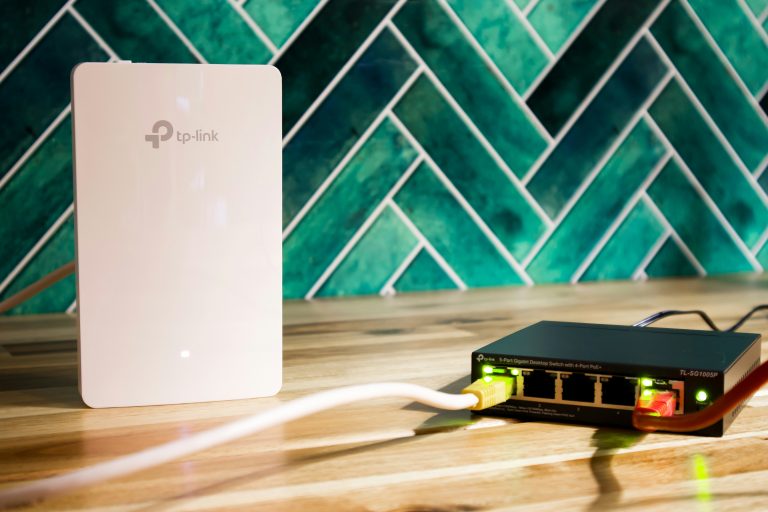
If you can run an ethernet cable — even along a baseboard — from your router to the extender location, use it. Most modern extenders have a gigabit port and support wired backhaul mode. This eliminates the wireless speed penalty entirely. You get near-full router speeds at the extender location, which you then rebroadcast wirelessly.
It’s not technically an extender anymore — it’s a wired access point. But it’s the same hardware, costs the same, and works dramatically better. See our guide on setting up wireless access points for more on this approach.
H2: Do WiFi Extenders for Home Networks Hurt Speed?
Yes — when configured incorrectly. The speed hit comes from two things: the extender using half its bandwidth to talk back to the router, and devices switching between router and extender networks at the wrong time.
How to minimize it:
- Buy tri-band or dedicated backhaul: this gives the router-to-extender link its own band
Modern extenders with WiFi 6 and dedicated backhaul typically lose only 15–25% of speed — far better than the 50% penalty that gave older extenders a bad name.
What to Look for When Buying
WiFi 6 or 6E: minimum requirement in 2026. WiFi 5 extenders are still functional but you’ll hit their ceiling sooner as your devices improve.
Dedicated backhaul band: the most important spec. Tri-band or 6 GHz backhaul keeps the extender-to-router link separate from client traffic.
Ethernet port: non-negotiable. You want the option to plug in a device or use wired backhaul.
Vendor ecosystem: ASUS AiMesh, TP-Link OneMesh, and NETGEAR Orbi all offer tighter integration with same-brand routers. If you have a compatible router, prioritize this.
MU-MIMO and beamforming: both are standard on WiFi 6 extenders and help serve multiple devices simultaneously without performance drops.
Security: Don’t Let Your Extender Be a Weak Link
Most people set up a wifi extender and never think about it again. That’s a mistake. An extender is a node on your network — if it’s running old firmware or using weak credentials, it’s an attack surface.
Keep Firmware Updated
Extender firmware updates are less frequent than router updates, but they matter. Every major brand (TP-Link, NETGEAR, ASUS, Linksys) has had extender firmware vulnerabilities patched in the last two years. Set a reminder to check for updates every 90 days, or enable auto-update if your extender supports it.
To update: log into the extender’s admin panel (usually at a local IP like 192.168.1.2 or via the vendor’s app), navigate to firmware, and check for updates. Takes three minutes.
Change the Default Admin Password
Factory default admin passwords on extenders are publicly documented. If your extender is accessible from the network with a default password, anyone on your network — including devices connected through the extender — can log in and change settings.
Change the admin password during initial setup. Use something unique, not your router password.
Use WPA3 if Available
Most WiFi 6 extenders support WPA3 encryption. Enable it if your devices are compatible. WPA3 makes brute-force attacks against your network password significantly harder. If you have older smart home devices that don’t support WPA3, keep the 2.4 GHz band on WPA2/WPA3 mixed mode.
Guest Network Isolation
If your router supports a guest network, consider connecting IoT devices — smart plugs, cameras, thermostats — to the extended network separately from your main devices. This limits the blast radius if a smart home device is compromised. Most modern extenders pass through guest network isolation from the router, but verify this in your router’s settings.
How to Set Up a WiFi Extender for Home: Step-by-Step
Setup takes under 10 minutes on any modern extender:
- Plug in near your router first — most extenders need to be configured within range of the router initially
For wired backhaul: run an ethernet cable from your router to the extender before setup, then select “wired” or “access point” mode in the extender settings. This is the best-performing configuration.
FAQ
Do wifi extenders for home use work with any router?
Yes — all extenders are router-agnostic. Vendor-specific features like AiMesh or OneMesh only activate with compatible routers, but basic extension works universally.
Will an extender help with buffering on streaming devices?
Usually yes, if weak signal is the cause. If your internet plan itself is slow, an extender won’t help — it can’t create bandwidth that doesn’t exist.
Can I use multiple extenders in one home?
You can, but each hop adds latency and reduces speed. Two extenders daisy-chained perform poorly. Better to place one well than chain two.
What’s the difference between a WiFi extender and a WiFi booster?
Marketing terms for the same thing. Extender, booster, and repeater all describe a device that rebroadcasts an existing signal.
Do WiFi extenders work with fiber or cable internet?
Yes — they work with any internet connection type. The extender connects to your router, not directly to the modem or ISP.
Should I buy a new extender or upgrade to mesh?
If you have one dead zone in an otherwise good home network, buy an extender. If you have multiple weak spots or want smooth roaming, invest in mesh WiFi.