How to Fix WiFi Interference in Apartments
Living in an apartment means sharing the airwaves with dozens of routers, mesh systems, Bluetooth devices, and microwave ovens packed into a concrete and drywall box. Your WiFi isn’t slow because your router is bad — it’s slow because you’re fighting 30 other networks for the same spectrum. Fixing WiFi interference apartment problems requires a different approach than standalone homes, and most generic advice doesn’t account for density.
The most effective WiFi interference apartment fix is switching to 6GHz if your devices support it — virtually zero interference in that band.
The Wi-Fi Alliance has acknowledged that high-density environments are the hardest challenge for WiFi, which is exactly why WiFi 6E and the 6GHz band exist. Here’s what actually works when you’re surrounded by neighbors’ networks on every side.
Understanding WiFi Interference Apartment Problems
WiFi interference in apartments comes in two forms. Co-channel interference happens when multiple networks use the same channel — your router and your neighbor’s router are both shouting on channel 36, and devices have to take turns. Adjacent channel interference is worse: your router on channel 40 bleeds into channel 36 and 44, degrading three networks simultaneously.
In a typical apartment building, a WiFi scanner might show 20-40 networks on the 5GHz band alone. On 2.4GHz, the situation is even more grim because there are only three non-overlapping channels (1, 6, 11) and every IoT device, microwave, and baby monitor is competing for them. This is why your smart home devices stutter and your video calls drop.
The physical environment makes things harder. Concrete walls between units provide excellent WiFi isolation from neighbors but terrible propagation within your own apartment. You get strong signals from three units on each side but weak coverage from your own router in the bedroom. This is the fundamental apartment WiFi paradox: too much interference from outside, too little signal inside.
Switch to 5GHz and 6GHz Immediately
If any of your devices are still on 2.4GHz, move them to 5GHz or 6GHz immediately. The 2.4GHz band is a lost cause in apartment buildings — it’s too crowded and too susceptible to interference from non-WiFi devices. Keep 2.4GHz enabled only for devices that literally cannot connect on 5GHz (some older IoT gadgets, cheap smart plugs, and first-generation smart home devices).
If your router supports WiFi 6E, the 6GHz band is your best friend. Almost no apartment buildings have significant 6GHz interference yet because most routers and devices don’t support it. Switch to 6GHz for all your important devices — phones, laptops, streaming devices — and you’ll immediately see a dramatic improvement. The wider channels (160MHz available) also mean more bandwidth per connection.
For router recommendations that excel in dense environments, check our best WiFi routers guide and best mesh systems guide.
Channel Selection: The Most Important Setting
💰 Buy on Amazon → TP-Link Archer T3U Plus USB WiFi Adapter
In an apartment, channel selection matters more than router brand, antenna count, or almost anything else. Here’s how to find the best channel:
Download a WiFi analyzer app. On Android, WiFi Analyzer by farproc is free and excellent. If your device’s internal antenna is struggling to capture signal, using a dedicated high-gain hardware receiver like the TP-Link Archer T3U Plus will instantly boost reception and stabilize your connection. On iOS, Apple blocks raw WiFi scanning in third-party apps, but you can use the AirPort Utility trick or a Mac with the built-in Wireless Diagnostics tool.
Scan your environment at different times of day. The interference pattern changes — evening is typically the worst when everyone’s home streaming Netflix. Identify the 5GHz channels with the fewest networks and weakest signals from neighbors. Pick the cleanest channel and lock your router to it. Don’t use auto channel selection — in dense environments, it often picks worse channels than a human would.
For 5GHz, use 80MHz channel width if your chosen channel is relatively clear. If you’re surrounded by networks, drop to 40MHz — narrower channels are less susceptible to interference from adjacent networks, at the cost of some peak throughput. Better to have a clean 40MHz channel than a noisy 80MHz one.
Router Placement: Positioning Matters Enormously
In a house, the router goes in a central location. In an apartment, the router needs to go as close to where you actually use WiFi as possible, accounting for wall materials. Concrete and brick walls attenuate WiFi signals by 15-25dB — enough to halve your usable range.
Don’t put the router near windows or exterior walls. That’s where the strongest neighbor signals leak in, and your router’s signal wastes energy broadcasting outside. Place it toward the interior of your apartment, ideally improved on a shelf or table (not on the floor, not inside a cabinet). The higher the router, the better the signal propagation within your unit.
Keep the router away from microwaves, Bluetooth speakers, baby monitors, and other 2.4GHz devices. Even if you’re using 5GHz, nearby strong 2.4GHz interference can cause your router’s radio to spend more time managing interference, reducing overall efficiency.
Mesh Systems for Apartment WiFi
💰 Buy on Amazon → eero mesh systems
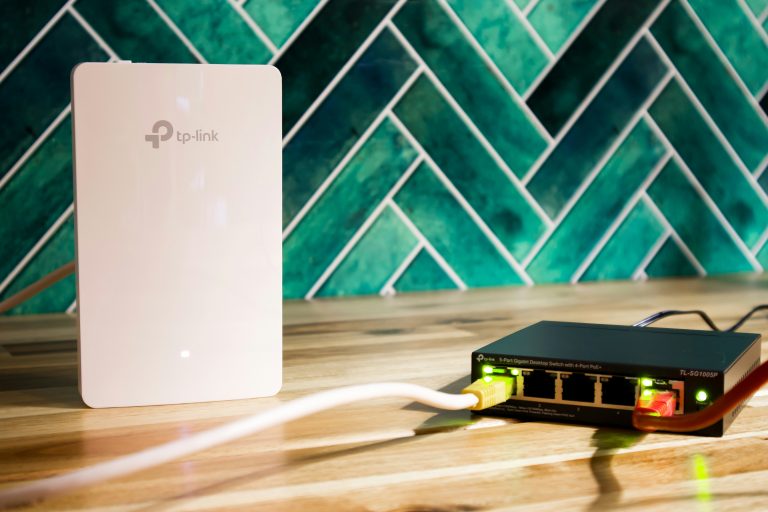
A single router often can’t cover an apartment evenly, especially larger units or those with concrete interior walls. A mesh system solves this by placing multiple access points throughout the unit. For apartments, the TP-Link Deco line and eero mesh systems work well because they’re compact, support band steering, and handle dense environments better than most.
Mesh isn’t a magic fix for interference — you’re still sharing spectrum with neighbors. But mesh ensures that you have a strong local signal everywhere in your apartment, which means your devices transmit at higher power and are less susceptible to being overwhelmed by neighbor signals. It’s the difference between shouting across a noisy room and whispering to someone right next to you.
For more on mesh vs other options, our WiFi extender guide covers why mesh beats range extenders in apartment settings.
Reduce Your Own Interference Sources
Before blaming neighbors for all your problems, check your own devices. Every WiFi device you own is also a potential source of interference — especially older 2.4GHz devices that don’t support modern WiFi standards and use more airtime to transmit the same data.
Consider upgrading old devices that only support WiFi 4 or WiFi 5. A single WiFi 4 device on your network can slow down the entire WiFi 6 network because the router has to use legacy compatibility modes that reduce overall efficiency. This is called the “WiFi adapter effect” and it’s real — one old laptop can tank your entire network’s performance.
If you have a lot of smart home devices, consider putting them on a separate network or VLAN as described in our IoT VLAN guide. This isolates their traffic and prevents them from impacting your main network’s performance.
Wired Connections Where Possible
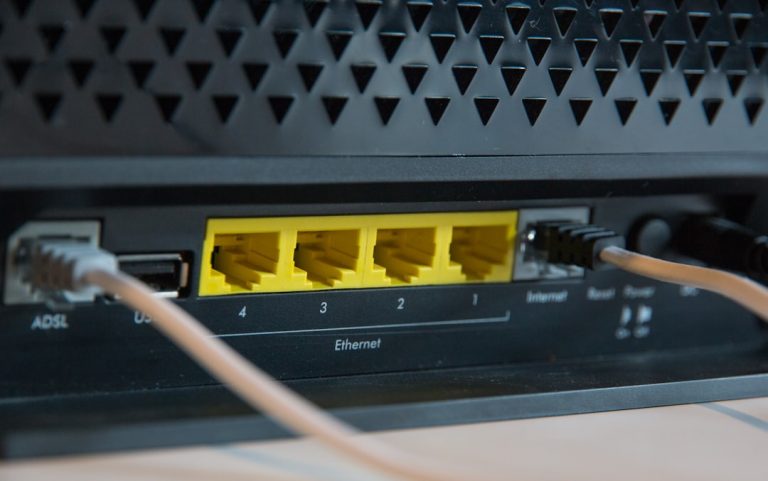
The comprehensive fix for WiFi interference is not using WiFi. Any device that doesn’t move — TV, desktop PC, gaming console, NAS — should be on Ethernet if at all possible. Even if you can’t run cable through walls, a short Ethernet cable from your router to your TV or PC eliminates that device’s WiFi usage entirely, freeing airtime for your mobile devices.
If you can’t run Ethernet, MoCA adapters using your apartment’s coax cables can deliver wired speeds without running new cables. See our MoCA adapter guide for options.
Dealing with Building Infrastructure
Some apartment buildings have building-wide WiFi systems that your landlord provides. These systems are often under-provisioned and add to the interference soup. If your building offers managed WiFi, you might be better off using your own router with a wired connection to the building’s Ethernet jack (if available) rather than relying on the building WiFi.
If your building only provides a single coax outlet for internet (cable modem), check whether the coax infrastructure supports MoCA. If it does, you can use MoCA adapters to distribute wired connectivity throughout your apartment without drilling any holes — important when you don’t own the walls.
WiFi Interference Apartment — Summary
The winning strategy: move everything possible to 5GHz or 6GHz, manually select the cleanest channel, position your router toward the interior of your apartment, use mesh for coverage gaps, and wire stationary devices. In dense apartment environments, the difference between a well-optimized setup and a default configuration isn’t 10-20% — it’s the difference between usable and unusable.
Additional Resources
Wi-Fi Alliance’s WiFi 6E explainer covers how 6GHz access gives apartment dwellers dramatically more spectrum for less interference. If your devices support 6GHz, this single upgrade can eliminate most interference problems.
How-To Geek’s WiFi analyzer recommendations lists apps for both Android and iOS that let you visualize nearby networks, channel usage, and signal strength. Essential for diagnosing which channels are most congested in your building.
Metageek’s inSSIDer is a more powerful WiFi analysis tool for Windows that shows channel overlap, signal-to-noise ratios, and network utilization over time. It’s paid software but has a free tier sufficient for basic apartment interference analysis.
Understanding DFS Channels
Dynamic Frequency Selection (DFS) channels on 5GHz are often significantly less congested in apartments because many routers avoid them by default. DFS channels require the router to scan for radar signals before transmitting, which can cause brief connection drops. However, in a dense apartment environment, the reduced interference on DFS channels often outweighs the occasional scan-related interruption.
Enabling DFS on your router is one of the most effective WiFi interference apartment fixes available. Most routers have a “Enable DFS Channels” toggle in the wireless settings. Enable it, then check your WiFi analyzer to confirm which DFS channels are available and least congested in your specific unit.
The FCC’s WiFi guidance provides information about legal power limits and channel usage in the US, useful for understanding why some channels are more crowded than others and what your options are for operating on less-congested frequencies.
The most effective WiFi interference apartment solution is a combination of 6GHz adoption and strategic AP placement near your most bandwidth-hungry devices.
Understanding WiFi interference apartment dynamics helps you choose the right channels and equipment for your specific building’s RF environment.
Frequently Asked Questions
Can my neighbors’ WiFi really slow down my connection?
Yes. WiFi is a shared medium — all devices on the same channel take turns transmitting. When 20 networks share the same 5GHz channel (or adjacent channels that overlap), your router gets less airtime and your throughput drops. This is especially bad on 2.4GHz where only three non-overlapping channels exist.
Is 6GHz really interference-free in apartments?
Nearly. Very few devices currently use 6GHz, so it’s mostly clear. As more WiFi 6E and WiFi 7 devices proliferate, 6GHz will get more crowded, but the band has significantly more spectrum available (three times more than 5GHz), so it’ll handle crowding much better.
Will a WiFi extender help with apartment interference?
No. A standard WiFi extender receives your router’s signal and rebroadcasts it — but it’s using the same congested channels to do so, so it adds to the interference problem. A mesh system with dedicated backhaul is a better solution because it doesn’t re-broadcast on the same channel.
How do I analyze WiFi interference in my apartment?
Use a WiFi analyzer app on Android (WiFi Analyzer by farproc) or the Wireless Diagnostics tool built into macOS. These show you all nearby networks, their channels, signal strengths, and channel widths. Scan at different times to see how interference varies throughout the day.
Can I ask my neighbors to change their WiFi channels?
You could, but it’s unlikely to help long-term. With dozens of networks competing for limited spectrum, there’s no channel that won’t eventually get crowded. Focus on optimizing your own setup with 5GHz/6GHz and proper channel selection rather than trying to coordinate with neighbors.
How do I know if my ISP is throttling my WiFi speed?
ISP throttling and WiFi interference are different problems. To distinguish them, connect a device directly to your router with an Ethernet cable and run a speed test. If the wired speed matches what you’re paying for, your issue is WiFi interference, not ISP throttling. If wired speeds are also slow, contact your ISP. Most ISPs don’t throttle residential connections in ways that affect typical usage, but congestion during peak hours can slow cable internet connections in dense neighborhoods.
Should I upgrade my router or switch to mesh for apartment WiFi?
If a single router placed centrally covers your apartment adequately and your main issue is interference (not coverage), upgrading to a better router with WiFi 6E or WiFi 7 is more effective than adding mesh nodes. Mesh adds coverage, not capacity — you’re still sharing the same spectrum. Only add mesh if you have concrete walls creating dead zones within your unit. For apartment dwellers, a single high-quality router with 6GHz support often outperforms a multi-node mesh system that costs twice as much.
Can building materials make interference worse?
Absolutely. Concrete and brick walls, metal lath in plaster, and even energy-efficient window coatings can reflect WiFi signals in unpredictable ways. In older apartment buildings, metal pipes and wiring in walls create additional interference patterns. This is why two apartments with identical floor plans can have completely different WiFi experiences — the internal wiring and wall construction vary. If your apartment has metal-foil-faced insulation (common in retrofitted buildings), it acts as a Faraday cage that blocks WiFi signals between rooms.
If you’re into networking gear jokes and geeky merch, check out Witty Design Finds on Etsy — some fun stuff for the home lab crowd.