How to Protect Your Kids on WiFi
Your 8-year-old doesn’t need access to Reddit, your teenager shouldn’t be gaming until 3am on a school night, and nobody’s kids should stumble onto adult content while watching YouTube. Setting up proper WiFi parental controls for kids isn’t about being overbearing — it’s about age-appropriate boundaries that work even when you’re not looking over their shoulder. Here’s what actually works in 2026.
Effective WiFi parental controls combine network-level filtering with device-level time limits for complete coverage.
The Wikipedia guide to parental controls emphasizes that technology-based controls are only one layer of protection. But they’re a critical layer, and the tools available in 2026 are more capable than ever — if you configure them correctly.
Network-Level vs Device-Level Parental Controls
Parental controls work at two levels, and you should use both. Network-level controls enforce rules regardless of which device your kid uses. Device-level controls add protection when devices leave your home network (school, friends’ houses, cellular data).
Network-level controls are broader but less granular. They can block entire categories of content and enforce time limits, but they can’t distinguish between your 7-year-old’s iPad and your 15-year-old’s laptop — both devices are treated identically. Device-level controls (iOS Screen Time, Android Family Link, Windows Family Safety) are per-device and per-child, offering much more granular control.
The right approach: configure network-level controls for broad protection (content filtering, safe search), then add device-level controls for per-child customization (time limits, app restrictions, activity reports). Layers matter because kids are resourceful — a single control point is a single point of failure.
Router-Based Parental Controls
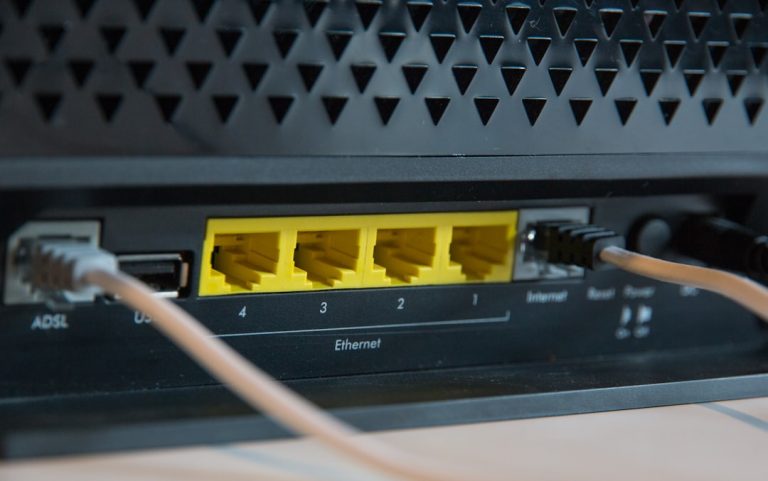
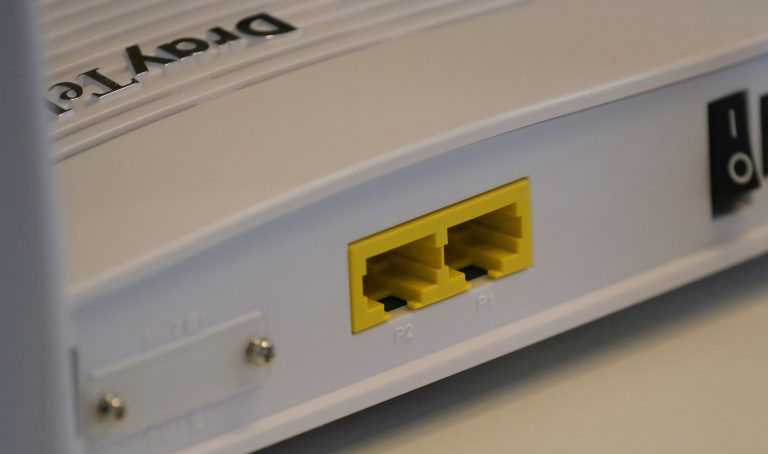
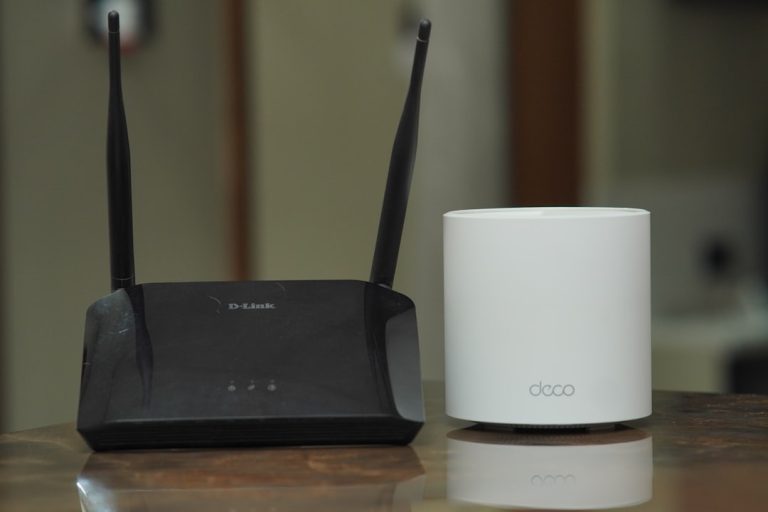
Most modern routers include some form of parental controls. The quality varies dramatically between brands:
- Netgear Orbi — Orbi’s parental controls are powered by Disney Circle (formerly a separate product, now integrated). They offer content filtering by category, time limits per device or per profile, bedtime scheduling, and activity history. The Netgear Orbi integration is one of the better router-based implementations, though some features require a Circle Premium subscription after the first year.
- TP-Link Deco — Deco’s Homeshield parental controls include content filtering (basic), time limits, and bedtime scheduling. The interface is practical and doesn’t require a subscription. Filtering accuracy is decent but not as thorough as dedicated solutions like Circle or Bark.
- eero — eero’s parental controls are basic: pause the internet for specific devices or profiles, set bedtime schedules. Content filtering requires eero Plus subscription ($10/month) and uses third-party filtering that’s adequate but not best-in-class.
- ASUS routers — ASUS AiProtection Pro (Trend Micro powered) includes web filtering, time scheduling, and parental profiles. The feature set is surprisingly capable for a router-based solution, but the interface is cluttered and not intuitive for non-technical parents.
Router-based controls are a good first line of defense, but they only work when devices are on your home WiFi. When your kid takes their iPad to a friend’s house or connects to cellular data, router controls do nothing. That’s why device-level controls matter too.
Dedicated Parental Control Hardware
💰 Buy on Amazon → Circle Home Plus
For families that want solid network-level protection without relying on their router’s built-in features, dedicated hardware options exist:
Circle Home Plus
Circle Home Plus is a small device that sits on your network and manages all internet traffic. It connects to your router and profiles each family member’s devices. Features include detailed content filtering across dozens of categories, time limits per profile, bedtime scheduling, a “pause the internet” button for dinner or homework time, and detailed activity history showing what each kid accessed.
Circle’s filtering is more accurate and thorough than any router’s built-in controls. It inspects HTTPS traffic (via a local proxy) to filter content on encrypted connections, which most router-based solutions can’t do. This catches a lot of content that would otherwise slip through.
The limitation: Circle requires a subscription ($10/month or $100/year) after the first year for premium features including the most useful filters and usage history. Without the subscription, you get basic time limits and pause functionality but lose content filtering and monitoring.
Bark: Content Monitoring, Not Content Blocking
Bark takes a fundamentally different approach. Instead of blocking content, it monitors your child’s online activity across text messages, YouTube, social media, email, and 30+ other platforms, alerting you when it detects potential issues like cyberbullying, depression, explicit content, or predatory behavior. It uses AI to analyze the context of conversations, not just keyword matching.
Bark works as both a network-level tool (monitoring traffic on your WiFi) and a device-level tool (monitoring activity within apps). For parents of teenagers, the monitoring approach is often more practical than blocking — teens will find ways around content blocks, but monitoring catches issues regardless of how they access content.
Bark costs $14/month for the family plan (unlimited children and devices). It doesn’t block content, so it’s best paired with a content filtering solution for younger kids and used standalone or with lighter controls for older teenagers.
Google Family Link (Android)
Google Family Link is free and works with any Android device plus Chromebooks. It lets you set daily time limits, approve or block app installations, set device bedtime, remotely lock the device, and see weekly activity reports. Content filtering on YouTube can be restricted to YouTube Kids through Family Link settings.
Family Link is surprisingly capable for a free tool. The main limitation is that it requires a Google account for your child (which creates its own privacy considerations) and some older Android devices don’t support all features. For Android families, it’s the first tool to set up.
Apple Screen Time (iOS/macOS)
Apple’s built-in Screen Time includes Content & Privacy Restrictions (block adult websites, restrict Siri web search, limit app store access), App Limits (time limits per app category), Downtime (schedule when only allowed apps are accessible), and Family Sharing (parent manages child’s Screen Time remotely). It’s free, built into every Apple device, and works reasonably well.
The weakness: kids can often find workarounds. Screen Time restrictions can sometimes be bypassed by changing the device’s date/time settings, deleting and reinstalling apps, or using Screen Time passcode recovery. Apple has patched many of these exploits, but new ones surface periodically. Combine Screen Time with network-level controls for stronger protection.
DNS-Based Content Filtering: The Simple Technical Approach
One of the easiest and most effective content filtering methods is changing the DNS server that your network uses. Services like OpenDNS FamilyShield (now part of Cisco Umbrella) and CleanBrowsing automatically block adult content, malware, and phishing sites at the DNS level. Setup requires changing one setting on your router: the DNS server addresses.
DNS filtering isn’t perfect — it can’t filter content within apps (like YouTube’s recommendation algorithm) or inspect encrypted traffic content. But it catches a massive percentage of inappropriate web content with zero software installation and no subscriptions. It works on every device on your network, including guests and IoT devices.
For a layered approach: DNS filtering on the router (catches most web content), Circle or router parental controls for time management and app-level filtering, and device-level controls for per-child customization. This three-layer approach is difficult for any kid to circumvent entirely.
Network Isolation for Kids’ Devices
Advanced technique: put all kids’ devices on a separate VLAN or SSID with its own filtering rules and internet access schedule. Your kids’ WiFi network shuts off at bedtime while yours stays on. Their network has content filtering enabled at the DNS level. Their devices can’t see your NAS or other local devices.
This requires a router that supports VLANs (most mesh systems don’t, but the pfSense/OPNsense class of routers do, as do some Omada and UniFi setups). See our IoT VLAN guide for VLAN setup specifics. The same approach used for IoT isolation works perfectly for kids’ network isolation.
What Kids Actually Bypass and How to Prevent It
Kids are technologically savvy, and parental controls have a long history of being circumvented. Common bypass methods:
- VPNs and proxy sites — Block VPN traffic at the router level if your router supports it. Circle Home Plus can detect and block most VPN usage. DNS-level blocking doesn’t prevent VPNs since they tunnel all traffic.
- Deleting and reinstalling apps — App store restrictions (Family Link, Screen Time) prevent this, but only if configured. Make sure app installation requires parental approval.
- Using a friend’s device — You can’t control devices you don’t own. This is where education and open conversation become more important than any technical control.
- Factory resetting the device — This removes all parental control profiles. Require your Apple ID or Google account password for any device reset (configurable in Screen Time and Family Link).
- Connecting to a neighbor’s WiFi — Network-level controls only work on your network. Device-level controls follow the device everywhere. This is why layers matter.
Practical Recommendation
Start with DNS-based content filtering on your router (free, catches most web content). Add device-level controls (Google Family Link for Android, Screen Time for Apple) for time limits and per-child rules. If you want detailed monitoring and activity reporting, add Bark for older kids or Circle Home Plus for younger ones. Talk to your kids about why these controls exist — controls without conversation breed resentment and workarounds.
Additional Resources
Common Sense Media provides age-based media recommendations and reviews that help parents make informed decisions about what content is appropriate for their children at different ages.
Wikipedia’s parental controls overview covers internet safety fundamentals, including tips for discussing online safety with children of different ages.
ConnectSafely’s parent guides offer detailed, platform-specific safety guides for popular apps and services that kids use — TikTok, Instagram, Roblox, Discord, and more.
Network-Level vs Device-Level Filtering
For network-level parental controls, network-level filtering is the most reliable approach because it can’t be bypassed by clearing browser history, using incognito mode, or switching to a different browser. However, network filtering has limitations: it doesn’t work when devices leave your home network (cellular data, public WiFi), and it can’t inspect HTTPS traffic without installing a certificate on each device.
Device-level controls (Screen Time on iOS, Family Link on Android) provide more granular per-app limits and work everywhere the device goes. The ideal setup combines both: network-level filtering as a baseline safety net, plus device-level controls for time limits and app management.
Age-Specific Recommendations
The right approach varies significantly by age:
- Under 8: Network-level content filtering (OpenDNS FamilyShield or similar) is essential. No unsupervised internet access. Approved apps only on devices.
- Ages 8-12: Content filtering plus time limits. Allow more apps but restrict social media. Start teaching basic online safety.
- Ages 13-17: Gradually reduce filtering, shift to monitoring and conversation. Teens will find workarounds to technical controls — the goal shifts to maintaining open communication about online activity.
The most effective parental controls combine network-level DNS filtering with device-level app management.
Modern parental controls have evolved beyond simple content blocking to include screen time scheduling, usage reporting, and per-device policies.
Frequently Asked Questions
Can parental controls see private browsing or incognito mode?
Network-level controls (DNS filtering, Circle) can see DNS queries even in incognito mode. However, they can’t see the specific URLs visited within encrypted (HTTPS) connections. Device-level controls can often bypass incognito mode entirely — iOS Screen Time and Google Family Link enforce restrictions regardless of browsing mode.
Do parental controls slow down my internet connection?
DNS-based filtering adds negligible latency (milliseconds). Deep packet inspection tools like Circle Home Plus can add slightly more latency because they intercept and inspect HTTPS traffic. In practice, the slowdown is imperceptible for web browsing but might affect real-time gaming slightly.
At what age should I stop using parental controls?
There’s no universal answer. Many parents gradually relax controls during mid-teens (15-17), replacing blocking with monitoring and conversation. The goal is to shift from external controls to internal self-regulation as kids develop judgment. Dramatic removal of all controls at age 18 tends to backfire.
Can kids bypass Circle Home Plus?
It’s difficult but not impossible. Circle works at the network level, so devices that leave your WiFi (cellular data, other networks) bypass it entirely. VPNs can also tunnel around Circle’s filtering. Pair Circle with device-level controls for broader coverage.
Is DNS filtering enough for young children?
DNS filtering catches most inappropriate websites and is an excellent first layer. But it can’t filter content within apps (YouTube recommendations, social media feeds, in-app browsers) or block specific apps. For young children (under 10), combine DNS filtering with app restrictions on their devices.
What about gaming consoles and smart TVs?
Gaming consoles (PlayStation, Xbox, Nintendo Switch) and smart TVs have their own parental control systems that work independently of network-level controls. Both PlayStation and Xbox offer robust family settings including screen time limits, content restrictions by age rating, and spending controls. Enable these in addition to your network-level filtering — network controls catch web content that console-level controls miss, and console controls restrict games and apps that network filtering can’t differentiate.
If you’re into networking gear jokes and geeky merch, check out Witty Design Finds on Etsy — some fun stuff for the home lab crowd.