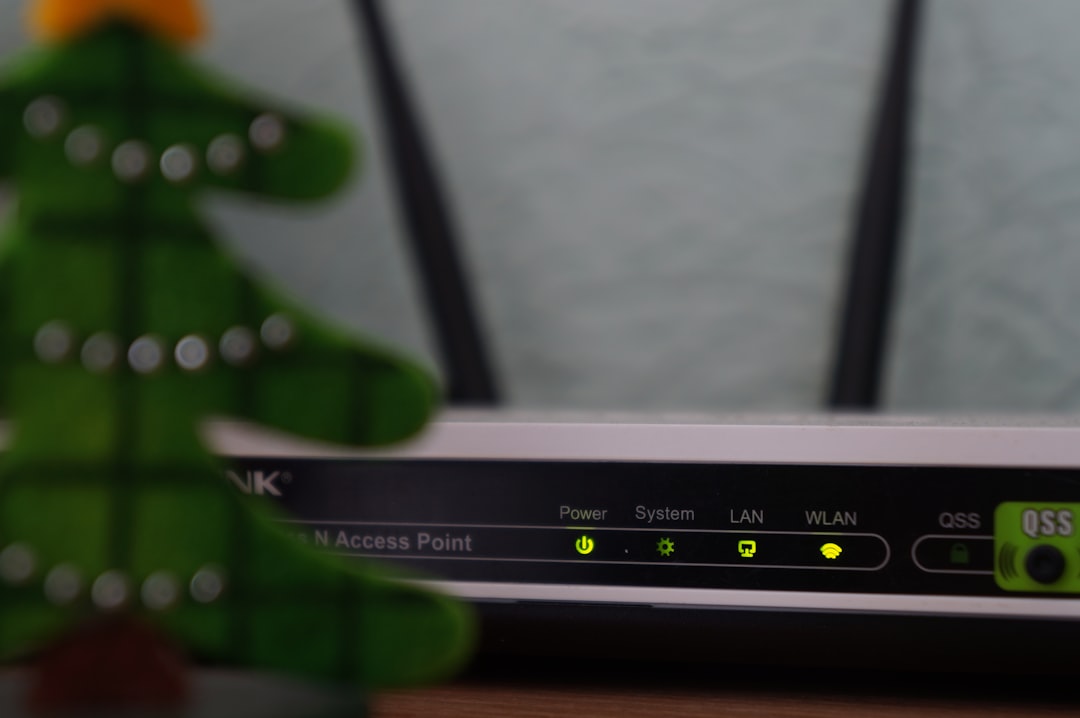
How to Optimize WiFi Settings Using TP-Link Omada: Complete Guide
How to Optimize WiFi Settings Using TP-Link Omada: Complete Guide
TP-Link’s Omada platform gives you enterprise-grade WiFi management at consumer prices — but that power is useless if you leave the settings at defaults. Most Omada deployments are running at maybe 60% of their potential because nobody bothered to tune the radio settings, channel assignments, and power levels. Here’s how to properly optimize your TP-Link Omada WiFi optimization for real-world performance that matches the spec sheet.
The most impactful TP-Link Omada WiFi optimization change you can make is reducing channel width from 80MHz to 40MHz in multi-AP deployments.
Whether you’re running a single TP-Link EAP670 access point in a small office or a dozen EAPs across a larger property, the same principles apply. Omada’s controller software gives you deep control — you just need to know which settings matter and which ones to leave alone.
Understanding the Omada Stack
Before touching any settings, know what you’re working with. The Omada ecosystem consists of three layers:
- Omada SDN Controller — The management brain. Runs on an OC200 hardware controller, an Omada router with built-in controller, or as software on a Linux machine, Docker container, or even a Raspberry Pi. The controller manages all your EAPs from one interface.
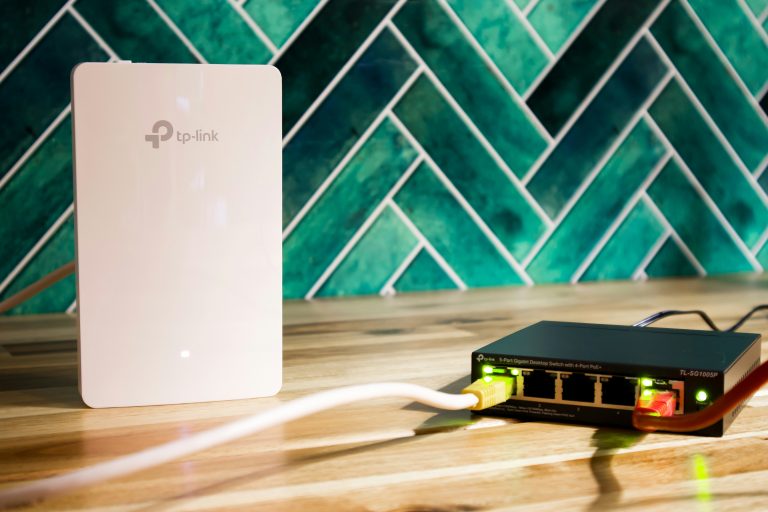
- EAP Access Points — The actual WiFi radios. Models range from the budget TP-Link EAP653 to the powerful EAP670 with WiFi 6 support, multiple Ethernet ports, and PoE passthrough.
- Omada Switches and Router — Optional but recommended. An TP-Link ER605 router with Omada switches enables PoE power, VLAN tagging, and direct integration with the controller for a complete managed network.
The controller doesn’t process traffic — it just manages configuration. All traffic flows through the access points and switches directly. This means even if the controller goes down, your WiFi keeps working at its last configured settings. The controller is needed for changes and monitoring, not for operation.
If you’re comparing Omada to other options, our best WiFi access points guide covers how Omada stacks up against Ubiquiti UniFi and other platforms.
Channel Selection and Band Steering
Channel selection is the single biggest WiFi performance lever you can pull, and Omada gives you full control. Here’s the optimal approach:
2.4GHz Band
Use channels 1, 6, or 11 only. These are the non-overlapping channels in the 2.4GHz spectrum. Don’t use channels 3, 4, 8, 9, or any other value — they overlap with adjacent channels and cause interference. In Omada, go to your WLAN settings and set the 2.4GHz channel manually. Don’t rely on “auto” channel selection — it often picks suboptimal channels.
Keep the 2.4GHz radio enabled but deprioritize it. Use it only for legacy devices and IoT gadgets that don’t support 5GHz. Most of your important traffic should live on 5GHz or 6GHz.
5GHz Band
The 5GHz band offers many more channels and less interference, but there are subtleties. Channels 36-48 are the lower UNII-1 band and often the cleanest. Channels 52-144 are DFS (Dynamic Frequency Selection) channels that share spectrum with weather radar. Omada supports DFS, and using these channels gives you access to significantly more bandwidth — but they can cause brief disconnections when radar is detected.
For home use, I recommend enabling DFS channels. The brief interruptions (typically under a minute) are rare and the extra channel space is worth it, especially in dense environments. Set your 5GHz bandwidth to 80MHz for maximum throughput on each channel, or 40MHz if you have many nearby networks competing for spectrum.
6GHz Band (WiFi 6E Models)
If you have WiFi 6E Omada access points, the 6GHz band is your playground. Virtually no interference exists there. Use 160MHz channels for maximum throughput — on 6GHz, you have enough spectrum to run wide channels without overlap concerns. Enable band steering to push 6GHz-capable devices to this band automatically.
Band Steering Configuration
Omada’s band steering feature encourages dual-band devices to connect to 5GHz (or 6GHz) instead of 2.4GHz. Enable it in your SSID settings. Don’t enable “band steering force” — that can cause connection issues with stubborn devices. Regular band steering is sufficient to move most capable devices to the faster bands.
Transmit Power: More Is Not Better
This is the most common Omada configuration mistake: cranking transmit power to maximum on every access point. Higher power doesn’t mean better performance — it often means worse. When your access point screams at full power, your devices can “hear” it from far away, but their tiny phone antennas can’t transmit back with enough power for the AP to hear them. This asymmetry causes packet loss, retransmissions, and poor performance even when signal strength looks fine.
In Omada, set transmit power to “Low” or “Medium” for most deployments. High power is appropriate only for single-AP setups covering a large open area. If you have multiple APs, lower power reduces overlap between them and ensures devices connect to the nearest AP rather than sticking to a distant one with a strong but asymmetric signal.
The rule of thumb: your AP should cover its intended area with at least -65dBm signal strength at the edges, but you want adjacent APs’ signals to drop below -75dBm at each other’s coverage areas. This ensures clean handoffs between APs as you walk around.
SSID Strategy and Network Segmentation
Don’t create separate SSIDs for each band. Create one SSID (or two: one for personal devices, one for guests) with the same name on all bands. Your devices will automatically connect to the fastest band they support. Three SSIDs for “MyNetwork-2.4G”, “MyNetwork-5G”, and “MyNetwork-6G” is a 2015 approach that fragments your devices unnecessarily.
For security, create a separate guest network using Omada’s guest portal. The guest WiFi setup guide covers the specifics of isolating guest traffic. Omada supports VLAN tagging on guest networks, so your guests can access the internet but can’t reach your NAS, printers, or other local devices.
If you run IoT devices on a separate VLAN, you can create a dedicated SSID that tags traffic to that VLAN automatically. This is cleaner than trying to segment devices by MAC address on a single SSID.
802.11r Fast Roaming and Other Advanced Settings
If you have multiple access points, enable 802.11r (Fast BSS Transition) in your SSID settings. This allows devices to roam between APs in under 50ms instead of the 100-500ms that standard roaming takes. The difference is noticeable during voice calls and video streams — without fast roaming, you get brief but annoying dropouts when walking between AP coverage areas.
Also enable 802.11k (neighbor report) and 802.11v (BSS transition management). These protocols work together with 802.11r to help devices make smarter roaming decisions. Omada supports all three. Enable them all for the best multi-AP experience.
One setting to leave disabled: WPA3-only mode. Not all devices support WPA3 yet. Enable WPA2/WPA3 mixed mode (WPA3-Transition) for maximum compatibility while still offering WPA3 security to capable devices.
Scheduled WiFi and Other Quality of Life Features
Omada supports scheduled WiFi enable/disable — useful for automatically turning off guest WiFi at night, or disabling kids’ devices at bedtime. This is configurable per SSID with different schedules.
The captive portal feature works well for guest networks. You can set it to require a simple click-through (no password), a pre-shared password, or external authentication via a RADIUS server. For home use, the click-through option with terms acceptance is sufficient and removes the need to share your WiFi password with guests.
Firmware and Controller Updates
Keep your Omada controller and access points updated. TP-Link releases firmware regularly with performance improvements, security patches, and new features. The controller can push firmware updates to all APs simultaneously — enable automatic updates for security patches and manually approve feature updates after checking the release notes for breaking changes.
Before updating, ensure your controller is on the latest version first, then update the APs. Updating APs to a firmware version newer than what the controller supports can cause management issues.
TP-Link Omada WiFi Optimization — Summary
The critical settings that make the biggest difference: manual channel selection (non-overlapping channels only), transmit power set to Low or Medium, 80MHz or 160MHz channel width, a single SSID per network across all bands, 802.11r/k/v fast roaming enabled, and WPA2/WPA3 mixed mode. Get these right and your Omada deployment will perform dramatically better than a default configuration. Everything else is fine-tuning.
Additional External Resources
TP-Link’s Omada SDN documentation provides official guidance on radio settings, firmware updates, and network design best practices. While vendor documentation tends to be generic, it’s the authoritative source for understanding what each setting actually does in the Omada controller.
SmallNetBuilder’s Omada reviews include real-world performance data for popular Omada access points like the EAP670 and TP-Link EAP773. Their testing methodology uses standardized setups that make it easy to compare Omada performance against competing platforms like UniFi.
How-To Geek’s WiFi optimization guide covers universal WiFi tuning principles that apply to Omada alongside any other platform — channel width selection, transmit power calibration, and band steering strategies.
Advanced: Band Steering and Airtime Fairness
Two Omada settings that deserve more attention: band steering automatically moves capable devices from 2.4GHz to 5GHz, reducing congestion on the slower band. This should generally be enabled, but disable it if you have legacy IoT devices that connect unreliably on 5GHz.
Airtime fairness prevents a single slow device from monopolizing the access point’s time. If you have a mix of WiFi 6 and WiFi 5 devices, enabling airtime fairness ensures faster devices aren’t held back by slower clients. Test with and without — in some environments it improves overall throughput, in others it can reduce individual device speeds.
The most impactful TP-Link Omada WiFi optimization for most deployments is simply reducing channel width from 80MHz to 40MHz on 5GHz when you have more than two access points. Wider channels sound better on spec sheets, but in practice they cause significant co-channel interference in multi-AP setups.
Effective TP-Link Omada WiFi optimization requires understanding your RF environment before making any changes to radio settings.
The most overlooked TP-Link Omada WiFi optimization is proper transmit power tuning — most APs ship with power set too high for multi-AP deployments.
Do I need an Omada controller to use EAP access points?
EAPs can run in standalone mode without a controller, but you lose centralized management, fast roaming, band steering, and most optimization features. A controller is strongly recommended for any deployment with more than one AP.
Should I use auto channel selection or set channels manually?
Manual is almost always better. Auto channel selection periodically scans and switches channels, which can briefly disrupt connections. Manual selection ensures stable, optimal channel assignment. Scan with a WiFi analyzer app first, then pick the clearest channels and lock them in.
How far apart should Omada access points be placed?
Aim for 15-20 feet of overlap between adjacent AP coverage areas at the -65dBm signal level. This ensures smooth roaming without excessive co-channel interference. For a typical home with standard construction, this means roughly 30-40 feet between APs.
Can I mix different Omada EAP models on the same network?
Yes. Omada supports mixed EAP models on the same controller. A network can have EAP653 units (https://amzn.to/4mYsolm) in bedrooms and an EAP670 in the living room, all managed centrally. Different models simply offer different capabilities at their respective price points.
Does Omada support WiFi 7 access points?
TP-Link has begun releasing WiFi 7 EAP models, and Omada controller updates have added support for them. Check the specific model’s compatibility with your controller version before purchasing — early WiFi 7 EAP models required controller firmware v5.14 or later.
If you’re into networking gear jokes and geeky merch, check out Witty Design Finds on Etsy — some fun stuff for the home lab crowd.