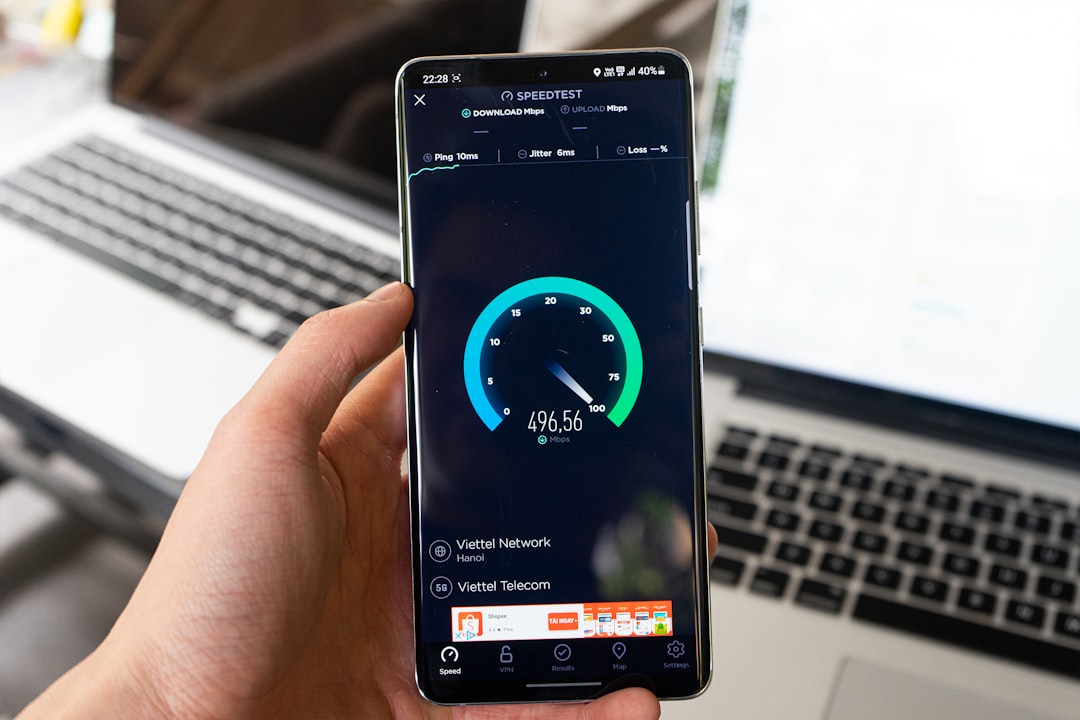
Upgrade 100Mbps to 1Gbps Home Network
You signed up for gigabit internet. Your ISP installed the fiber or upgraded your cable service. You ran a speed test — and got 940 Mbps at the modem. Then you plugged into your router and got 300 Mbps. You ran a Wi-Fi test and got 180 Mbps. You moved to a room away from the router and got 40 Mbps. This guide covers 100mbps to 1gbps in depth.
Upgrading home network 100Mbps to 1Gbps is about far more than your ISP plan. It requires your entire home network — router, switches, access points, cables, and NICs — to handle gigabit speeds. Any single component that’s only capable of 100 Mbps creates a bottleneck that turns your 1 Gbps service into 100 Mbps service or worse.
This guide covers every component you need to evaluate and upgrade to actually achieve gigabit performance throughout your home.
Why Upgrading Home Network 100Mbps to 1Gbps Is Harder Than It Sounds
A common misconception: “I’m paying for gigabit, so I’ll get gigabit.” The ISP delivers gigabit to your front door (or very close). What happens inside your home is entirely up to your equipment.
The weakest link principle applies absolutely here. A single 100 Mbps Fast Ethernet switch in your network path — even one you forgot was there — limits everything downstream to 100 Mbps. Most homes have several potential bottlenecks that need addressing when upgrading home network 100Mbps to 1Gbps:
- Router: Does it have a gigabit WAN port? Can its CPU handle gigabit NAT without software bottlenecking?
- Switches: Are all your switches gigabit capable? Fast Ethernet (100 Mbps) switches are still common in older installations.
- Ethernet cables: Cat5 (not Cat5e) is only rated for 100 Mbps. Cat5e supports gigabit. Cat6 is more reliable for gigabit over longer runs.
- Network interface cards: Older computers may have 100 Mbps NICs. Any device with a 100BASE-TX NIC is capped regardless of your infrastructure.
- Wi-Fi: Even excellent Wi-Fi rarely delivers theoretical gigabit speeds to individual clients; multiple clients compete for shared bandwidth.
Let’s go through each component.
Verify Your Router Is Gigabit-Capable
Your router is the gateway for all traffic. It needs:
- Gigabit WAN port: The port that connects to your modem or ONT must be gigabit (1000BASE-T or faster). If it’s a Fast Ethernet port (max 100 Mbps), your entire network is capped there.
- Gigabit LAN ports: Same requirement for the ports devices connect to.
- Sufficient CPU for gigabit NAT: Some routers have gigabit ports but underpowered CPUs that can’t forward traffic at line rate. This is sometimes called “hardware NAT” — routers without it bottleneck in software. Check your router’s specs or real-world gigabit tests.
To test if your router is the bottleneck: connect a laptop directly to your modem/ONT via Ethernet and test speed. Then connect through your router and test again. If speed drops significantly at the router stage, your router is the bottleneck.
Many routers from 5+ years ago have Fast Ethernet WAN ports or underpowered CPUs. If your router is the limiting factor, upgrading it is the first priority.
For router recommendations with proven gigabit throughput, see our best WiFi routers 2026 guide. Strong options for gigabit routing include:
- TP-Link Archer BE550 — Wi-Fi 7, multi-gig WAN
- ASUS ZenWiFi Pro ET12 — Tri-band mesh, 10G WAN
- Ubiquiti UniFi Dream Machine SE — 10G SFP+ WAN, enterprise-grade routing
Replace Any Fast Ethernet Switches
Every switch in your network path needs to be gigabit. Fast Ethernet (100BASE-TX) switches are the single most common hidden bottleneck when upgrading home network 100Mbps to 1Gbps.
How to identify Fast Ethernet switches: Check the label on the switch or the admin interface. Fast Ethernet ports are labeled 10/100. Gigabit ports are labeled 10/100/1000 or just 1G. Speed indicator LEDs on Fast Ethernet switches max out at 100 Mbps; gigabit switch LEDs glow differently or the spec sheet will confirm. A single forgotten Fast Ethernet switch in a closet will cap your entire downstream to 100 Mbps, which is exactly the kind of thing that makes people call their ISP in frustration.
What to replace them with: Unmanaged gigabit switches for simple needs are cheap and effective. An 8-port gigabit switch from TP-Link costs under $20. For more control — VLANs, monitoring, port prioritization — a managed switch is worth the modest upgrade cost.
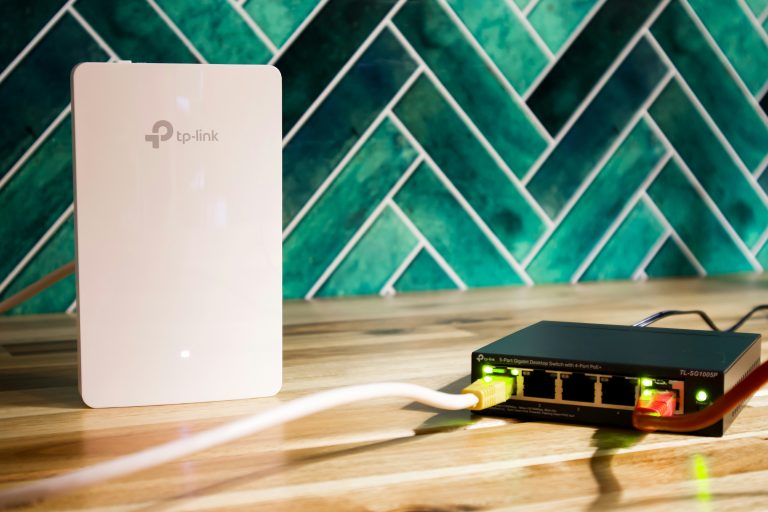
For smart homes or AV installations where you want PoE, a PoE gigabit switch powers your access points and IP cameras over Ethernet while providing gigabit throughput. Recommended options:
- TP-Link TL-SG108PE — 8-port PoE+, gigabit, solid performance
- Netgear GS308EP — Smart managed, 8-port PoE+
- UniFi USW-Lite-8-PoE — Managed, works with UniFi ecosystem
Verify Your Ethernet Cables Are Gigabit-Rated
This is where many upgrades fail silently. Ethernet cables are rated by category:
- Cat3: 10 Mbps. Telephone wiring. Never use for networking.
- Cat5: 100 MHz, rated for 100 Mbps. Common in older homes (pre-2001).
- Cat5e: 100 MHz, engineered for reduced crosstalk. Supports gigabit up to 100 meters.
- Cat6: 250 MHz, supports gigabit reliably and 10 Gbps up to 55 meters.
- Cat6A: 500 MHz, supports 10 Gbps up to 100 meters. Current recommended standard for new installations.
If your home was wired before 2001, you may have Cat5 (not Cat5e) cables in the walls. These are technically rated for 100 Mbps only. In practice, many Cat5 cables work at gigabit speeds at short runs, but they’re not certified for it and may cause intermittent issues. They’ve been in those walls since the dial-up era, so intermittent issues should come as no surprise.
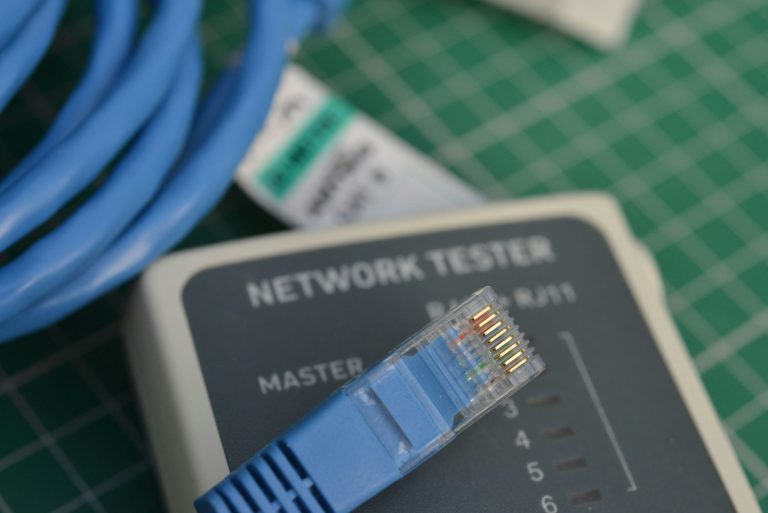
How to identify your cable category: Look at the jacket printing. Cat5 will say “CAT5”. Cat5e says “CAT5E”. If you can’t read the cable (it’s in the wall and you can’t see the jacket), test each run with a cable tester that verifies gigabit capability.
If you’re rewiring or adding new drops, use Cat6A. The cost difference over Cat5e is minimal; the performance headroom is significant, and it future-proofs your installation for 10 Gbps.
For a complete wiring guide including pulling cable through walls, see our home network wiring guide.
Check Network Interface Cards in Your Computers
The NIC (Network Interface Card) in each computer must support gigabit for that device to achieve gigabit speeds. This is less common as a bottleneck than switches or cables, but it comes up in older hardware.
How to check on Windows: Device Manager → Network Adapters → right-click your Ethernet adapter → Properties → Advanced → Speed. If maximum speed is 100 Mbps, your NIC is Fast Ethernet only.
How to check on macOS: System Information → Network → Ethernet → check “Maximum Link Speed.” Gigabit shows as 1000baseT.
How to check on Linux: ethtool eth0 (replace eth0 with your interface name). Look for “Speed: 1000Mb/s” when connected.
If a computer’s built-in NIC is only 100 Mbps (common in older desktops and some budget laptops), adding a USB 3.0 gigabit adapter is a quick fix. Anker USB-C to Gigabit Ethernet adapters work reliably and cost $15–$25. For a desktop, a PCIe gigabit NIC upgrade is more permanent and performs better.
Step 5: Understand Wi-Fi’s Gigabit Limitations
Achieving gigabit over Wi-Fi is genuinely difficult, and it’s important to set realistic expectations when upgrading home network 100Mbps to 1Gbps.
Why Wi-Fi rarely hits gigabit to a single client: Wi-Fi bandwidth is shared among all connected clients. When the spec sheet says “Wi-Fi 6: 2.4 Gbps,” that’s the total theoretical maximum for all clients combined on that band, under ideal conditions. A single client on 5 GHz 2×2 MIMO at 80 MHz channel width in Wi-Fi 6 gets about 600 Mbps theoretical, and real-world throughput is typically 300–450 Mbps for a nearby device.
Wi-Fi 6E changes the equation, partially: The 6 GHz band with 160 MHz channels and Wi-Fi 6E delivers higher per-client throughput and lower congestion. Near a Wi-Fi 6E access point, 600–800 Mbps is achievable. But it requires both the router/AP and the client device to support 6 GHz.
Wi-Fi 7 in : Wi-Fi 7 introduces 320 MHz channels and MLO (Multi-Link Operation), which can bond multiple bands simultaneously per client. A Wi-Fi 7 client on a Wi-Fi 7 AP can approach genuine gigabit performance. But client device support is still expanding.
For truly gigabit speeds to a specific device, run Ethernet. This isn’t a workaround — it’s the right answer for devices that need gigabit consistently: NAS, gaming desktop, 4K media server, work computer. Wi-Fi is appropriate for mobile devices and devices that can’t be wired. Wired Ethernet is like a dedicated lane on the highway versus shared Wi-Fi, where everyone’s competing for the same road at the same time.
For mesh systems that support wired Ethernet backhaul and deliver the best Wi-Fi performance, see our best mesh WiFi system guide.
Upgrade to Multi-Gig Where Appropriate
If you’ve resolved all the 100 Mbps bottlenecks and are now asking “what’s next?” — multi-gigabit is the answer for specific use cases.
When you need multi-gig (2.5G, 5G, or 10G):
– NAS to router/switch for fast local file transfers
– Video editing workstations pulling large files from NAS
– Aggregating multiple Wi-Fi AP backhaul connections
– Future-proofing new infrastructure
Many new routers and some switches now include 2.5G and 10G ports. Multi-gig is most valuable at the switch-to-router and switch-to-NAS connections rather than the router-to-ISP connection (your ISP likely doesn’t deliver more than 1 Gbps to your home yet).
Troubleshooting: What to Do When You’re Still Not Getting Gigabit
If you’ve worked through all the steps for upgrading home network 100Mbps to 1Gbps and still not achieving expected speeds:
- Test the cable: A damaged cable or poor termination can limit a Cat5e/Cat6 cable to 100 Mbps. Swap the cable with a known-good patch cable and retest.
- Check auto-negotiation: Some older switches and NICs mis-negotiate speed. Force gigabit in your NIC settings if auto-negotiation seems wrong.
- Look for duplex mismatch: Half-duplex operation dramatically cuts throughput. Ensure all connections are full-duplex gigabit.
- Test CPU utilization on your router: High CPU utilization on a router under load can throttle effective throughput. Log into the admin interface during a speed test and watch CPU usage.
- Check for hardware offloading settings: Some routers default to software NAT. Enable hardware offloading or hardware NAT if available.
Frequently Asked Questions
What’s the first thing I should upgrade when moving from 100 Mbps to gigabit service?
Start by identifying your bottleneck. Connect directly to your modem and test speed. Then test through your router. If speed drops at the router, upgrade the router first. If speed is fine wired but poor over Wi-Fi, your access points or coverage are the issue.
Do I really need Cat6 cable to get gigabit speeds?
Cat5e is sufficient for gigabit up to 100 meters and is the minimum specification. Cat5 (not Cat5e) is only rated for 100 Mbps. Cat6 and Cat6A provide better performance margin and support 10G at shorter distances — they’re recommended for new installations but don’t automatically make your connection faster if Cat5e is already working at gigabit.
Why am I getting gigabit on my router but only 500 Mbps on my computer?
Most likely the Ethernet cable between your switch/router and computer has an issue, your computer’s NIC driver needs updating, or your computer’s NIC is negotiating at a lower speed. Check Device Manager (Windows) or System Information (Mac) to confirm your NIC is connected at 1000 Mbps.
Can Wi-Fi ever hit true gigabit speeds in real-world use?
With Wi-Fi 7 and a client device close to the access point using 320 MHz channels on 6 GHz, yes — speeds above 1 Gbps are achievable in lab conditions and close-proximity real-world scenarios. For average whole-home performance, 300–600 Mbps per client is more realistic. If you need gigabit consistently, run Ethernet.
What does upgrading to multi-gig (2.5G or 10G) cost?
2.5G network equipment is now affordable: multi-gig switches with 2.5G ports start at $80–$150. Multi-gig routers (2.5G WAN ports) are mainstream at $150+. 10G switches start around $200 for unmanaged. 10G NICs for desktops run $30–$60. The cost to deploy multi-gig infrastructure throughout a home is now within reach of enthusiasts.