E-Ink vs Tablet Smart Home Dashboard: Which Is Best?
Two very different screens are competing for the wall space in your smart home — and the choice between them says a lot about how you use your home and what you value in a control interface. This guide covers e-ink vs tablet smart home dashboards in depth.
The e-ink vs tablet smart home dashboard debate has sharpened considerably as both technologies have matured. E-ink displays have gotten faster refresh rates and color support. Tablets have gotten cheaper and better optimized for wall-mount always-on use. Neither is clearly “better” — but one is almost certainly right for your situation.
Here’s the real-world breakdown: which shines where, which frustrates you where, and how to pick without regretting it six months later.
The E-Ink vs Tablet Smart Home Dashboard Landscape
Before comparing them directly, let’s establish what we’re actually talking about.
E-ink dashboards use electrophoretic displays — tiny charged particles that reflect ambient light rather than emitting it. Power is only consumed when the display changes. Devices like the Waveshare e-paper displays, Inkplate series, and the newer Nanoleaf Lines panels represent different takes on the category. Dedicated smart home e-ink panels from niche manufacturers round out the options.
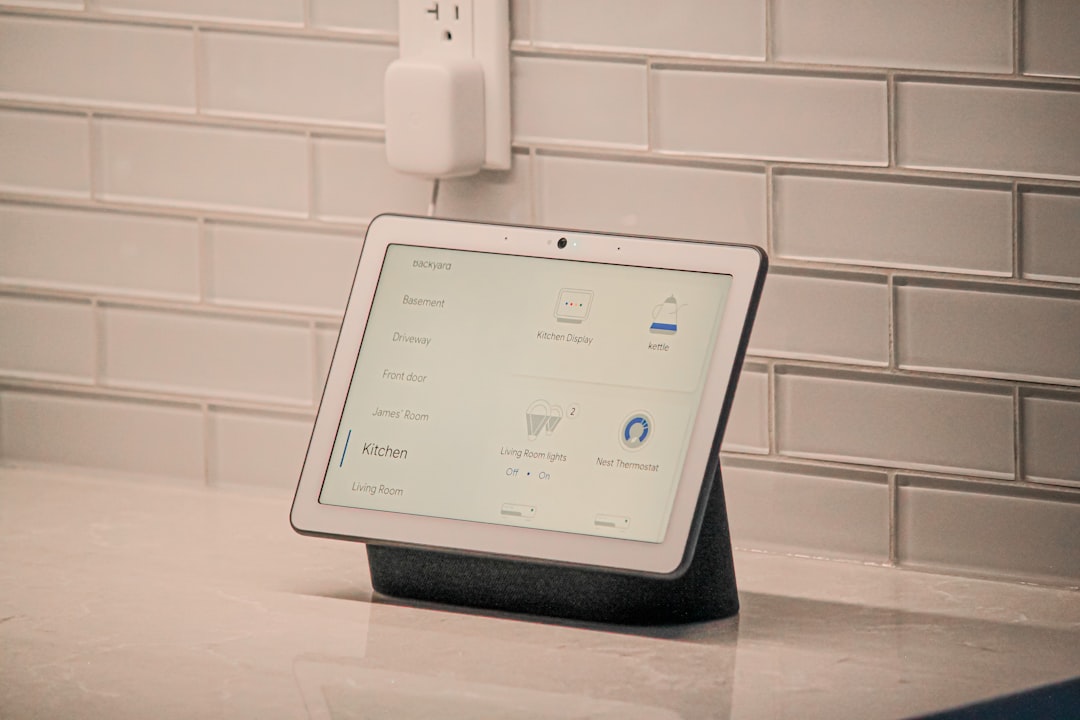
Tablet dashboards use conventional LCD or AMOLED touchscreens. An Amazon Fire HD 10 mounted in a picture frame, an iPad mini running Fully Kiosk Browser, or an old Android tablet given new purpose as a Home Assistant control panel — these are the most common tablet dashboard implementations. Google’s Nest Hub (which uses an LCD) also fits this category functionally.
The e-ink vs tablet smart home dashboard decision hinges on five primary factors: power consumption, readability, responsiveness, cost, and content richness.
Power Consumption: E-Ink’s Decisive Advantage
If there’s one category where e-ink wins by a margin that’s not even close, it’s power consumption.
An e-ink display showing a static dashboard consumes essentially zero power between refreshes. When something changes and the screen updates, power is consumed briefly — then nothing until the next update. A typical e-ink smart home dashboard running on a 4,000–10,000 mAh battery can last weeks to months without charging, depending on refresh frequency.
A tablet left on 24/7 consumes 5–15 watts continuously depending on brightness. At US average electricity rates ($0.16/kWh), that’s $7–$21 per year per tablet. Not ruinous, but it adds up across multiple rooms and requires either a wired installation or daily charging — neither of which is as clean as a truly wireless e-ink panel.
For wireless installation without running new cables, e-ink is the clear choice. If you’re already mounting near an outlet or using PoE (which has its own requirements), the power advantage matters less.
Readability and Ambient Conditions
E-ink displays are reflective, not emissive. They read exactly like paper under any ambient light — sunlight, lamplight, or dim bedroom lighting. There’s no glare, no color shift based on viewing angle, and no need to adjust brightness.
Tablets in direct sunlight are problematic. Most LCDs wash out in bright conditions, making outdoor or sunlit room installations challenging. AMOLED tablets do better in sunlight, but still not as naturally readable as e-ink.
In dark rooms, the equation flips. E-ink displays require ambient light to be visible — they don’t illuminate themselves. A tablet can dim to 10% brightness and remain usable in a completely dark bedroom. For a bedside dashboard, a dimming AMOLED tablet may actually be more practical than a non-backlit e-ink panel (though some e-ink panels include optional frontlighting).
Responsiveness: Tablets Win Clearly
This is the biggest practical limitation of e-ink for interactive dashboards: refresh speed.
Standard e-ink displays take 0.5–2 seconds to complete a full refresh, and the refresh includes a noticeable flash of black and white. Tapping a button and waiting 1.5 seconds for visual confirmation is the dashboard equivalent of a revolving door — technically it works, but it slows everything down. Partial refresh modes can update a portion of the screen faster (sometimes 100–300ms), but they cause image retention artifacts over time if used exclusively.
Tapping a button on an e-ink dashboard and waiting 1.5 seconds for visual confirmation doesn’t feel like modern technology — it feels like waiting for a webpage to load on dial-up. For control surfaces where you’re tapping, adjusting sliders, or triggering scenes, that delay is genuinely frustrating.
Think of e-ink’s power draw like a digital billboard that only uses electricity when the message changes — versus a tablet, which is basically a TV that’s always on.
Tablets respond instantaneously to touch. Animations run smoothly. A well-designed tablet dashboard with Home Assistant’s Lovelace UI or Fully Kiosk Browser feels as responsive as any modern smartphone app.
Verdict: If your dashboard is primarily a control interface — tap to dim lights, adjust thermostat, trigger scenes — tablet is dramatically better. If it’s primarily an information display — time, weather, sensor readings, calendar — e-ink is adequate and may be preferable.
Content Richness and Color
Early e-ink was monochrome only. Modern color e-paper (ACeP — Advanced Color ePaper) from manufacturers like E Ink Holdings supports full color, but the gamut is limited and saturation is lower than LCD. Colors look muted compared to AMOLED, though for dashboard purposes (showing temperatures, sensor status, weather icons) they’re often sufficient.
Tablets offer full-color, high-brightness, high-saturation displays capable of showing camera feeds, video, complex graphics, and apps. If you want a live camera feed embedded in your dashboard, a tablet is the only practical option. E-ink simply can’t refresh fast enough for video content.
For dashboards that include camera views — front door camera, driveway, back yard — tablets are the correct choice. E-ink dashboards work best with static or slow-changing data.
Cost Analysis
The cost picture has shifted in in ways that favor tablets for many use cases.
E-ink dashboards: DIY solutions start around $30–$80 for a Waveshare panel plus a Raspberry Pi Zero or ESP32 controller. Turnkey e-ink smart home panels from dedicated manufacturers run $80–$200. Color e-ink with good refresh rates costs more — high-quality color e-paper panels start around $150.
Tablet dashboards: Amazon Fire HD 8 tablets can be found for $60–$80 during sales. Older iPad minis and Kindle Fire HD 10 tablets are abundant in the used market for $50–$100. A VESA wall mount runs $20–$40. Total cost for a fully functional tablet dashboard: $80–$150.
At comparable price points, tablets offer more capability. The e-ink advantage is primarily in the niche use cases: wireless battery-powered installations, extremely low-power requirements, or outdoor/high-sunlight environments. A tablet mounted to a wall in a picture frame looks clean until someone points out it’s just a tablet in a picture frame — which they will.
For network infrastructure to support multiple wall displays, see our recommendations on best PoE switches for home use — PoE tablets are increasingly available and eliminate the charging problem entirely.
Software and Setup
Both approaches require some configuration, but the effort differs.
Tablet dashboards are well-supported by mature platforms:
– Fully Kiosk Browser ($6.90 one-time) turns any Android tablet into a lockdown kiosk mode display
– Home Assistant Lovelace UI runs perfectly in a browser
– WallPanel and similar apps add motion-wake and screensaver features
– Apple HomeKit supports iPad as a home hub running Home app in display mode
E-ink dashboards require more technical investment:
– Most solutions involve a Raspberry Pi or ESP32 running custom code
– Home Assistant integration exists for some e-ink displays but varies by hardware
– ESPHome is the preferred framework for ESP32-based e-ink panels
– Updating the dashboard content requires implementing a push mechanism or polling loop
If you’re not comfortable with Python, YAML automation, or ESP32 firmware, the e-ink DIY path is significantly more challenging than buying a Fire tablet and installing Fully Kiosk.
Use Case Recommendations for E-Ink vs Tablet Smart Home Dashboard
Here’s where each technology makes the most sense:
Choose E-Ink When:
- Battery-powered, truly wireless installation is required
- The display is primarily informational (time, weather, sensor readings, schedule)
- The location has bright ambient light or direct sun
- You want a minimalist aesthetic with no screen glow
- Power consumption is a priority (off-grid, solar-powered home sections)
Choose a Tablet When:
- The display is a control interface with frequent touch interaction
- You want embedded camera feeds
- Fast response to touch is important
- You have a power outlet nearby or want PoE
- You want rich color content and app-level flexibility
- Budget is tight and you can repurpose old hardware
For most homes, the answer is actually both: an e-ink panel in the hallway or bedroom for glanceable info, and a tablet in the kitchen or living room for active control. They serve different purposes well.
For hub options that support dashboard displays, see our best smart home hub guide, and for full-house connectivity see best mesh WiFi system .
Setting Up Your Dashboard: Platform Options
Regardless of whether you choose e-ink or tablet, the software platform matters. These are the most popular dashboard frameworks in :
Home Assistant Lovelace: The gold standard for flexible, powerful dashboards. Supports custom cards, real-time sensor data, camera feeds, and complex layouts. Works on both tablets (via browser or app) and e-ink panels (via integration). If you’re already on Home Assistant, Lovelace is your natural choice.
Tileboard: A lightweight, responsive HTML/CSS dashboard built specifically for touch displays. Runs in any browser, easy to theme, and works well on older tablets with limited RAM.
Fully Kiosk Browser: Not a dashboard itself, but an essential wrapper for Android tablets. Enables kiosk mode (no status bar, no notifications), motion-wake (screen activates when someone approaches), and remote management via its REST API. Pairs with any web-based dashboard.
HomeKit App in Guided Access: For iPad users, Apple’s Home app in Guided Access mode provides a clean, simple dashboard tied directly to HomeKit accessories. Limited in customization but zero setup friction for HomeKit households.
Node-RED Dashboard: If you’re already using Node-RED for automation logic, its dashboard module creates web-based control panels that display well on any device. More technical to set up but extremely flexible.
When evaluating the e-ink vs tablet smart home dashboard question, also factor in which software platform fits your skill level and existing setup. A Home Assistant Lovelace dashboard looks great on either hardware type, but the interaction experience (fast tablet response vs. e-ink’s reflective display) shapes which fits your specific room and workflow.
Frequently Asked Questions
What’s the best e-ink display for a smart home dashboard in ?
The Waveshare 7.5-inch e-paper display paired with an ESP32 controller and ESPHome is a popular DIY choice. For a more polished turnkey option, the Inkplate 10 offers a 9.7-inch e-ink screen with Wi-Fi built in and solid Home Assistant support.
Can I use an old iPad as a smart home dashboard?
Yes, and it works very well. iPad minis from iPad mini 4 onward have sufficient performance. Use Fully Kiosk Browser (Android) or the Home app in guided access mode (iOS). Mount with a low-profile wall mount and power via a concealed outlet or a PoE-capable case.
Do e-ink dashboards work with Home Assistant?
Yes, via several methods. ESPHome has native e-ink display support for ESP32-based panels. Some Waveshare displays can be driven directly from a Raspberry Pi. The HACS (Home Assistant Community Store) has additional e-ink integration options.
How do I handle the e-ink flash/refresh problem?
Use partial refresh modes for small content changes (time updates, sensor readings) and reserve full refreshes for major content changes. Most e-ink display frameworks support this. Accepting a periodic 3-second full refresh every hour prevents ghosting artifacts.
Is a tablet dashboard always-on display hard on the screen?
LCD and AMOLED displays can suffer burn-in if a static image displays for extended periods. Mitigate this with a screensaver that activates after inactivity, motion-wake features (tablet activates when motion is detected), and keeping brightness below 50% for always-on use.
Which option is better for a bedroom?
E-ink is generally better for bedrooms: no glow, readable by ambient light, and battery-powered options mean clean installation. For bedside control (adjusting temperature, turning off lights), the slower response is usually acceptable for bedroom contexts where you’re not in a hurry.
Privacy matters with dashboards too — see our analysis of AI and home automation privacy concerns.
For whole-home automation beyond dashboards, read about Crestron/Control4 vs DIY systems.