How to Set Up Plex on a NAS: The Complete Guide
How to Set Up Plex on a NAS: The Complete Guide 2026
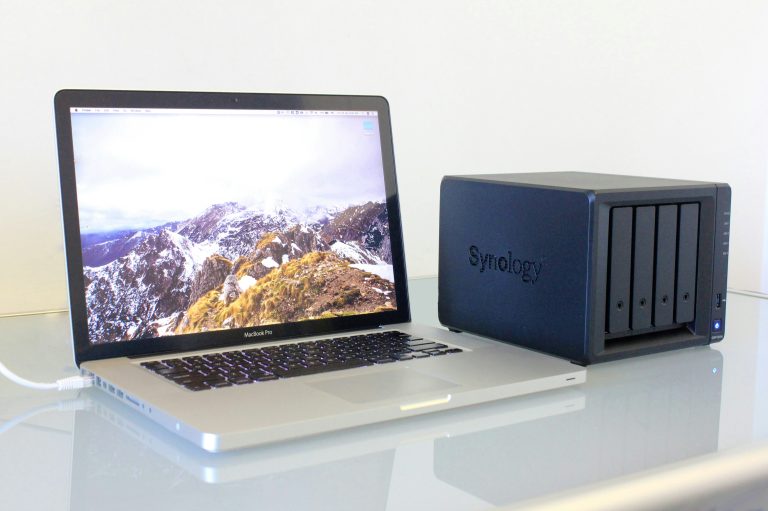
Setting up Plex on a NAS turns your network storage into a full media server — streaming your movies, TV shows, and music to any device in your home or anywhere in the world. Here’s everything from choosing the right NAS to getting your first stream running. (See also: best NAS options for home use)
Why Plex on a NAS Makes Sense
A NAS running Plex is your private Netflix. Your media library, your rules, no subscription content disappearing, no geo-restrictions, no monthly fee beyond Plex’s optional Pass. Once configured, it streams to any TV, phone, tablet, or browser automatically.
The alternative — running Plex on a PC or laptop — works but ties up a machine and shuts down when the computer sleeps. A NAS runs 24/7 at 15-20W, silently, without occupying a device you use for other things.
What You Need
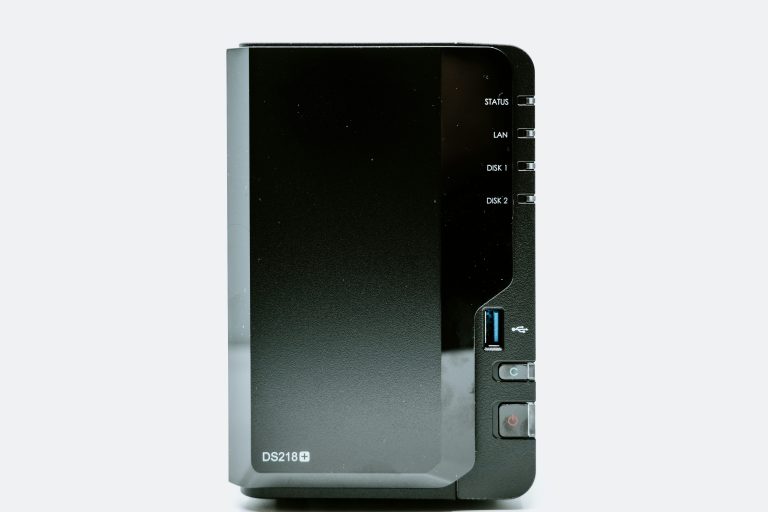
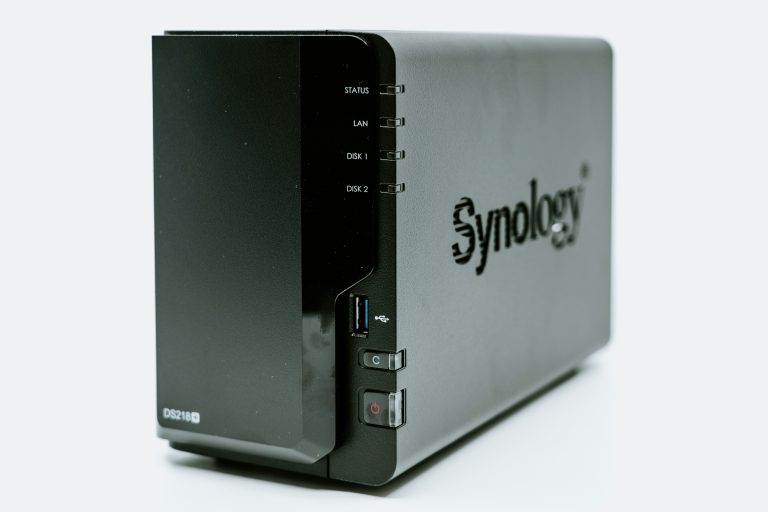
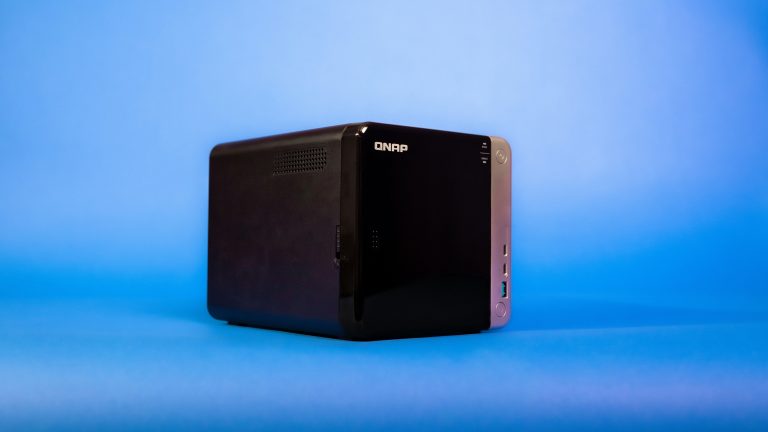
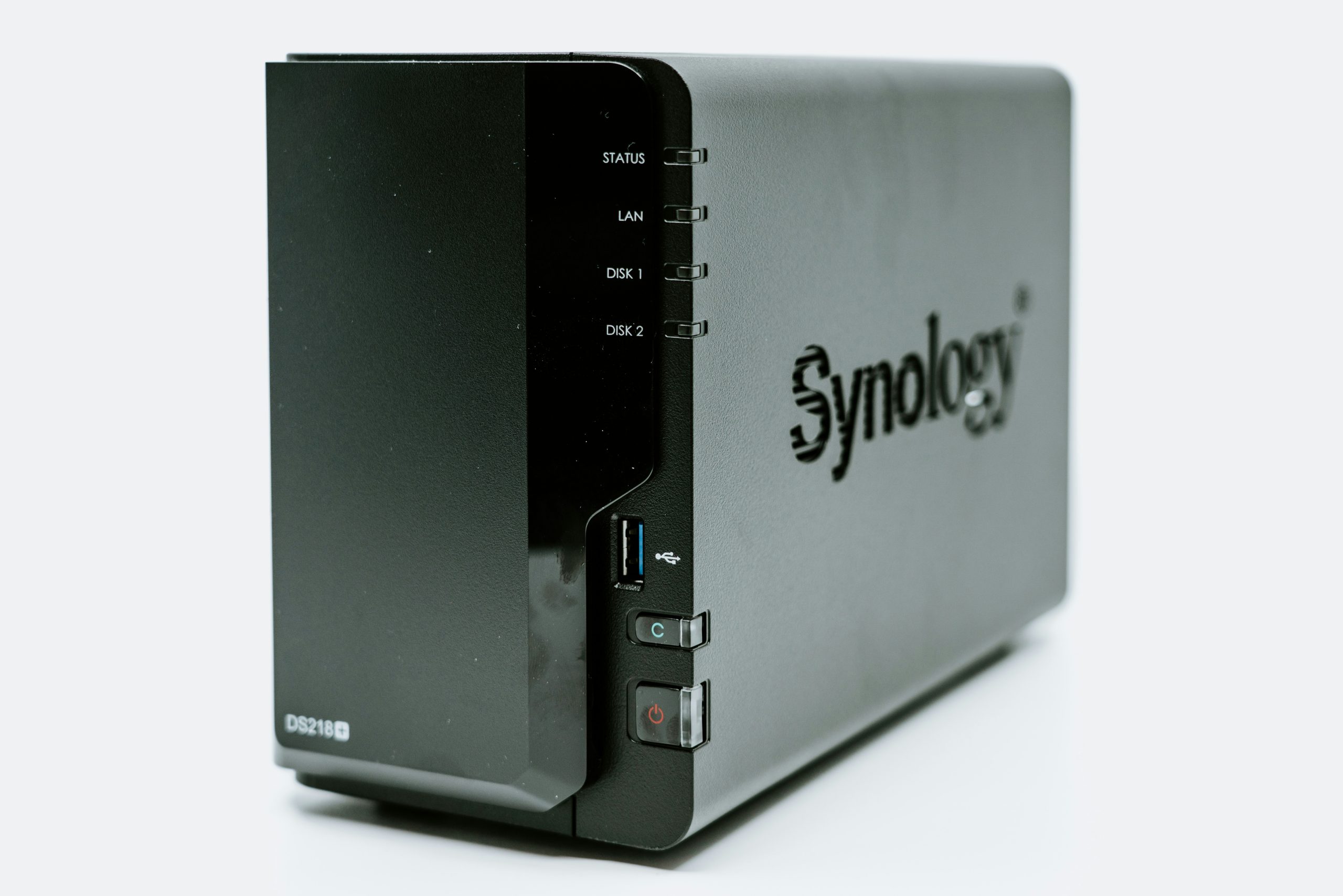
NAS with Intel QuickSync — hardware video transcoding is essential for smooth 4K playback. All Intel Celeron J-series and N-series NAS processors include QuickSync. The Synology DS423+, DS224+, QNAP TS-464, and TerraMaster F4-424 all qualify.
Plex Media Server — free to install. Plex Pass (~$5/month or $120 lifetime) unlocks hardware transcoding, offline sync, and live TV features.
Network: 1GbE is sufficient for 1-2 simultaneous streams. For 3+ users or heavy 4K usage, a 2.5GbE NAS and switch improves experience.
Drives: Any NAS-rated drives work. Capacity depends on your library — 4K movies average 50-80GB each.
Compatible NAS Models
| NAS | QuickSync | Max Simultaneous 4K Streams | Price |
|---|---|---|---|
| Synology DS423+ | Yes | 2-3 | ~$500 |
| Synology DS224+ | Yes | 1-2 | ~$300 |
| QNAP TS-464 | Yes | 3-4 | ~$550 |
| TerraMaster F4-424 | Yes (i3-N305) | 4-5 | ~$450 |
Step-by-Step: Installing Plex on Synology
Step 1 — Install Plex Media Server
- Open DSM → Package Center
- Search “Plex Media Server”
- Click Install → follow prompts
- Plex will appear in your installed packages
Step 2 — Open Plex and Sign In
- In Package Center, click Open next to Plex Media Server
- Sign in or create a free Plex account
- You’ll be taken to the Plex setup wizard
Step 3 — Create Your Libraries
Plex organizes media into libraries. Create one for each type:
Movies:
– Click Add Library → Movies
– Browse to your movies folder (e.g., /volume1/media/movies)
– Plex scans and matches metadata automatically
TV Shows:
– Click Add Library → TV Shows
– Point to your TV folder
– Plex downloads episode info, artwork, and descriptions
Music:
– Add Library → Music
– Point to your music folder
Important — folder naming conventions matter:
– Movies: /Movies/Movie Name (Year)/Movie Name (Year).mkv
– TV: /TV Shows/Show Name/Season 01/Show Name S01E01.mkv
Plex matches metadata more reliably with correct naming. Use FileBot or tinyMediaManager to batch-rename files if needed.
Step 4 — Enable Hardware Transcoding
Hardware transcoding (Intel QuickSync) is what makes smooth 4K streams possible on NAS hardware.
- In Plex Web, go to Settings → Transcoder
- Enable Use hardware acceleration when available
- Requires Plex Pass — without it, Plex falls back to software transcoding
Plex Pass options:
– Monthly: $4.99/month
– Annual: $39.99/year
– Lifetime: $119.99 (best value if you’re committed)
Step 5 — Set Up Remote Access
To stream outside your home:
- Settings → Remote Access
- Enable remote access
- Plex punches through your router automatically via relay or direct connection
- Test by opening Plex on your phone on mobile data
For better remote performance, set up port forwarding (port 32400) on your router to the NAS’s local IP. This enables direct connections instead of relayed ones.
Plex vs Jellyfin: The real comparison
Both run on any NAS with QuickSync. Here’s the real breakdown for NAS users:
Plex:
– Better apps on Apple TV, Roku, smart TVs
– Cleaner UI and better music library management
– Easier setup — metadata matching just works
– Hardware transcoding requires Plex Pass
– Account required (data goes through Plex servers for metadata/sync)
Jellyfin:
– 100% free, no account required
– Hardware transcoding free via QuickSync
– Fully local — nothing leaves your network
– Apps are improving but less polished than Plex
– Occasional metadata matching issues
Recommendation: Start with Plex on the free tier. If you hit the hardware transcoding limit (4K buffering), either upgrade to Plex Pass or switch to Jellyfin. Both are solid long-term choices.
Optimizing Your Setup
Direct Play vs Transcoding
Direct Play — Plex sends the file as-is to the client. No CPU usage, perfect quality. Requires the client device to support the file’s codec (most modern devices support H.264; H.265/HEVC support varies).
Direct Stream — Container remux only (no video re-encode). Minimal CPU usage.
Transcoding — Plex re-encodes the video for the client. Uses CPU/GPU. Required when the client doesn’t support the source codec.
Goal: maximize Direct Play. Encode your media in H.264/AAC where possible — it plays natively on virtually every device. H.265 is more efficient but requires transcoding on devices that don’t support it natively (many older smart TVs).
Network Optimization
For the best streaming experience:
- Wire your NAS to the router (don’t rely on Wi-Fi for the server)
- Wire your Apple TV, Chromecast, or media player if possible
- Set your NAS to a static IP so Plex’s direct connection doesn’t break after a DHCP lease renewal
Storage Tips
- Keep your media library on a separate volume from DSM system files
- Enable SSD caching if your NAS supports it — frequently accessed media serves faster
- Use RAID 5 or SHR for the media volume — losing your movie library to a drive failure is avoidable
Common Issues and Fixes
4K buffering: Enable hardware transcoding (Plex Pass) or switch to Jellyfin for free hardware transcoding.
Metadata not matching: Rename files to match Plex naming conventions. Use the “Fix Match” option in Plex to manually match a title.
Can’t access remotely: Check port 32400 is forwarded to your NAS. Verify remote access is enabled in Plex settings.
Library not updating: Enable automatic library updates in Plex settings, or trigger a manual scan after adding files.
Bottom Line
Plex on a NAS is one of the best home network upgrades you can make. The Synology DS423+ with Plex Pass is the gold standard — hardware transcoding handles multiple 4K streams without breaking a sweat, DSM keeps everything organized, and it runs silently 24/7 for years.
If cost is a concern, the DS224+ handles Plex for 1-2 users comfortably, and Jellyfin gives you hardware transcoding for free.
Synology DS423+ on Amazon | Synology DS224+ on Amazon
Prices checked February 2026. Affiliate links help support wiredhaus at no extra cost to you.
more from wiredhaus
- Best WiFi 7 Router 2026
- Best Mesh WiFi System 2026
- Best NAS for Home 2026
- Best Smart Home Hub 2026
- IoT VLAN Setup Home Network
Hardware Requirements: What Plex Actually Needs
Plex’s demands depend entirely on whether you’re transcoding or direct-playing. Transcoding — converting video to a different format or resolution on the fly — is CPU intensive. Direct play sends the file as-is to the client, requiring almost no processing power.
Minimum recommended specs for a NAS running Plex:
- 1-2 simultaneous transcodes at 1080p: Intel J4125 or better (Celeron N-series, Pentium Silver). This covers Synology DS423+, QNAP TS-464, and similar.
- 4K transcoding: Requires hardware transcoding (Intel Quick Sync). The J4125 supports this. The older J3455 does not reliably.
- Direct play (1-4 clients): Any modern NAS works. Even a J4025 handles direct play to 4+ clients without breaking a sweat.
RAM: 2GB minimum, 4GB preferred if you run multiple libraries and have 20+ simultaneous connections. Plex Media Server itself uses 200-400MB at idle.
Hardware Transcoding: Enabling It the Right Way
Hardware transcoding with Intel Quick Sync dramatically reduces CPU load for 1080p and 4K transcoding. On Synology, it works via the Video Transcoding API in DSM. On QNAP, it’s enabled in Container Station or the Plex package settings.
Important: hardware transcoding in Plex requires a Plex Pass subscription ($5/month, $40/year, or $120 lifetime). Without it, all transcoding is software-only. If you’re running a NAS with a low-power CPU, Plex Pass pays for itself immediately in reduced buffering and smoother playback.
To verify hardware transcoding is working: play a video that requires transcoding (check under “Playing” in Plex dashboard). The transcoding status should show “hw” next to the video codec — e.g., “H.264 (hw)” instead of “H.264”.
Library Organization: Set It Up Right the First Time
Plex’s metadata scraping depends on correct file naming. Follow these conventions religiously:
- Movies: /Movies/Movie Title (Year)/Movie Title (Year).mkv
- TV Shows: /TV Shows/Series Name/Season 01/Series Name – S01E01 – Episode Title.mkv
- Music: /Music/Artist/Album (Year)/Track Number – Song Title.flac
Misnamed files result in wrong metadata, missing posters, and episodes out of order. Fix naming before adding files to Plex — it’s much harder to fix retroactively across a large library. FileBot is the standard tool for bulk renaming from existing metadata.
Remote Access: Plex vs. Tailscale
Plex’s built-in relay works out of the box but routes your video through Plex’s servers when direct connection fails, limiting bandwidth and adding latency. For reliable remote access, either:
- Configure direct port access (forward port 32400 from your router) — fastest remote performance but exposes your NAS to the internet
- Use Tailscale — your phone and NAS are on a private network, no port forwarding needed, no Plex relay. Install the Tailscale package on your NAS and your devices, and remote access works like you’re on your home network
Tailscale is the recommended approach in 2026 for security-conscious users. It’s free for personal use and takes 10 minutes to configure.
Frequently Asked Questions
Should I use Plex or Jellyfin?
Jellyfin is free and open-source with no subscription required for hardware transcoding. Plex has a better client app ecosystem (smarter TV apps, more polished mobile) and Plex Pass adds features like offline sync and live TV. If cost is a concern, Jellyfin is fully capable. If you want the best client experience, Plex is ahead.
How do I fix buffering issues?
First, determine if the issue is transcoding or network. Check the Plex dashboard during playback. If the client is direct-playing and you’re still buffering, it’s a network issue. If transcoding, either upgrade hardware or reduce the transcode quality limit in Plex settings. Most buffering on a local network is caused by transcoding a format the client can’t play natively.
Can I run Plex in Docker on my NAS?
Yes, and it’s often preferable to the native Plex package because Docker updates are faster to deploy. On Synology, use Container Manager. On QNAP, use Container Station. The official Plex Docker image (plexinc/pms-docker) is clear to configure with proper volume mounts for media and config.
Optimizing Plex for NAS Performance
Default Plex settings are not optimized for NAS deployment. These tweaks make a meaningful difference:
Enable hardware transcoding (Plex Pass required):
Settings → Transcoder → Enable HDR tone mapping + Use hardware-accelerated video encoding. On Synology, this uses Intel QuickSync. Without this enabled, the NAS CPU handles transcoding in software — slower, and limits simultaneous streams significantly.
Set your transcoder temporary directory to an SSD:
If your NAS has an SSD cache or SSD volume, point the Plex transcoder temp directory there. Transcode files are written and deleted constantly — SSD handles this better than spinning drives and reduces latency during stream startup.
Optimize your library database:
Plex settings → Troubleshooting → Clean Bundles and Empty Trash periodically. Large libraries accumulate orphaned metadata that slows library loading. Run monthly for libraries over 500 items.
Disable video preview thumbnails for NAS:
Settings → Library → uncheck “Generate video preview thumbnails.” This feature generates a thumbnail every few seconds for every item — massively I/O intensive and unnecessary. Skip it unless you have SSDs and don’t mind the storage overhead.
Naming conventions matter: Plex’s metadata matching requires correct file naming. Movies: Movie Title (Year).mkv. TV: Show Name/Season 01/Show Name - S01E01.mkv. Deviating from this format causes mismatched or missing metadata. Use FileBot to batch-rename a messy library.