How to Improve Home Network Speed: A Step-by-Step Guide
Slow internet is infuriating. But before you call your ISP and beg for a faster plan, consider this: the most common cause of slow internet in homes isn’t the service coming in — it’s the network you’ve built inside. Poor routing, congested wireless channels, outdated hardware, and bandwidth-hungry devices can cut your effective speed to a fraction of what you’re paying for. This guide covers how to improve home network speed 2026 in depth.
This guide covers exactly how to improve home network speed 2026 — from the quick wins you can implement in 30 minutes to the infrastructure upgrades that unlock true gigabit performance. We’ll work through the problem systematically so you fix the actual bottleneck instead of spending money on the wrong solution.
If you’ve been searching for how to improve home network speed 2026 without a clear answer, it’s because the answer depends on where your bottleneck actually is. That’s what this guide determines first.
How to Improve Home Network Speed 2026: Start With a Diagnosis
The first rule of how to improve home network speed 2026 is: measure before you change anything. You need to know where your actual bottleneck is before deciding what to fix.
Step 1: Test your ISP speed at the source.
Connect a laptop directly to your modem or the ISP’s ONT (fiber termination box) via Ethernet. Run a speed test at fast.com or speedtest.net. This gives you the baseline — what your ISP is actually delivering. If this number is substantially lower than your plan speed, call your ISP. Everything downstream of this point is your responsibility; the connection coming in is theirs. (Most people skip this step and go straight to calling their ISP. It turns out the router they last rebooted in 2021 is usually the actual culprit.)
Step 2: Test at your router.
Connect to your router’s LAN port via Ethernet (bypassing the modem/ONT) and run the speed test again. If speed is significantly lower here than at the modem, your router is the bottleneck — either it’s underpowered, misconfigured, or saturated.
Step 3: Test over Wi-Fi from different locations.
Run speed tests from different rooms and note the results. A dramatic drop in one room indicates a Wi-Fi coverage or interference problem. Consistent slowness everywhere on Wi-Fi but not wired suggests your wireless setup is the issue.
Step 4: Check active bandwidth usage.
Log into your router and look at connected devices and current bandwidth usage. A device doing a background Windows update or a video surveillance system uploading footage can saturate even a fast connection.
Quick Wins: Improve Home Network Speed Without Buying Anything
Once you understand where the bottleneck is, start with zero-cost or low-cost fixes before buying hardware.
Restart and Reboot Properly
Routers develop memory leaks and connection table bloat over weeks of uptime. A reboot — not just a power cycle, but a proper restart from the admin interface — clears this. If your router significantly improves after a reboot, set a weekly scheduled restart in the admin interface. Every major router brand supports this.
Update Firmware
Outdated router firmware means you’re missing performance improvements, bug fixes, and security patches. Log into your router’s admin interface, check for firmware updates, and apply them. This takes 5 minutes and is one of the highest-ROI maintenance tasks you can do.
Check for Interference on 2.4 GHz
The 2.4 GHz band is crowded. Your neighbors’ routers, microwave ovens, baby monitors, and Bluetooth devices all share this spectrum. Log into your router and change your 2.4 GHz channel to 1, 6, or 11 (the only three non-overlapping channels in the 2.4 GHz band). Use a Wi-Fi analyzer app like WiFi Analyzer (Android) to see which channels your neighbors are using and pick the least congested one.
Move Your Router to a Better Location
Router placement matters more than most people realize. A router buried in an entertainment cabinet, shoved in a closet, or sitting on the floor in a corner delivers dramatically worse coverage than one placed centrally, elevated, and away from obstructions. Moving your router to a better location is free and often delivers 30–50% real-world speed improvement in hard-to-reach rooms.
Enable QoS for Important Devices
Quality of Service (QoS) settings in your router let you prioritize traffic from specific devices or applications. Think of it like a carpool lane on a highway — your work laptop gets to pass while your kid’s phone downloading game updates sits in traffic. Set your work computer, streaming TV, or VoIP phone as high-priority so their traffic gets bandwidth when the network is congested. Most modern routers support this in the admin interface.
Infrastructure Upgrades: Hardware That Actually Helps
If the quick wins don’t solve your problem, hardware upgrades may be necessary. Here’s what actually moves the needle on how to improve home network speed 2026.
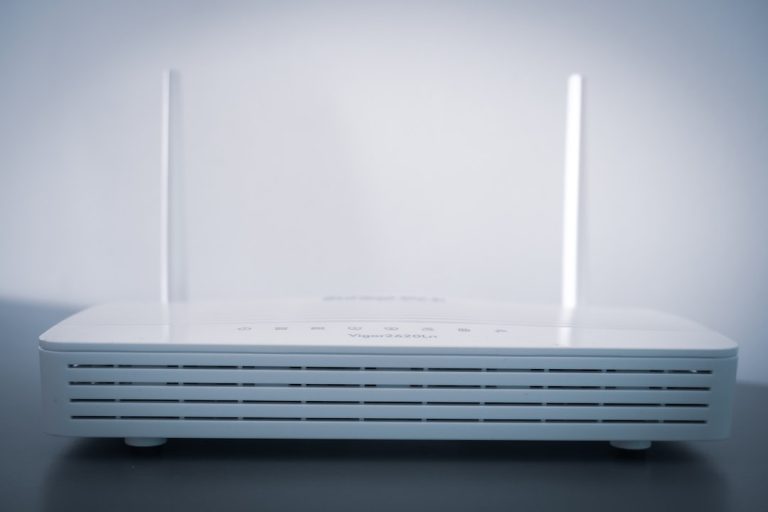
Upgrade Your Router
If your router is more than 4 years old, it almost certainly lacks features that meaningfully improve performance: Wi-Fi 6E support, proper 160 MHz channel width, OFDMA, BSS coloring, and multi-gig WAN/LAN ports. An outdated router can bottleneck a 500 Mbps connection even on a wired connection if its CPU can’t keep up with NAT processing.
For router recommendations that genuinely improve performance, see our best WiFi routers 2026 guide. Wi-Fi 6E routers are the current sweet spot — they support the 6 GHz band which is essentially interference-free in most neighborhoods.
Top-performing options include:
- TP-Link Archer BE800 — Wi-Fi 7 with excellent range
- ASUS RT-BE86U — High performance Wi-Fi 7, strong QoS
- Eero Max 7 — Easy mesh with 10 Gbps backhaul
Deploy a Mesh System in Multi-Story Homes
A single router, no matter how powerful, cannot reliably cover a multi-story home or a house with challenging layouts (thick concrete walls, long floor plans). Mesh systems solve this with satellite nodes that create a unified network with seamless roaming.
For homes over 2,500 sq ft, a mesh system typically delivers better real-world coverage than any single router. Our picks for best mesh WiFi system 2026 cover the options at every price point.
The key to mesh performance: use a wired Ethernet backhaul between nodes whenever possible. Wireless mesh backhaul cuts available bandwidth by 30–50%.
Run Ethernet Where It Matters Most
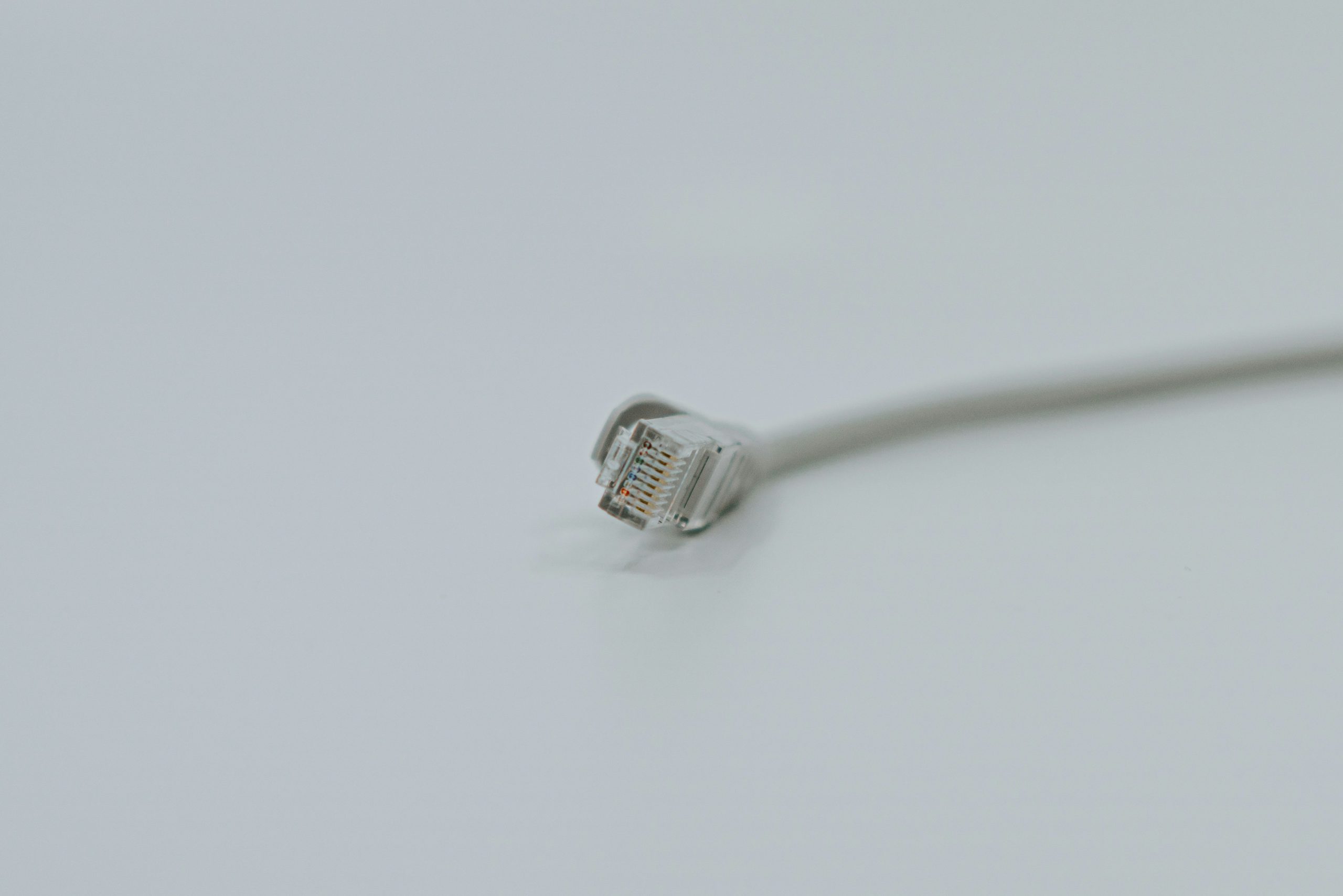
This is the single most impactful upgrade for devices that need reliable high bandwidth: run Ethernet cable. Gaming PCs, smart TVs, streaming devices, and work computers should be wired whenever possible. Wired Ethernet is faster, has lower latency, and is completely immune to the interference and congestion that affect Wi-Fi.
If you can’t run cable through walls, MoCA adapters use your existing coax cable (the same coax your cable TV used) to create a pseudo-wired backhaul. They deliver 1–2.5 Gbps speeds with low latency. Our home network wiring guide covers both full Ethernet installation and MoCA as an alternative.
Upgrade to a Managed Switch
If you have multiple wired devices, a managed switch enables VLANs, link aggregation (bonding two ports together for double bandwidth), and traffic monitoring. A quality PoE managed switch powers your access points and IP cameras over Ethernet while providing network management capabilities.
Optimizing for Specific Use Cases
Different activities have different network requirements:
4K Streaming: Needs ~25 Mbps sustained per stream, but is buffered — brief drops are absorbed. Prioritize low congestion over raw speed.
Cloud Gaming: Needs low latency (under 30ms) and consistent bandwidth (15–25 Mbps). Latency matters more than peak speed. A wired connection is strongly preferred.
Video Conferencing: Needs 3–8 Mbps upload per concurrent call plus headroom. Upload speed bottlenecks show up here first.
Home Automation: Low bandwidth but benefits from low latency for responsive control. Keep IoT devices on a separate VLAN to prevent them from competing with high-priority traffic.
NAS/Local Backup: If you’re running a NAS for local backups, connect both the NAS and your computers via wired Ethernet with a gigabit switch. Wireless backup over Wi-Fi is dramatically slower.
Advanced Optimization: DNS, MTU, and Bufferbloat
For technically inclined users, three more optimizations improve perceived network speed:
Fast DNS resolver: Your ISP’s DNS is often slow. Switching to Cloudflare’s 1.1.1.1 or Google’s 8.8.8.8 reduces DNS resolution time from 50–100ms to under 10ms. Set this in your router so all devices benefit. It’s the easiest speed improvement in networking — takes two minutes and your ISP would prefer you didn’t know about it.
MTU optimization: The default MTU (Maximum Transmission Unit) of 1500 bytes may be too large for some connections, causing fragmentation and speed loss. Running an MTU test (available via most router admin interfaces) and setting the optimal value can improve performance on fiber and some cable connections.
Bufferbloat mitigation: Bufferbloat causes high latency under load — you’ve seen it when someone starts streaming and your gaming latency spikes. Enable SQM (Smart Queue Management) or FQ-Codel if your router supports it. Waveform’s Bufferbloat Test measures your current situation. Routers running OpenWRT or pfSense have excellent bufferbloat mitigation built in.
Frequently Asked Questions
Why is my internet slow even though I’m paying for gigabit service?
Most commonly: your Wi-Fi hardware can’t deliver gigabit wirelessly, you’re on a congested channel, your router is underpowered, or a device is consuming bandwidth. Start by testing over wired Ethernet at the router to isolate whether the issue is the connection or your in-home network.
Does a more expensive router always mean faster internet?
Not necessarily faster at the ISP level, but yes for in-home performance. A better router handles more simultaneous connections without degradation, delivers better Wi-Fi range and reliability, and has features like QoS and OFDMA that improve real-world performance under load.
How do I know which device is slowing down my network?
Log into your router’s admin interface and look for bandwidth usage by device. Most modern routers (and all routers running pfSense, OPNsense, or Merlin firmware) show real-time bandwidth by device. A device transferring 50+ Mbps in the background is your culprit.
Should I upgrade to Wi-Fi 7 in 2026?
If you’re buying a new router anyway, yes — Wi-Fi 7 (802.11be) hardware is available at reasonable prices and provides a foundation for the next decade. If your current Wi-Fi 6 router is working well, there’s no urgent reason to upgrade yet. Client devices with Wi-Fi 7 are still relatively rare.
When to Call Your ISP vs. Fix It Yourself
After working through all the above steps, you’ll know exactly where your bottleneck lies. But occasionally the problem really is the ISP side. Signs it’s your ISP’s problem, not yours:
- Speed test at the modem/ONT is consistently lower than your plan speed (not occasionally, but routinely)
- You see the correct speed at peak times but degraded speeds during evenings (network congestion on the ISP’s infrastructure)
- Packet loss appears at the first hop beyond your modem (visible in traceroute output)
- Your neighbor on the same ISP and plan is reporting the same issue
When you call your ISP with proof — a screenshot of a speed test showing 200 Mbps on a gigabit plan at the modem level, with the date and time — you’re in a much stronger position than calling and saying “my internet is slow.” Document your tests, capture the results, and escalate if a first-tier agent says everything looks fine on their end when your test results clearly show otherwise.
For complex networking beyond what consumer routers handle, see our pfSense vs OPNsense guide for firewall options that provide much deeper diagnostics, per-device bandwidth graphs, and advanced troubleshooting tools. These tools are particularly useful when you’ve worked through every step of how to improve home network speed 2026 and still can’t identify the problem.
How much does running Ethernet cable improve speeds compared to Wi-Fi?
In the best case (good Wi-Fi signal, no interference), wired Ethernet delivers 2–3x better throughput and 5–10x lower latency. In a challenging environment (congested channels, thick walls, distance), wired can deliver 10–20x better performance. The improvement is most noticeable for activities that saturate the connection.