How to Set Up a Secure Home Firewall Gateway
With cyber threats becoming more sophisticated and consumer devices increasingly connected to the internet, building a dedicated home firewall gateway is the best way to secure your private network. Standard ISP-provided routers offer minimal security controls, leaving your smart home devices, personal computers, and local storage servers vulnerable to external exploits. Setting up an open-source firewall platform like OPNsense or pfSense on dedicated hardware gives you total visibility and granular control over every packet entering and leaving your house.
Whether you are trying to isolate untrusted smart devices into distinct Virtual Local Area Networks (VLANs), block annoying advertisements at the network level, or configure a secure Virtual Private Network (VPN) for remote access, a custom router is the ultimate tool. While configuring such a system might seem daunting, modern open-source distributions provide polished web interfaces that guide you through initial deployment and ongoing maintenance. This guide covers how to select the right hardware, install the software, configure security policies, and manage your new home firewall gateway like a professional.
Why Deploy a Dedicated Firewall at Home
Using a dedicated home firewall gateway instead of a consumer-grade router provides massive benefits in terms of security, performance, and flexibility. Consumer routers are often built on low-powered processors with limited memory, which limits their ability to process complex security rules or maintain stable performance under heavy load. A dedicated firewall runs on standard x86 processors, providing enough computing power to perform deep packet inspection, run intrusion detection systems (IDS), and manage encrypted VPN tunnels at gigabit speeds without breaking a sweat.
Security is the primary advantage of this upgrade. A standard router typically uses simple Network Address Translation (NAT) and a basic stateful packet inspection firewall to block unsolicited incoming traffic. However, it does not analyze outgoing traffic or monitor communications between different internal devices. By configuring a custom home firewall gateway on your network perimeter, you can build explicit firewalls rules that restrict smart bulbs or security cameras from accessing your private computers or NAS. This is a foundational step in hardening your home, and you can learn about additional safeguards in our guide on cybersecurity best practices for your home network.
Furthermore, open-source firewall distributions allow you to integrate advanced packages directly into your gateway. You can run network-wide ad blockers (like Unbound DNSBL), configure intrusion prevention systems (like Suricata), and establish secure remote access tunnels via WireGuard. This level of customization allows you to adapt your security perimeter as your home network grows. To monitor the health and performance of your new setup, pairing your gateway with the best home network monitoring tools will give you real-time visibility into bandwidth usage and device activity.
Before beginning the installation process, selecting the proper hardware platform is critical to ensure stability and long-term reliability.
Key Hardware Requirements for a Home Firewall Gateway
A reliable home firewall gateway requires specialized hardware designed for continuous operation and low power consumption. Unlike a standard desktop tower, a firewall appliance should be compact, silent, and feature multiple physical network ports. Here are the top hardware platforms optimized for running OPNsense or pfSense in 2026:
Protectli Vault FW4B (4-Port Intel Firewall Appliance)
💰 Buy on Amazon → Protectli Vault FW4B
The Protectli Vault FW4B is one of the most reliable and trusted hardware platforms for building an independent home firewall. It is a compact, completely fanless micro-appliance housed in a heavy-duty aluminum chassis that acts as a giant heatsink, keeping the internal components cool and operating silently.
The FW4B features an Intel Celeron J3160 quad-core processor and is equipped with four physical Intel Gigabit NIC ports. Intel network cards are highly recommended for open-source firewall platforms because their drivers are extremely stable, ensuring maximum throughput and minimal CPU overhead compared to cheaper Realtek alternatives.
Inside, the vault supports up to 8GB of DDR3L RAM and has an mSATA slot for local storage. This hardware is more than capable of routing traffic at full gigabit speeds while running stateful packet filtering, DNS-based ad blocking, and multiple local DHCP scopes. It is the perfect hardware choice for standard homes and small office networks. Learn more about operating systems compatibility on the pfSense official site.
CWWK Firewall Mini PC N6005 (4-Port 2.5G Firewall Appliance)
💰 Buy on Amazon → CWWK Firewall Mini PC N6005
For those with high-speed multi-gigabit internet connections or those looking to future-proof their local network, the CWWK Firewall Mini PC N6005 is a high-performance powerhouse. This fanless metal appliance is powered by an Intel Pentium Silver N6005 quad-core processor, providing a significant boost in computing power for advanced security tasks.
The standout feature of this CWWK appliance is its four physical Intel i226-V 2.5Gbps Ethernet ports. These multi-gigabit ports allow you to route ultra-high-speed internet traffic and establish ultra-fast connections to your main switches and servers. The N6005 processor easily handles heavy traffic loads, allowing you to run intensive intrusion prevention systems (like Suricata) and multiple WireGuard VPN tunnels simultaneously without bottlenecking your connection speeds.
With support for NVMe SSD storage and up to 64GB of DDR4 RAM, this appliance can easily double as a virtualization host or run multiple network services alongside your primary router. For hardware details and software packages, check out the OPNsense official site.
Step-by-Step Installation and Configuration Guide
Deploying a custom home firewall gateway involves downloading the software, preparing a bootable installer, and running through the initial setup wizard to establish basic internet connectivity.
- Step 1: Download and Flash the Image: Visit the official website of your chosen distribution (OPNsense or pfSense) and download the latest stable AMD64 image (typically the “vga” or “serial” installer type). Insert a blank USB flash drive into your computer and use a utility like Rufus or BalenaEtcher to flash the downloaded image onto the drive.
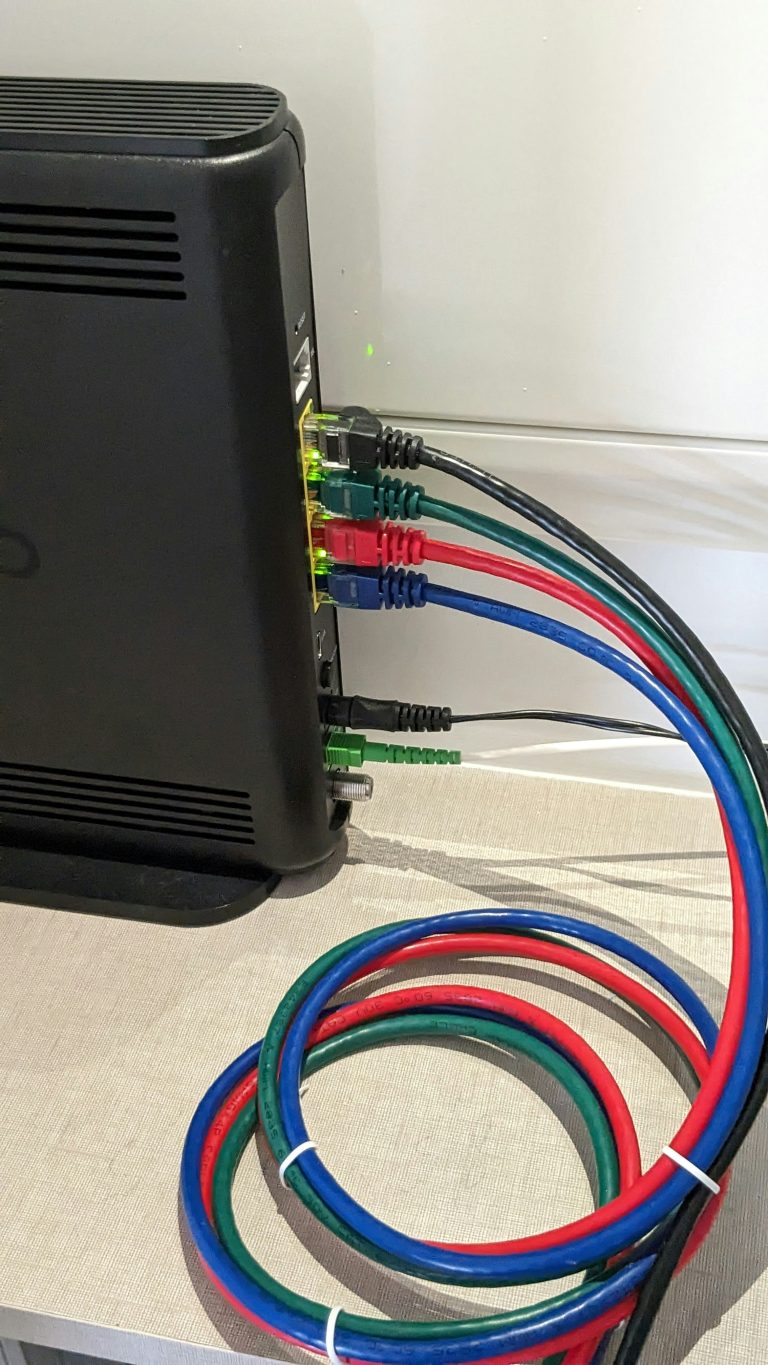
- Step 2: Connect the Hardware: Before booting the firewall appliance, identify the physical network ports. By convention, port 0 (labeled WAN) should connect directly to your ISP modem, and port 1 (labeled LAN) should connect to a laptop or a temporary unmanaged switch for configuration.
- Step 3: Boot the Appliance: Insert the flashed installer USB into the firewall hardware, connect a monitor and keyboard, and power on the device. Enter the BIOS screen (usually by pressing Delete or F2) and set the USB drive as the primary boot device. Save the settings and let the appliance boot into the installer environment. Follow the on-screen prompts to partition the local drive and install the OS.
- Step 4: Assign Network Interfaces: Once the installation finishes, remove the USB drive and reboot the appliance. During the initial console boot, the software will ask if you want to set up VLANs and assign interfaces. Select ‘No’ for VLANs initially, then assign the WAN interface to the physical port connected to your modem and the LAN interface to the physical port connected to your local network.
- Step 5: Run the Web Setup Wizard: Open a web browser on your connected laptop and type the default LAN IP address (typically
192.168.1.1) into the address bar. Log in using the default credentials (usually admin/opnsense or admin/pfsense). The web console will launch an initial setup wizard. Walk through the prompts to set your hostname, configure your timezone, set up WAN connection parameters (such as DHCP or PPPoE), and create a strong administrative password.
Once the wizard completes, reload the interface. Your home firewall gateway is now active, protecting your network, and routing traffic to the internet.
Crucial Security Settings for Your Gateway
To maximize the protection offered by your home firewall gateway, you should implement these essential security practices immediately after completing the basic installation:
- Isolate Your Smart Devices via VLANs: Create a separate VLAN interface for your Internet of Things (IoT) hardware. Configure rules that allow these devices to access the internet but block them from initiating any communication with your private LAN or storage servers. If you need help configuring wireless access for these segments, our tutorial on how to set up a guest wifi network provides a clear blueprint for network isolation.
- Implement DNS-Based Ad Blocking: Enable DNS-based ad blocking using the integrated Unbound DNS service. By loading common ad-tracking hostlists into your firewall’s local resolver, you can block advertisement servers, tracking scripts, and malicious domains before they ever reach your family’s phones or computers, reducing page load times and bandwidth usage.
- Disable Insecure External Management: Ensure that web management (HTTP/HTTPS) and command-line access (SSH) are strictly disabled on the WAN interface. You must never allow access to your firewall’s administration panels from the public internet. If you need to manage your network while away from home, set up a local WireGuard VPN server on the firewall instead.
- Configure GeoIP Blocking: Use the GeoIP blocking features in your firewall to block incoming traffic from countries where you have no business relationships. This simple step blocks a massive percentage of automated botnet scans and hacking attempts targeting your network’s public IP address.
- Enable Automated Configuration Backups: Firewalls can undergo hardware failures or corrupt configuration files during sudden power losses. Set up automated backups to a secure local server or an encrypted cloud bucket, ensuring you can restore your entire network layout in minutes if a disaster occurs.
Frequently Asked Questions
Can a home firewall gateway replace my ISP router’s wireless coverage?
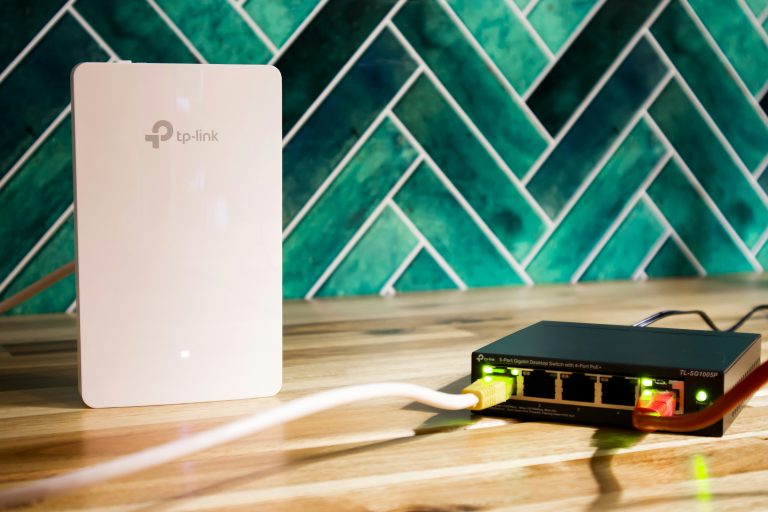
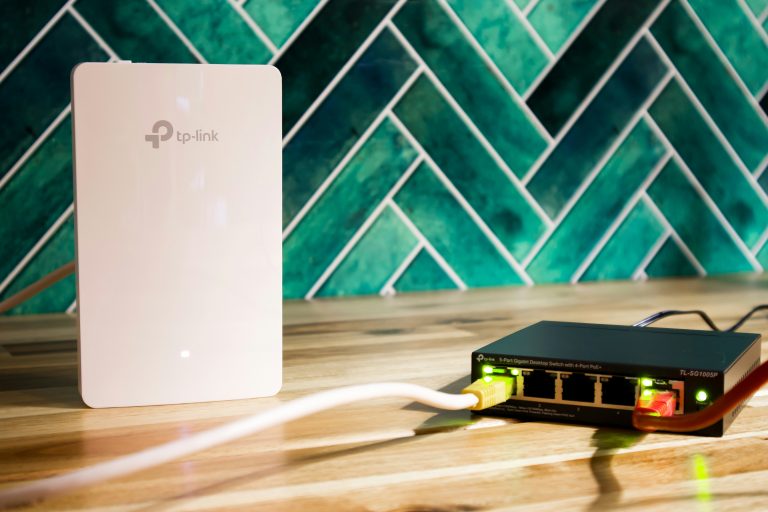
No, dedicated firewall appliances like Protectli do not have built-in wireless antennas. To provide wireless coverage across your home, you must connect a dedicated wireless access point (or a mesh system in AP mode) to your firewall’s LAN switch. This separation of routing and wireless functions is actually preferred because it allows you to upgrade your wireless standard (such as moving to WiFi 7) without needing to change your core router.
What is the difference between OPNsense and pfSense?
Both platforms are built on FreeBSD and offer highly professional firewall capabilities, but they differ in governance and interface design. pfSense is managed by Netgate and features a traditional, robust user interface. OPNsense was forked from pfSense to prioritize open-source transparency, modern web interfaces, and faster development cycles. Both platforms perform exceptionally well for home networks, and the choice often comes down to personal preference.
Will running a custom firewall slow down my internet connection?
No, as long as your hardware is sufficiently powerful. Basic Celeron-powered appliances can route full 1Gbps traffic at line speed without any performance degradation. However, if you enable intensive packages like Snort, Suricata, or run multiple VPN tunnels simultaneously, CPU utilization will increase. For multi-gigabit connections or advanced security monitoring, choosing a more powerful processor like the Pentium N6005 will prevent performance bottlenecks.
How do I access my local home server from the outside safely?
The safest way to access local servers is to configure a local WireGuard VPN server on your firewall. When you are away from home, you initiate an encrypted VPN connection from your laptop or phone. Once connected, your device behaves as if it is physically plugged into your home network, allowing secure access to local files without exposing your servers directly to the public internet via open port forwards.
Can I run a home firewall gateway on a virtual machine?
Yes, you can virtualize OPNsense or pfSense inside hypervisors like Proxmox VE or VMware ESXi. However, virtualizing your primary router means that if you need to reboot your virtualization host for updates, your entire home network goes offline. For maximum reliability, running your primary firewall on a dedicated physical appliance is highly recommended.
How do I troubleshoot firewall rules blocking my devices?
Both pfSense and OPNsense feature detailed, real-time firewall logs in their web interfaces. If a smart device or application is not working properly, open the live firewall log viewer and filter by the device’s local IP address. The viewer will show you precisely what packets are being blocked and which rule is responsible, allowing you to quickly create an override rule.
In summary, deploying a custom home firewall gateway secures your network from the ground up, giving you professional-grade security controls at home. For deeper insights into advanced network architecture and security practices, consulting resources like the Wikipedia Network Security guide or the Wikipedia Computer Security overview will expand your understanding of modern defense-in-depth strategies.
6 Comments
Comments are closed.